



Split Table Bill Items
4 Apr 2026 · 01:47 PM
0 views
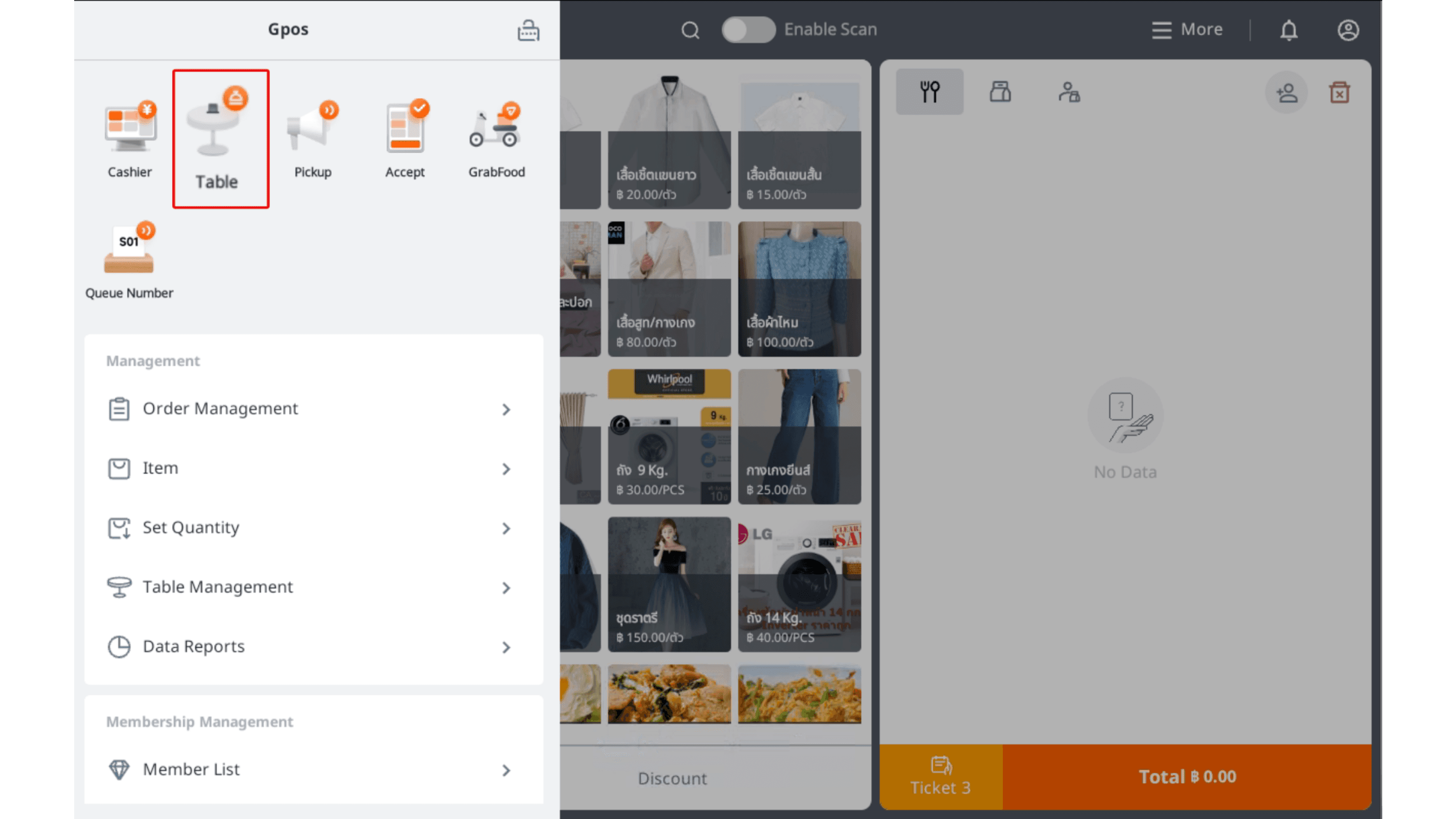
1.Click the square icon at the top left > Select a table
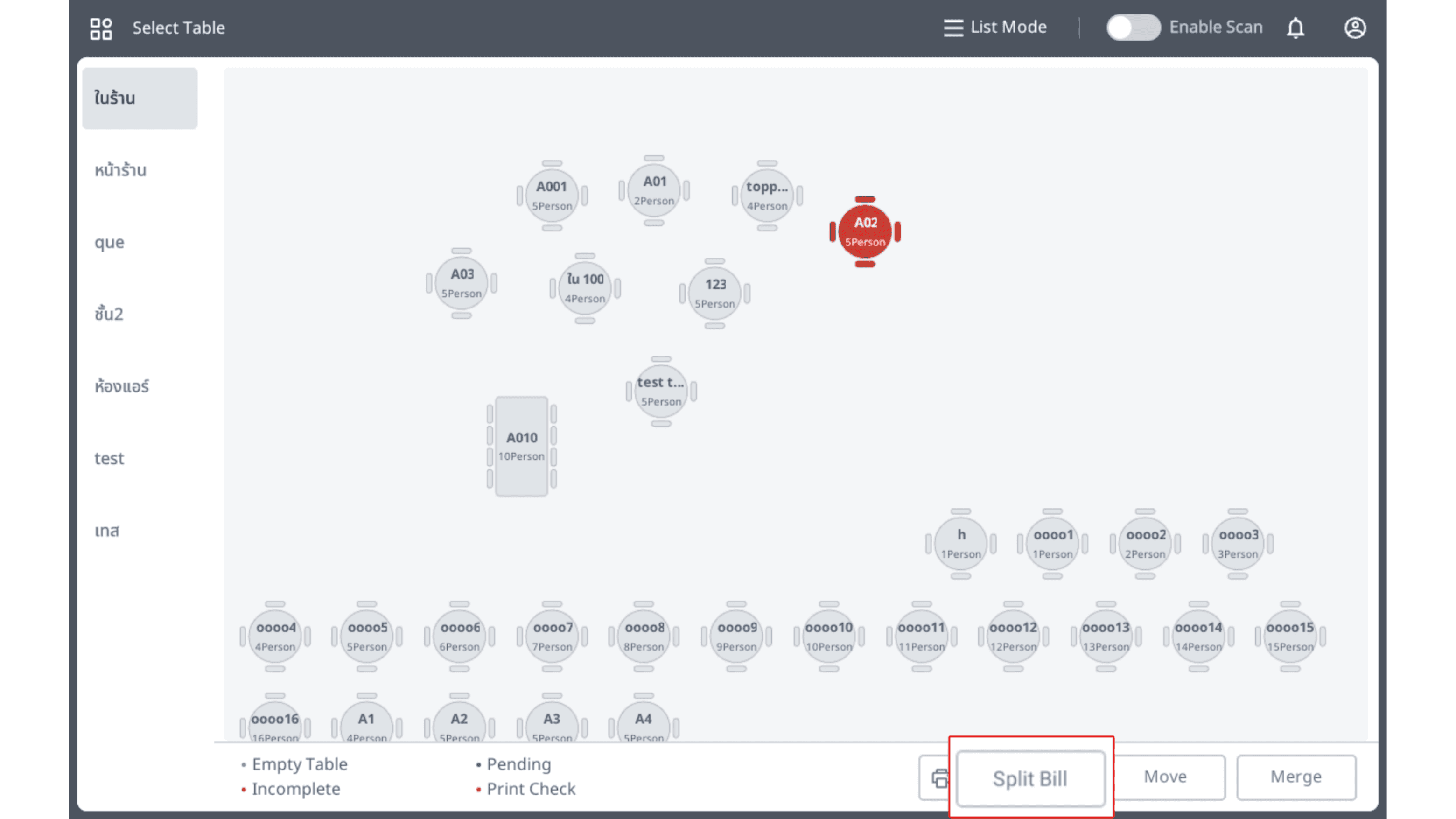
2.Click “Split Bill” at the bottom
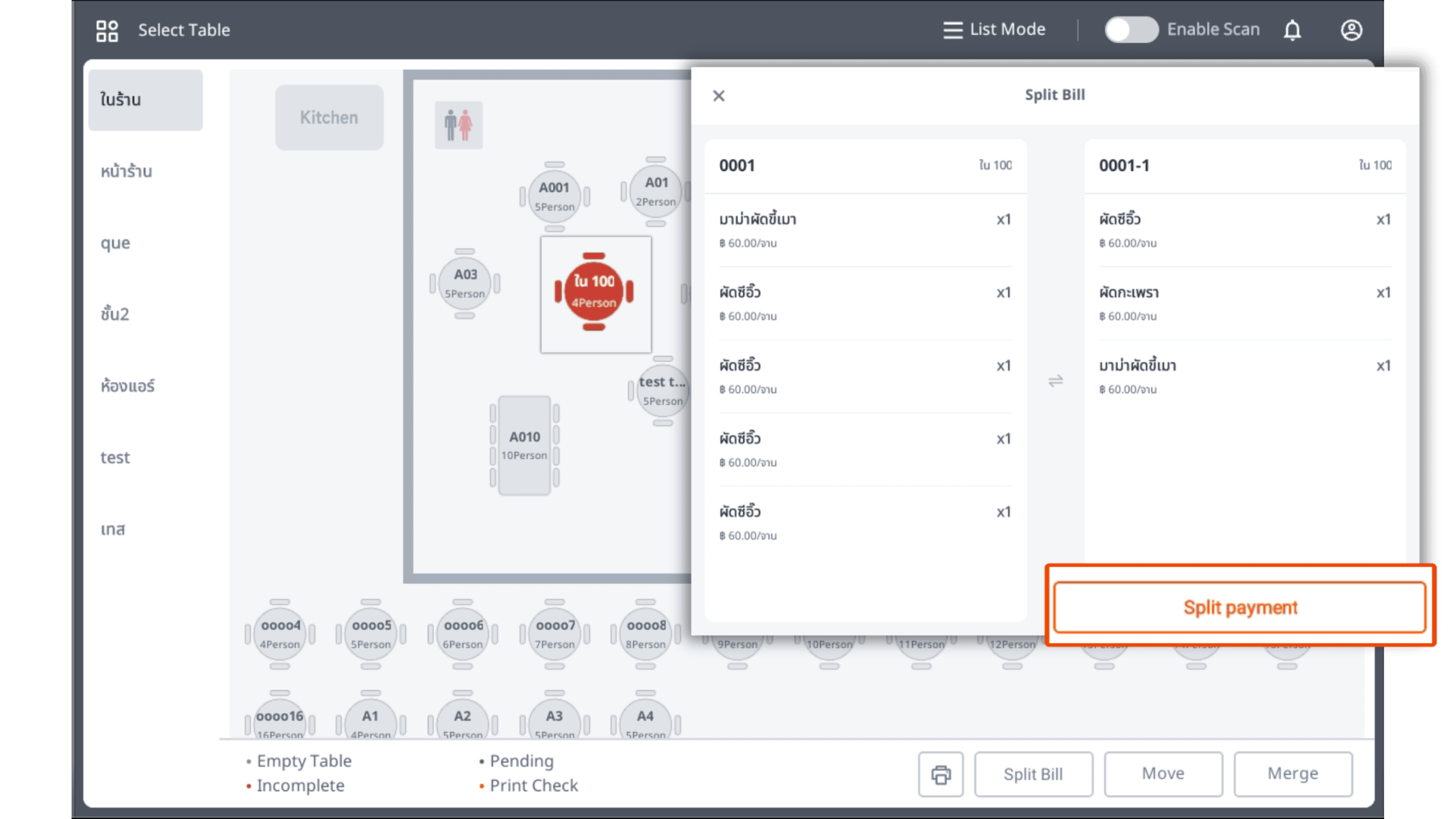
3.Click on a red table type, then select the items to split for payment. Once done, click “Split Payment.”
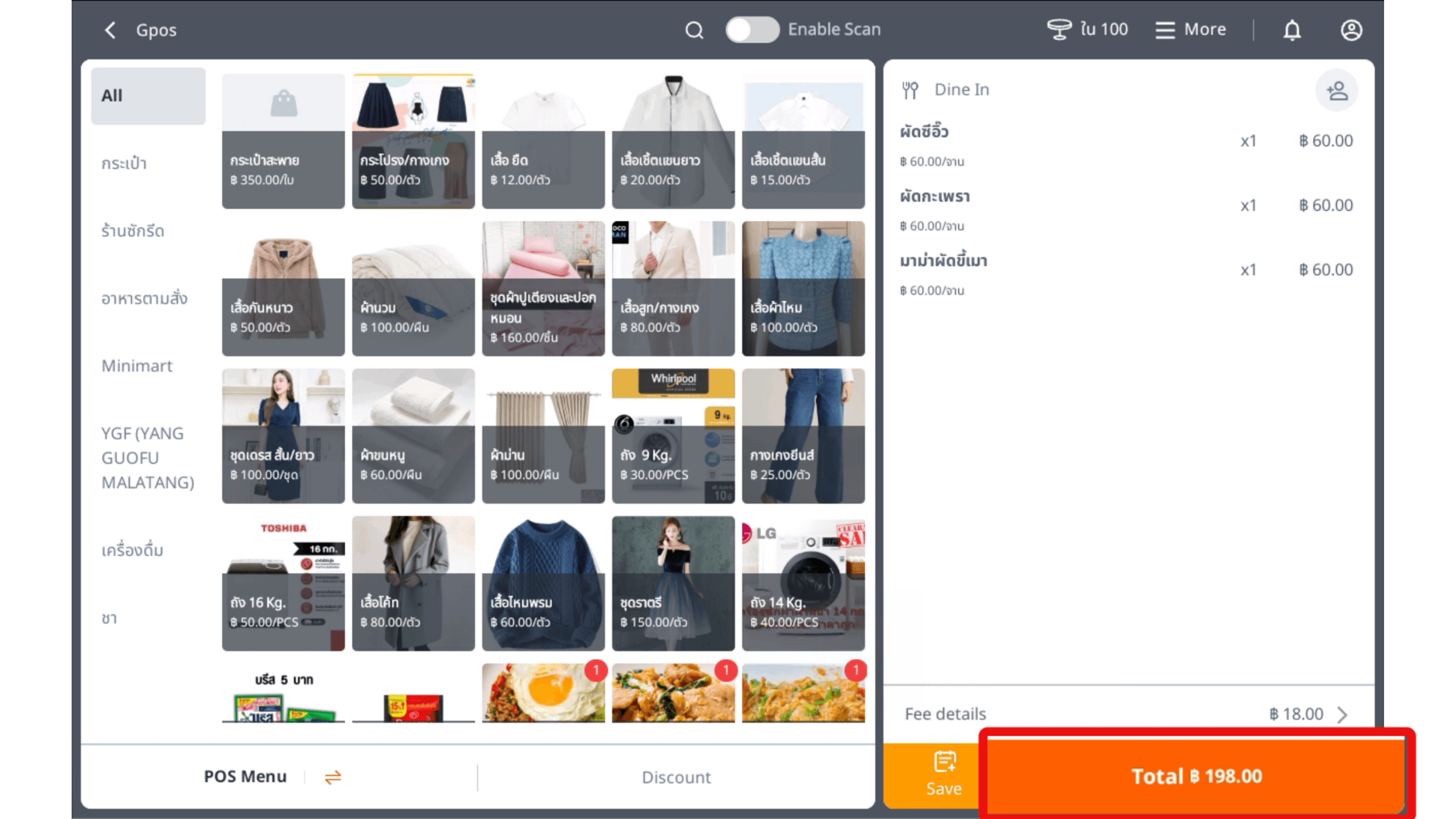
4.Click “Total” to go to the payment page.
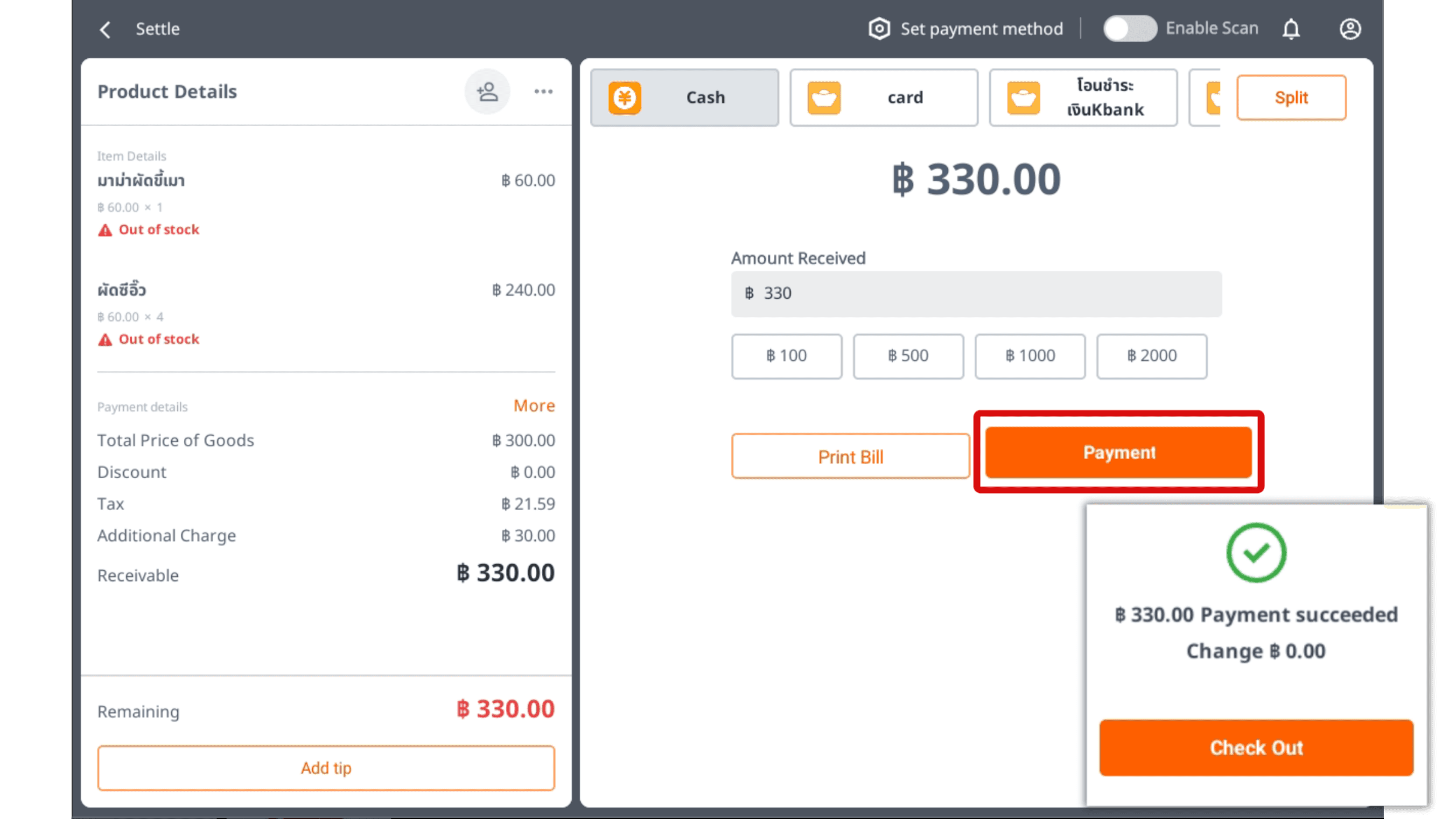
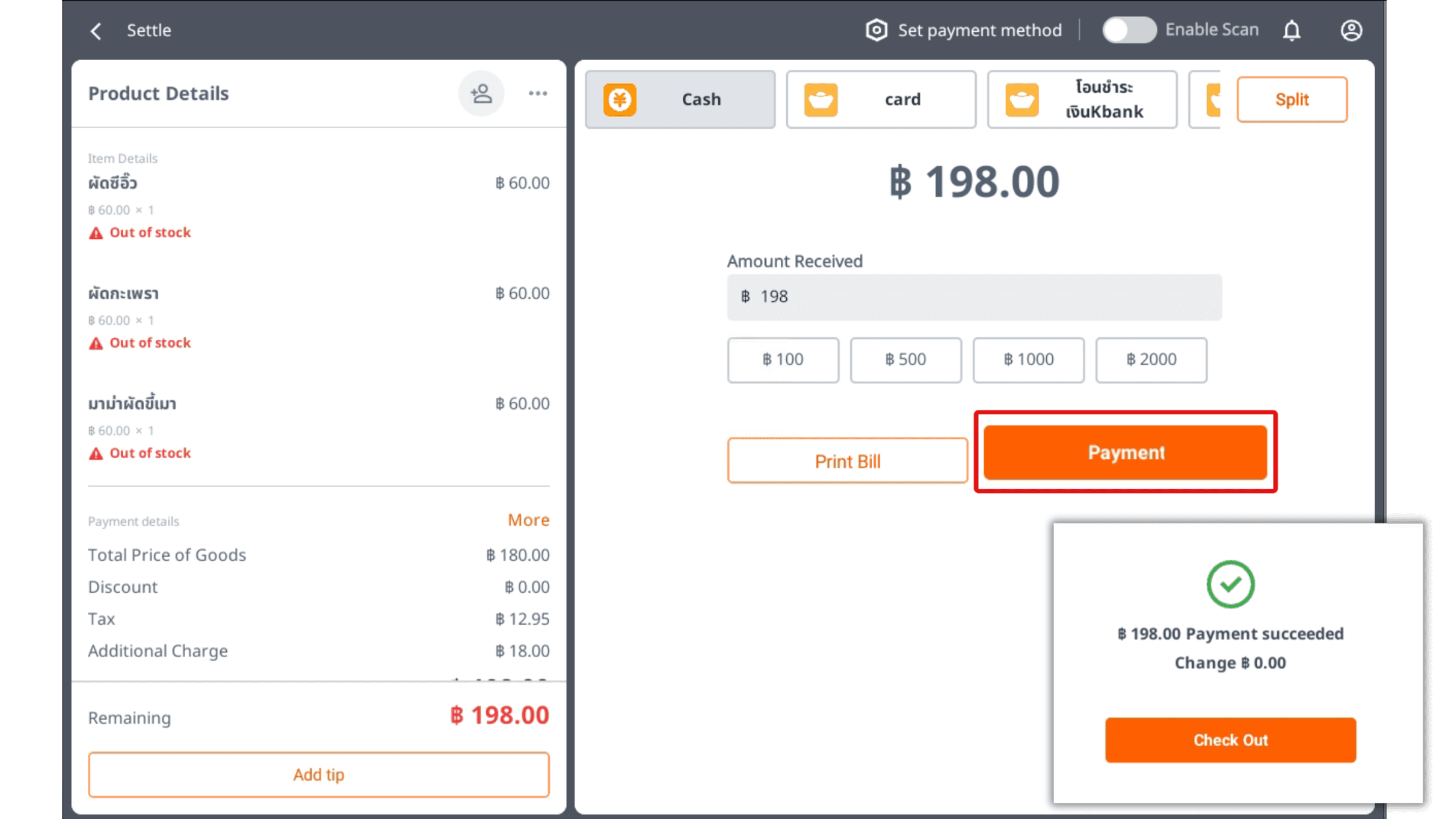
5.Press “Payment”, then tap “Check Out”
|The system will automatically return to the split items screen.
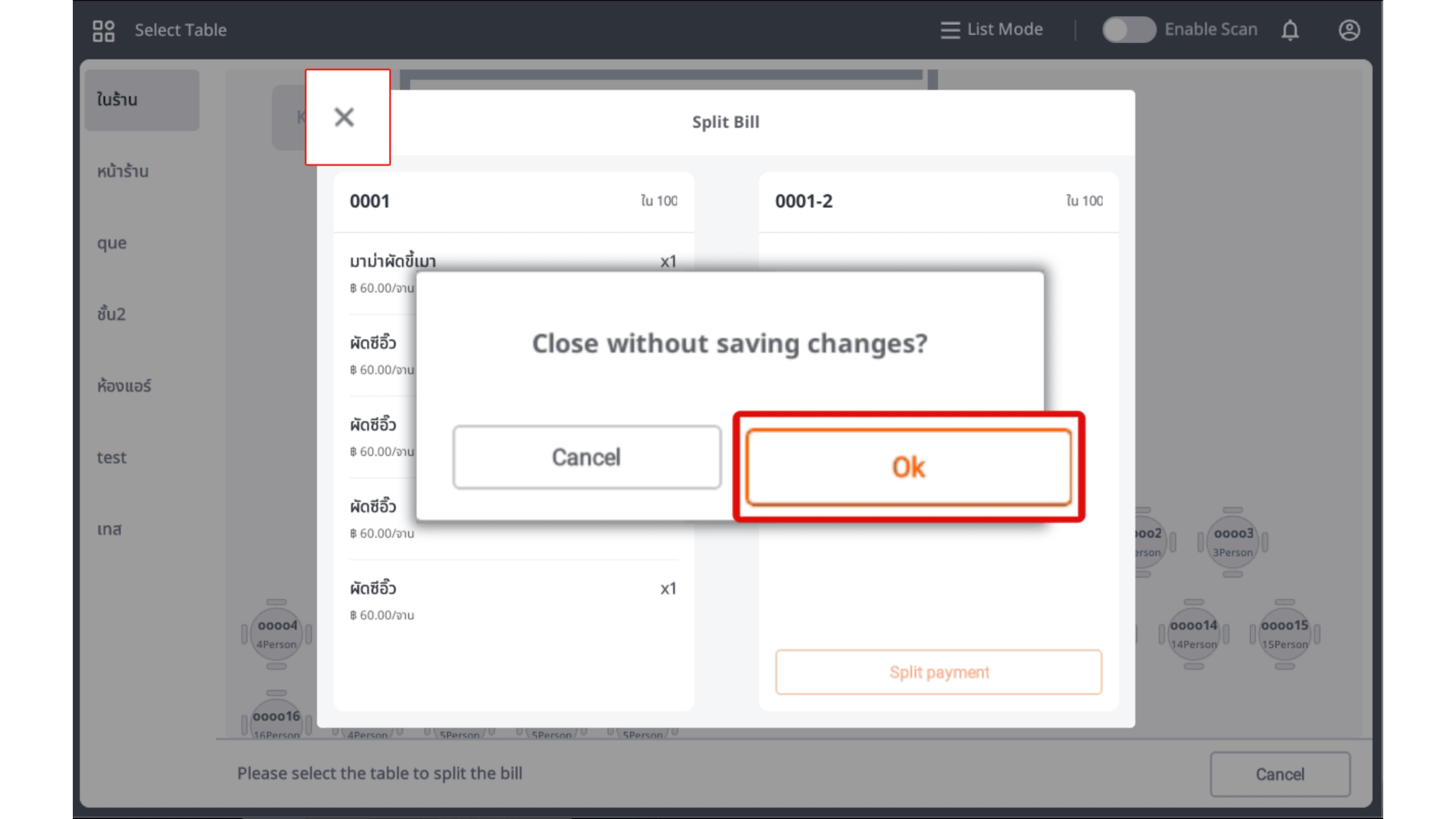
6.Then tap the “X” icon to remove it, and press “OK” again.
7.Click “Cancel” to proceed with payment for the remaining amount.
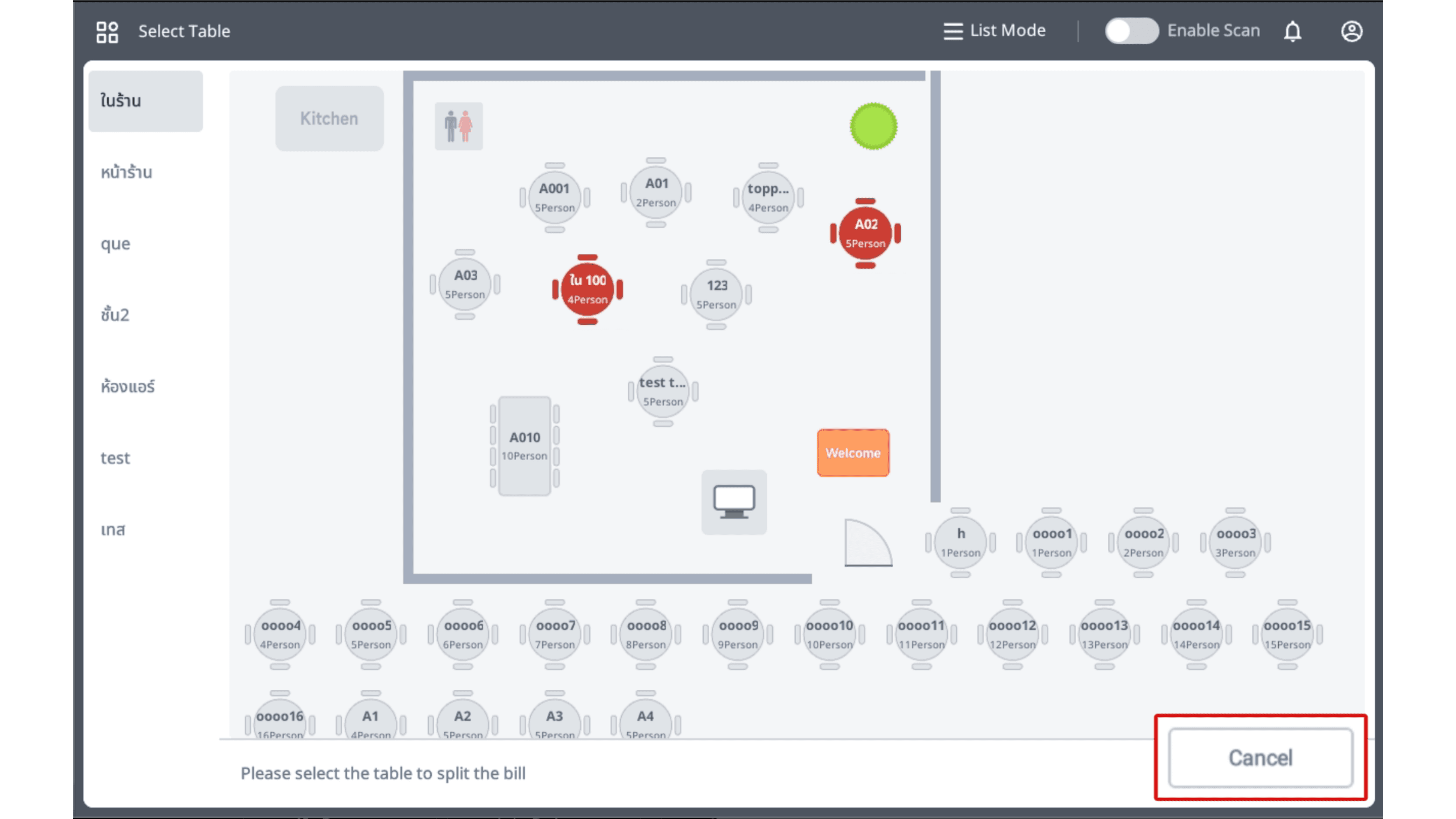
8.Then tap the table again to return to the main screen and proceed with payment.
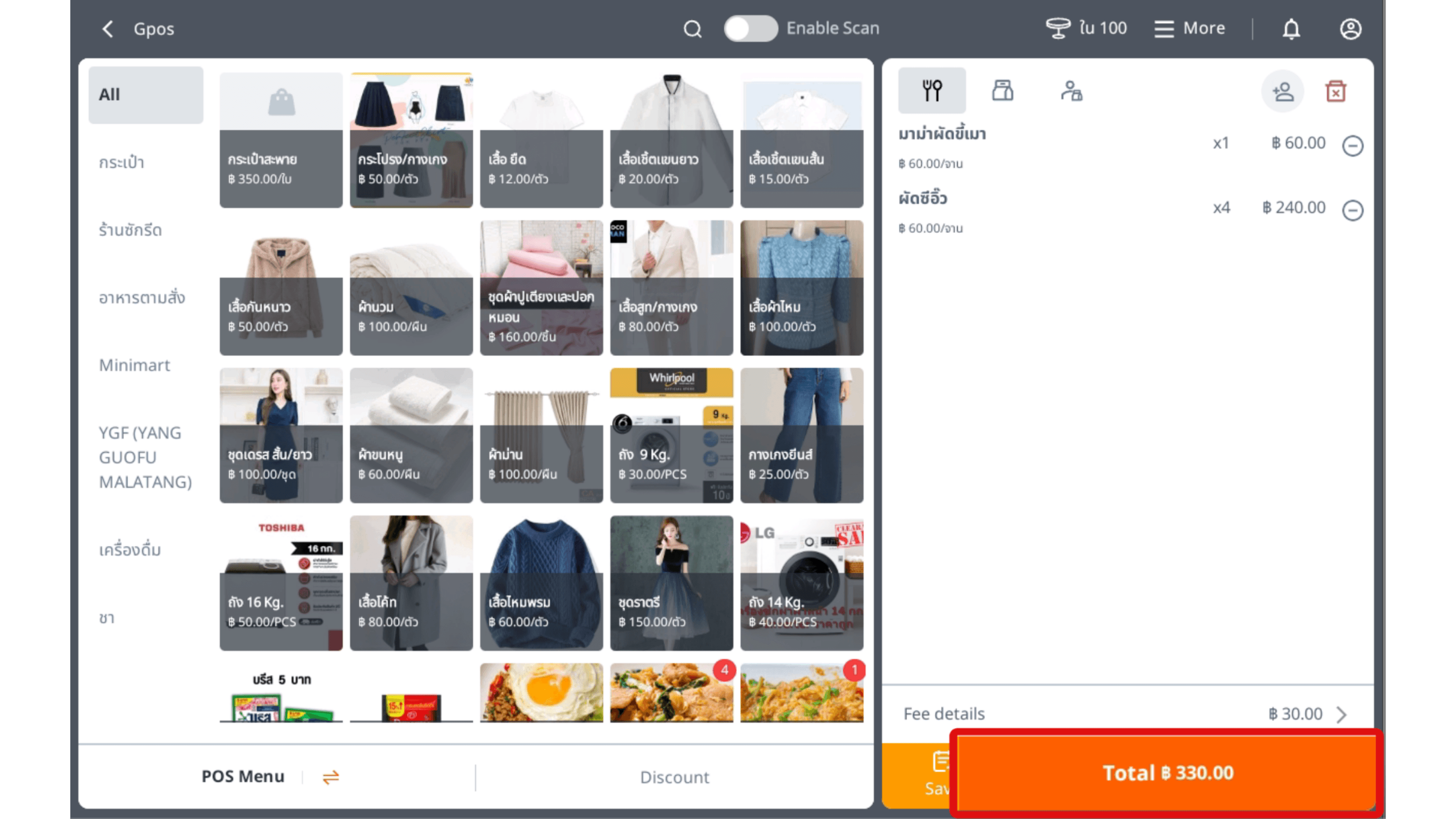
9.Press “Payment”, then tap “Check Out” to complete the payment successfully.