Managing the POS system through Manager App
1 May 2026 · 12:48 PM
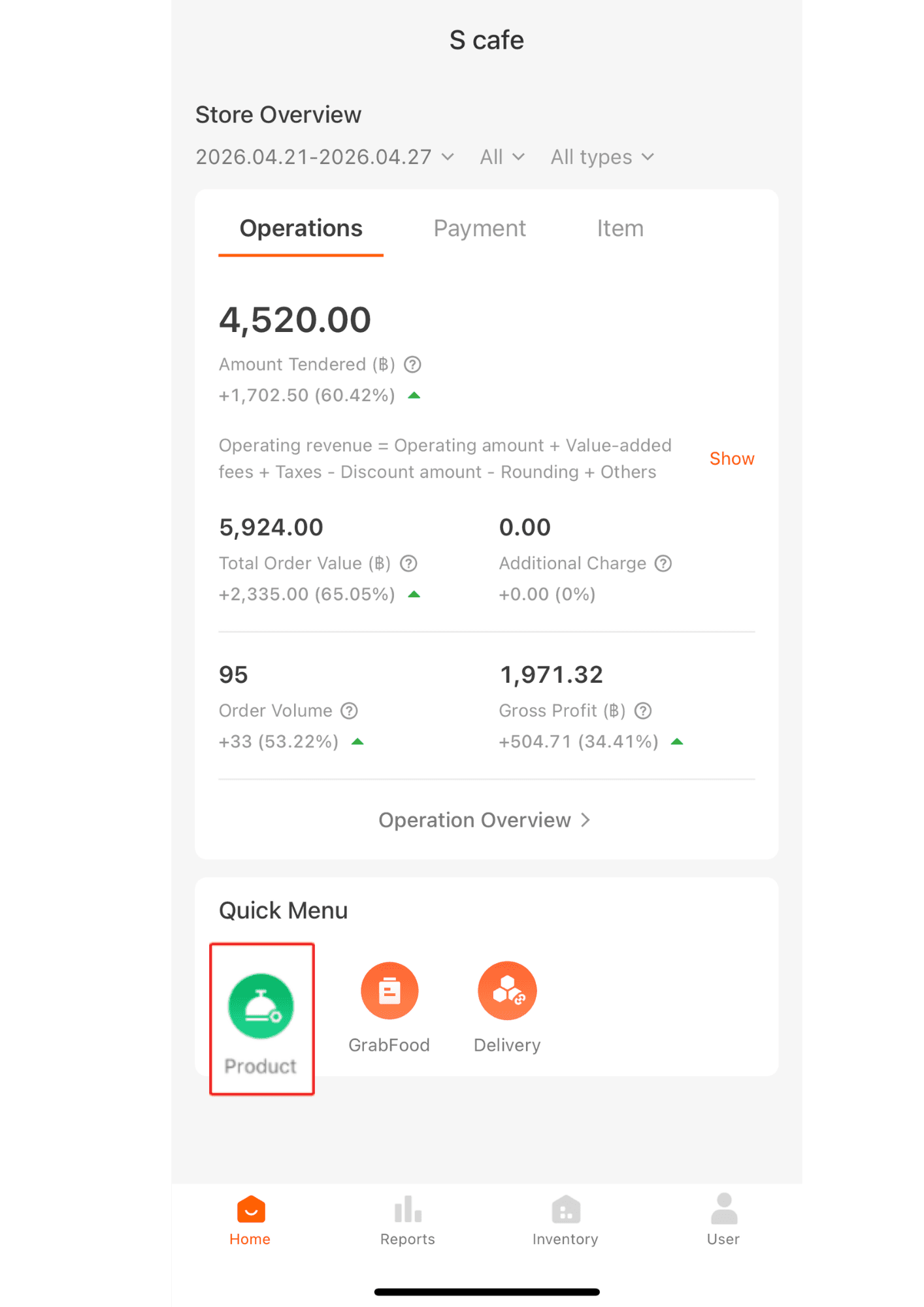
1. Click “Products.”
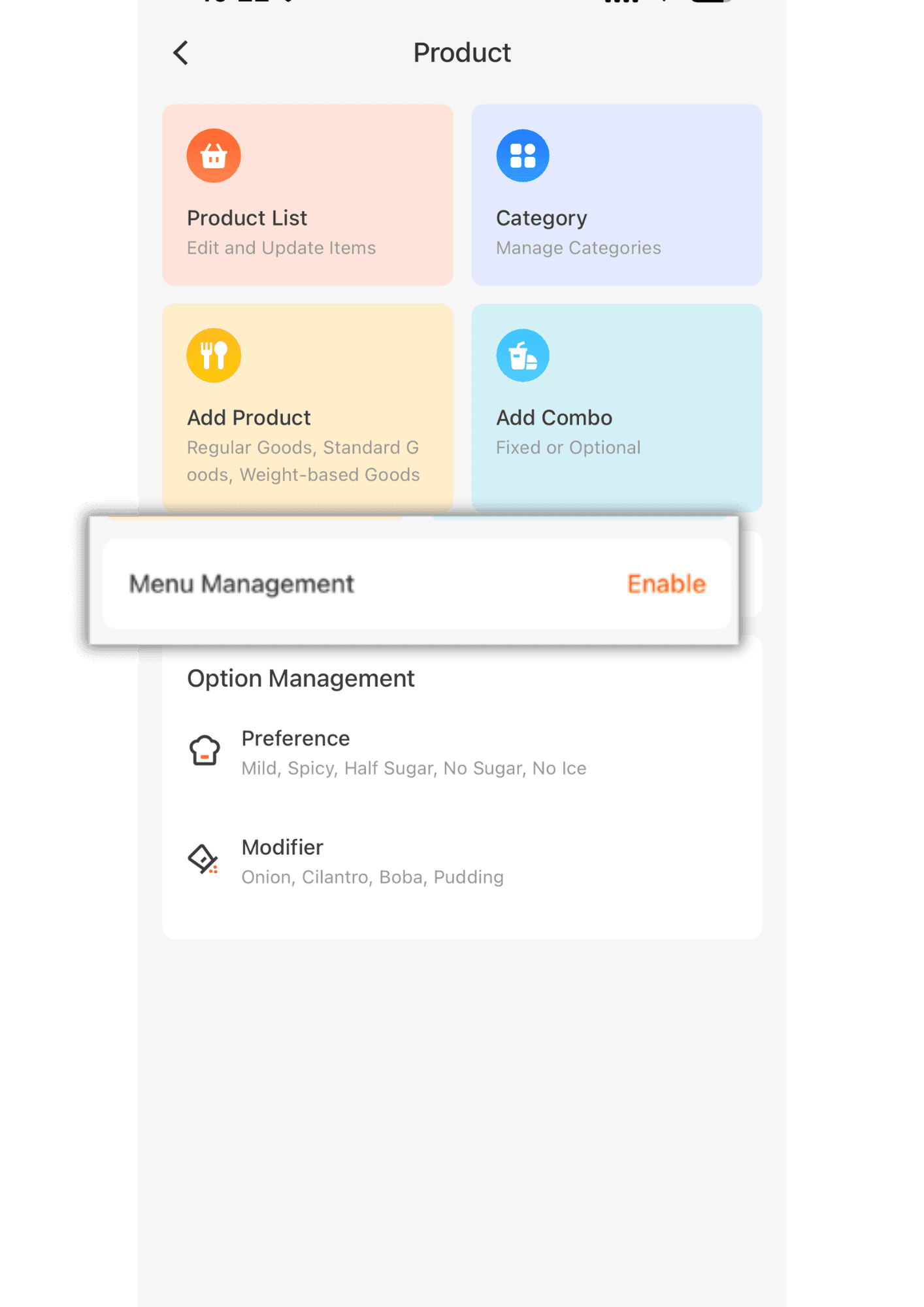
2. Select the items in the POS System / Scan System, then click “Enable.”
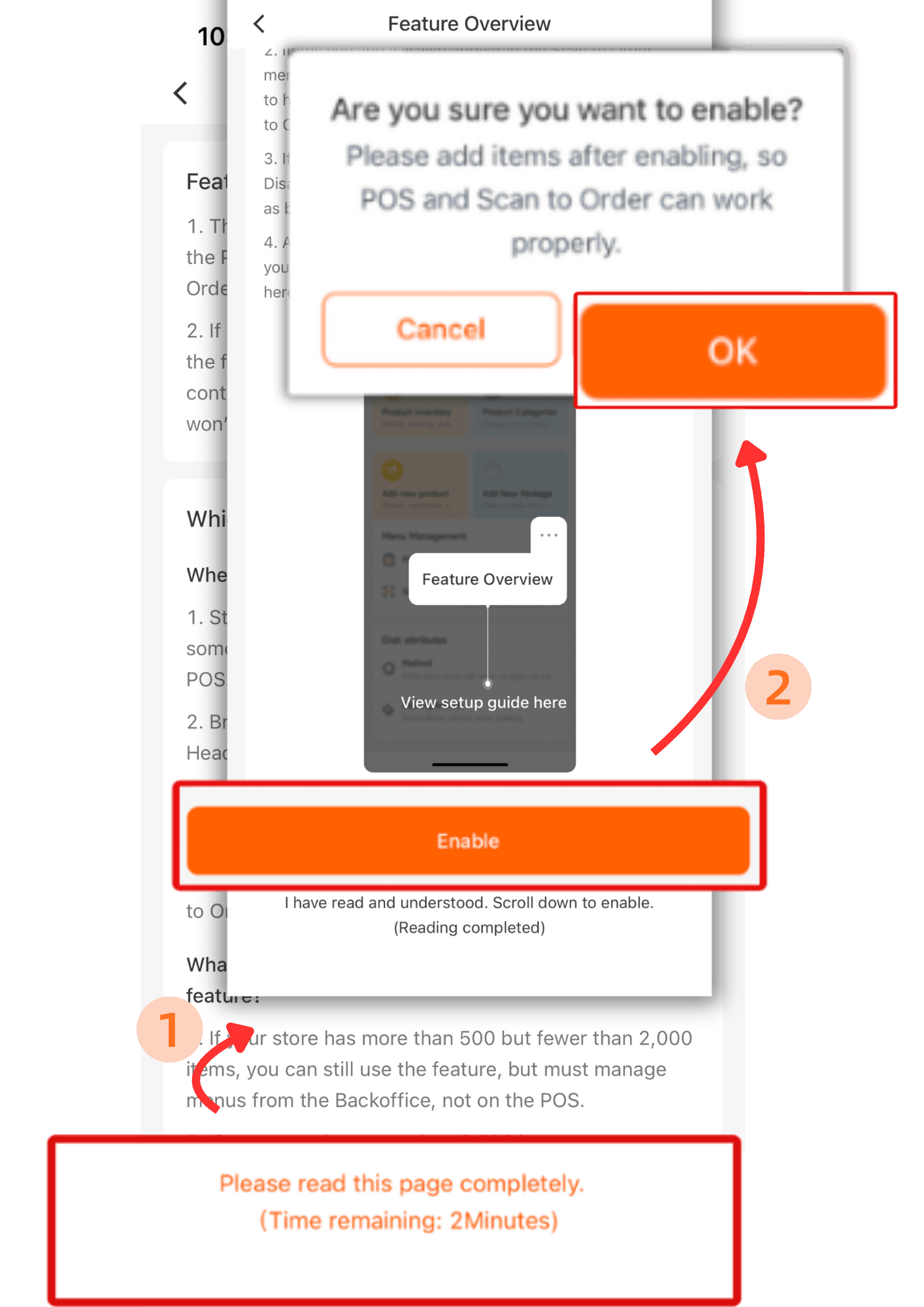
3.Please read the details on the first page carefully until the end. Then wait 2 minutes and click “Enable.”
After that, click “OK” again to verify activation.
4. Once it has been enabled, click “OK” again.
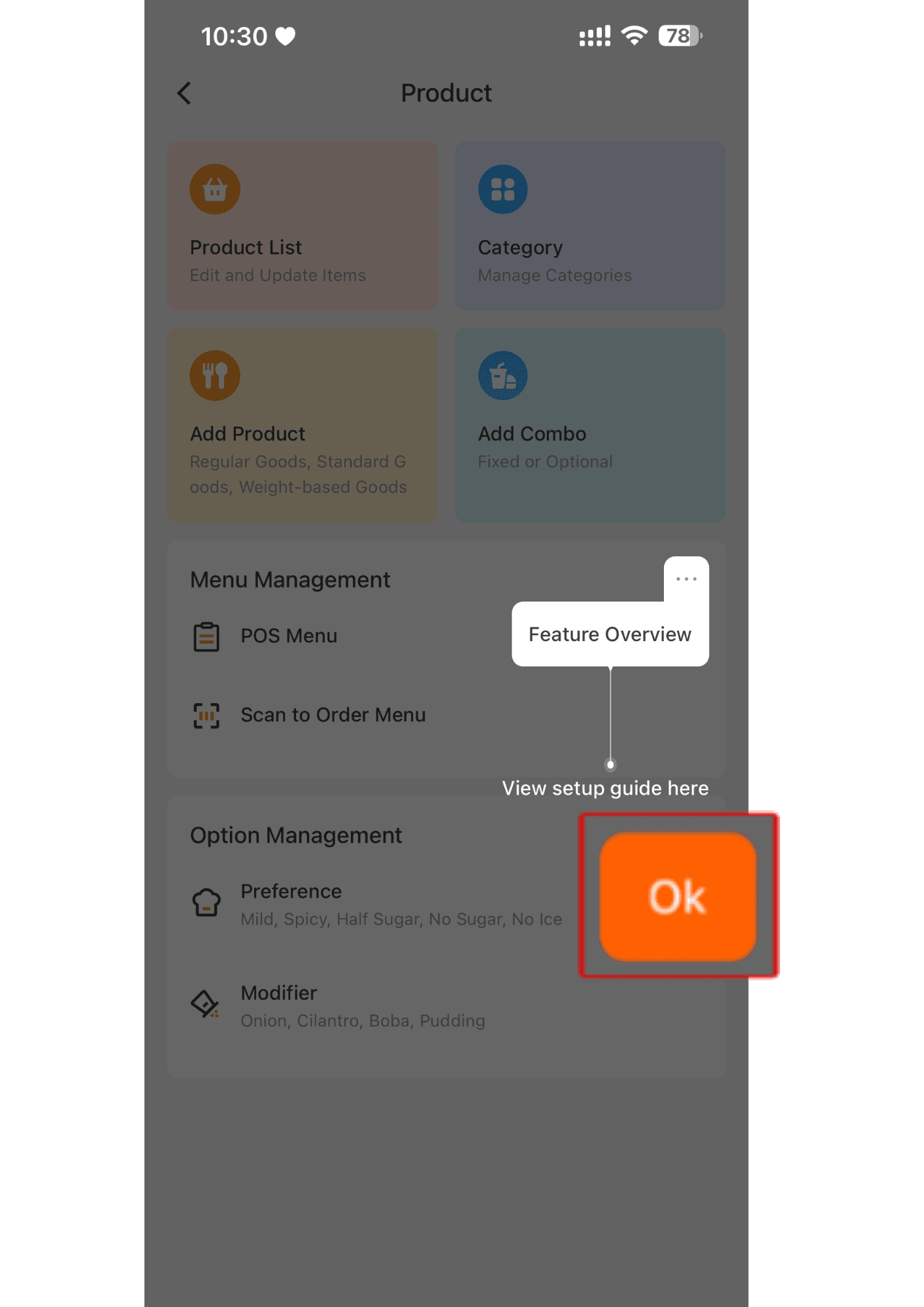
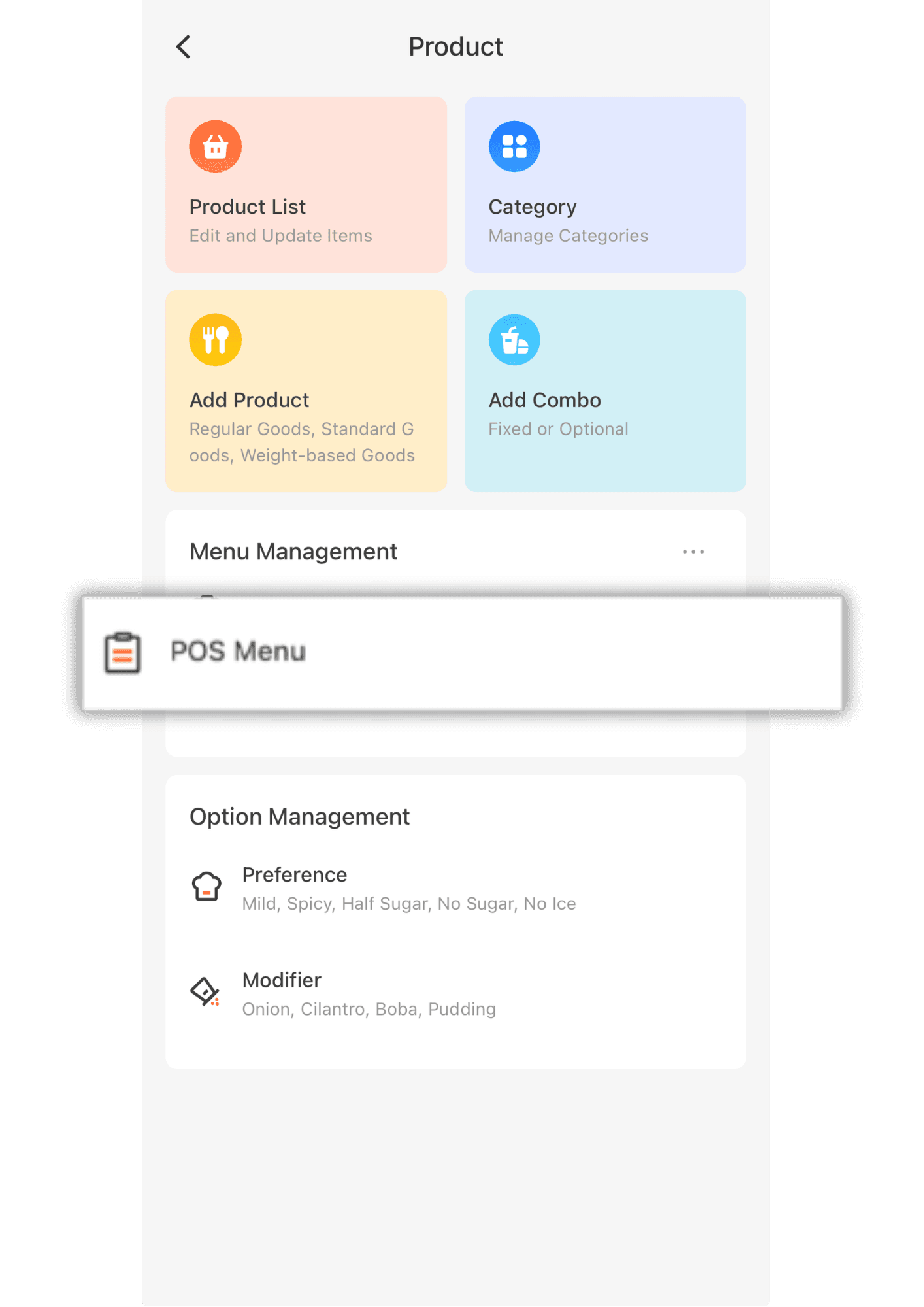
5. Click “POS Menu”
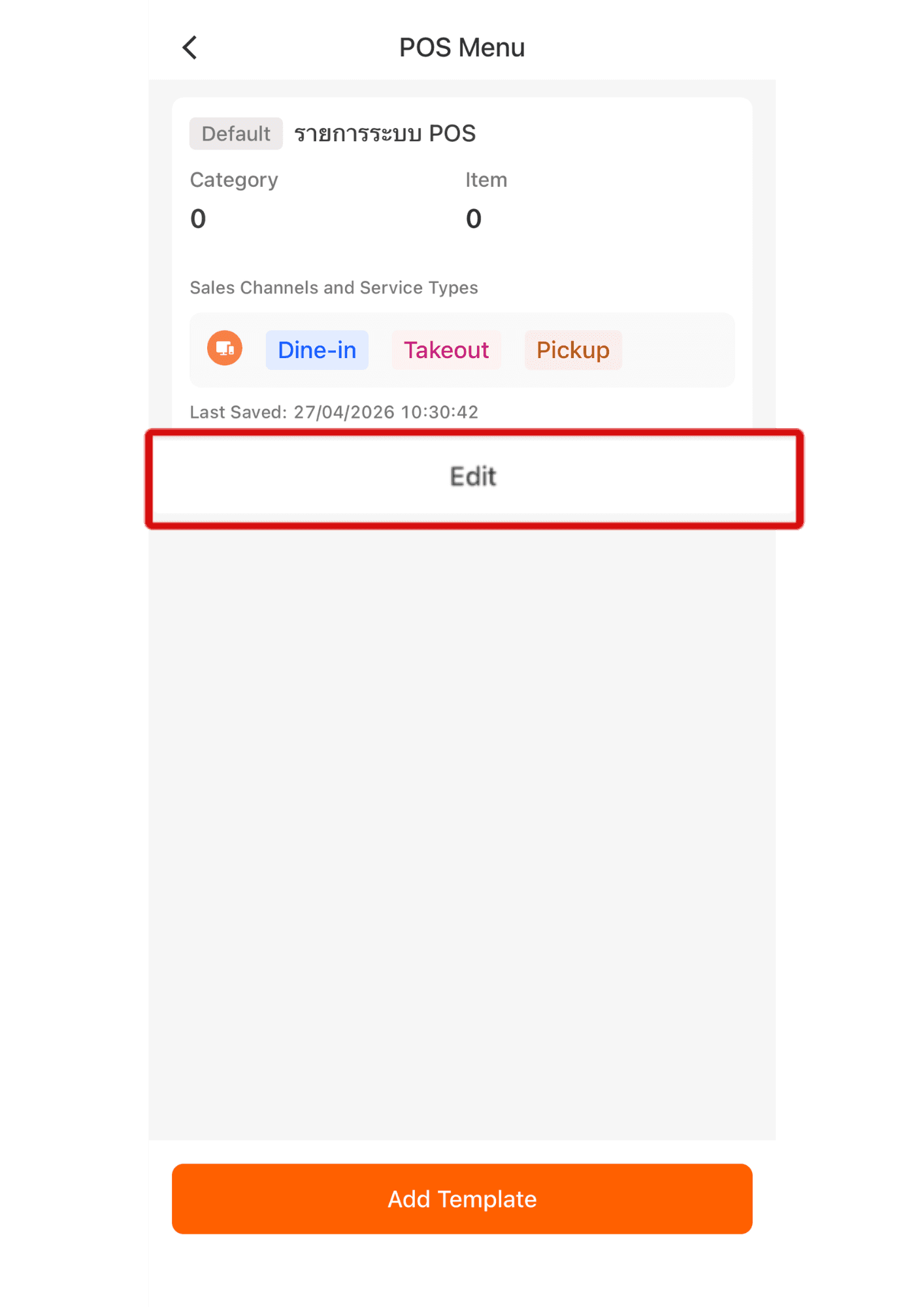
6. Click “Edit ” Template.
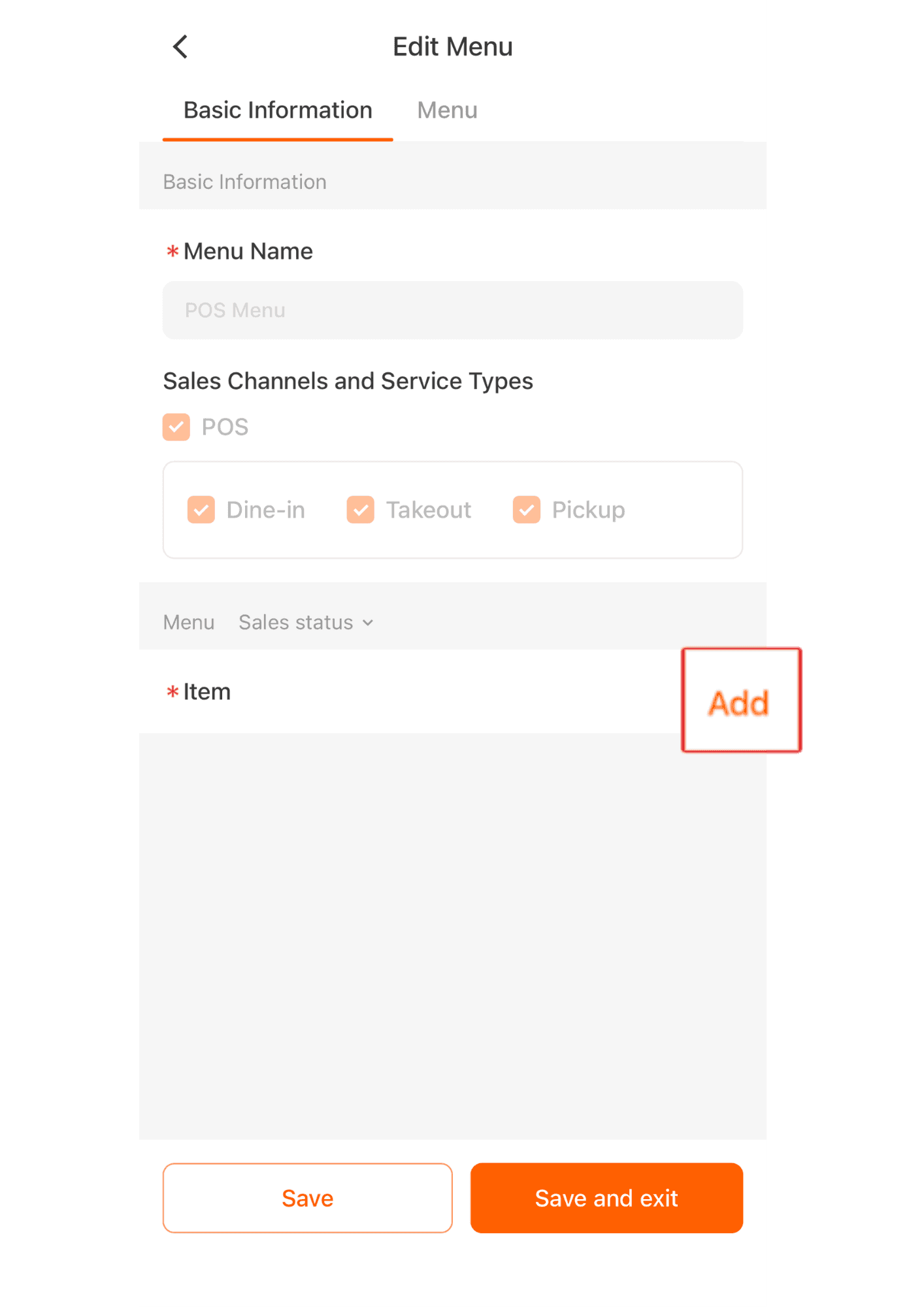
7. Tap “Add” to select the product items you want to display in the POS Menu and Scan Menu.
|Select all items first. For any items you do not want to show in the Scan System, you can adjust the settings later in the Scan System.
8. Select all the product items you need, then click “OK”
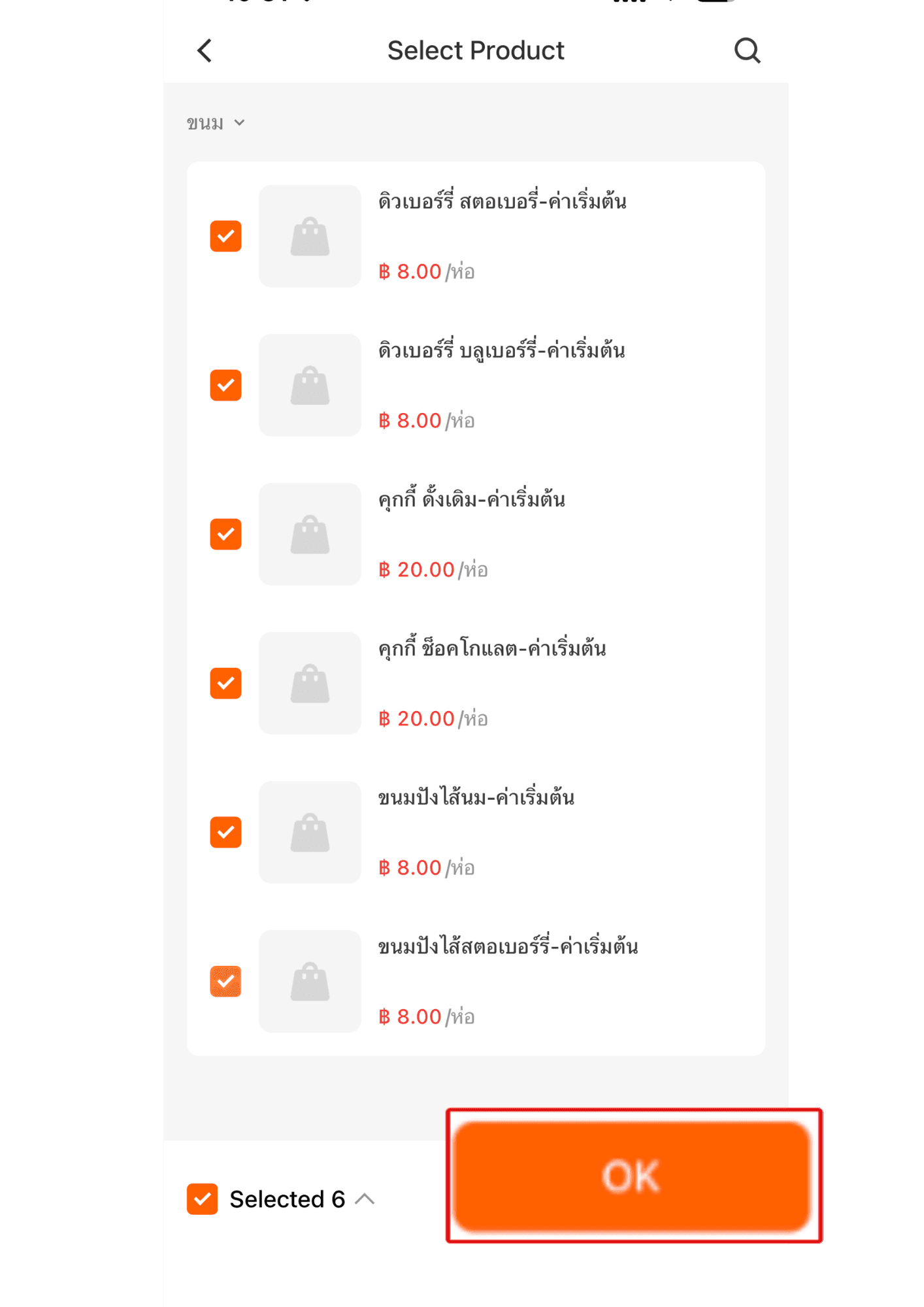
9. Edit the product price shown in the POS System in the “Default Price” field. Once done, click “Confirm.”
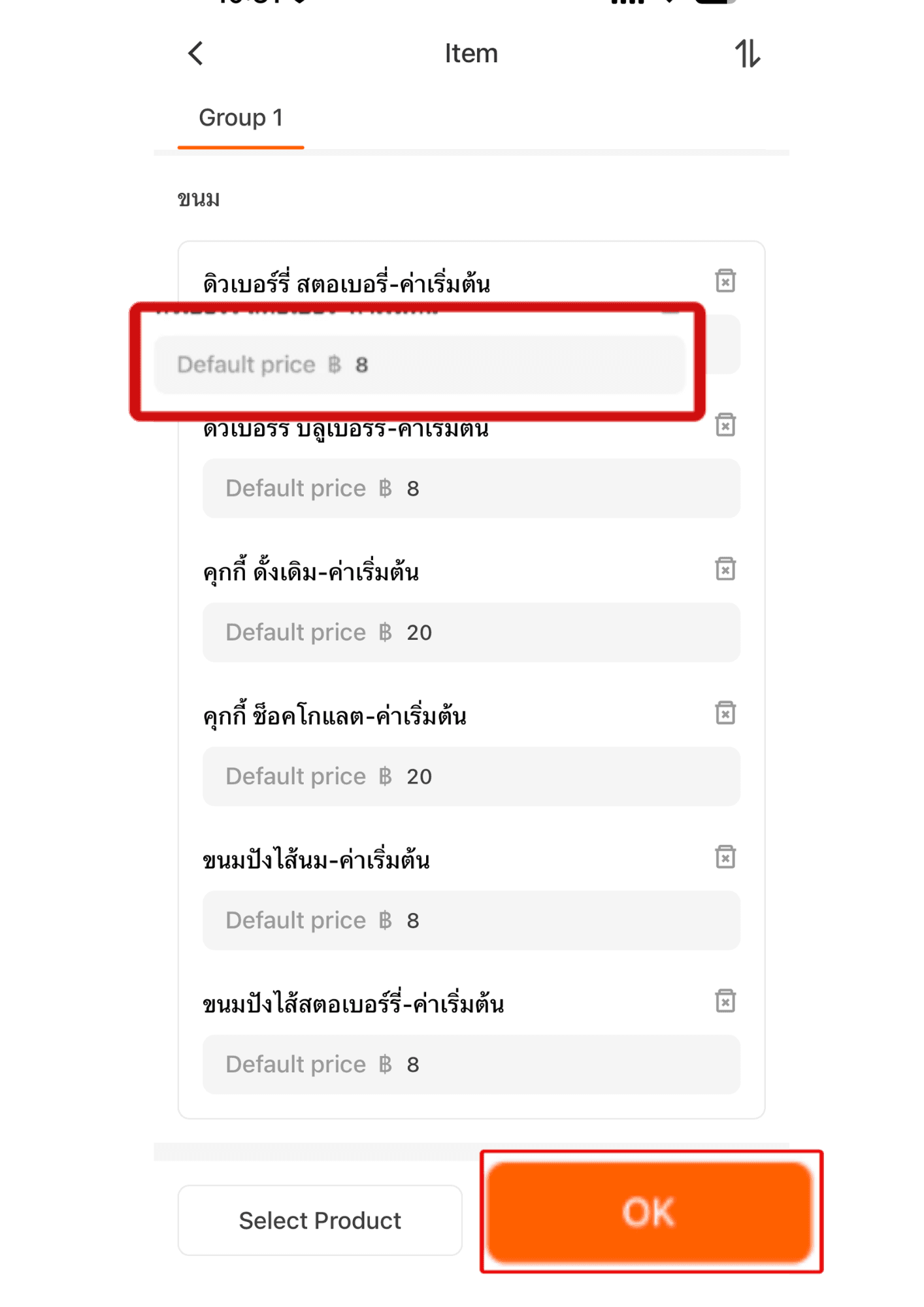
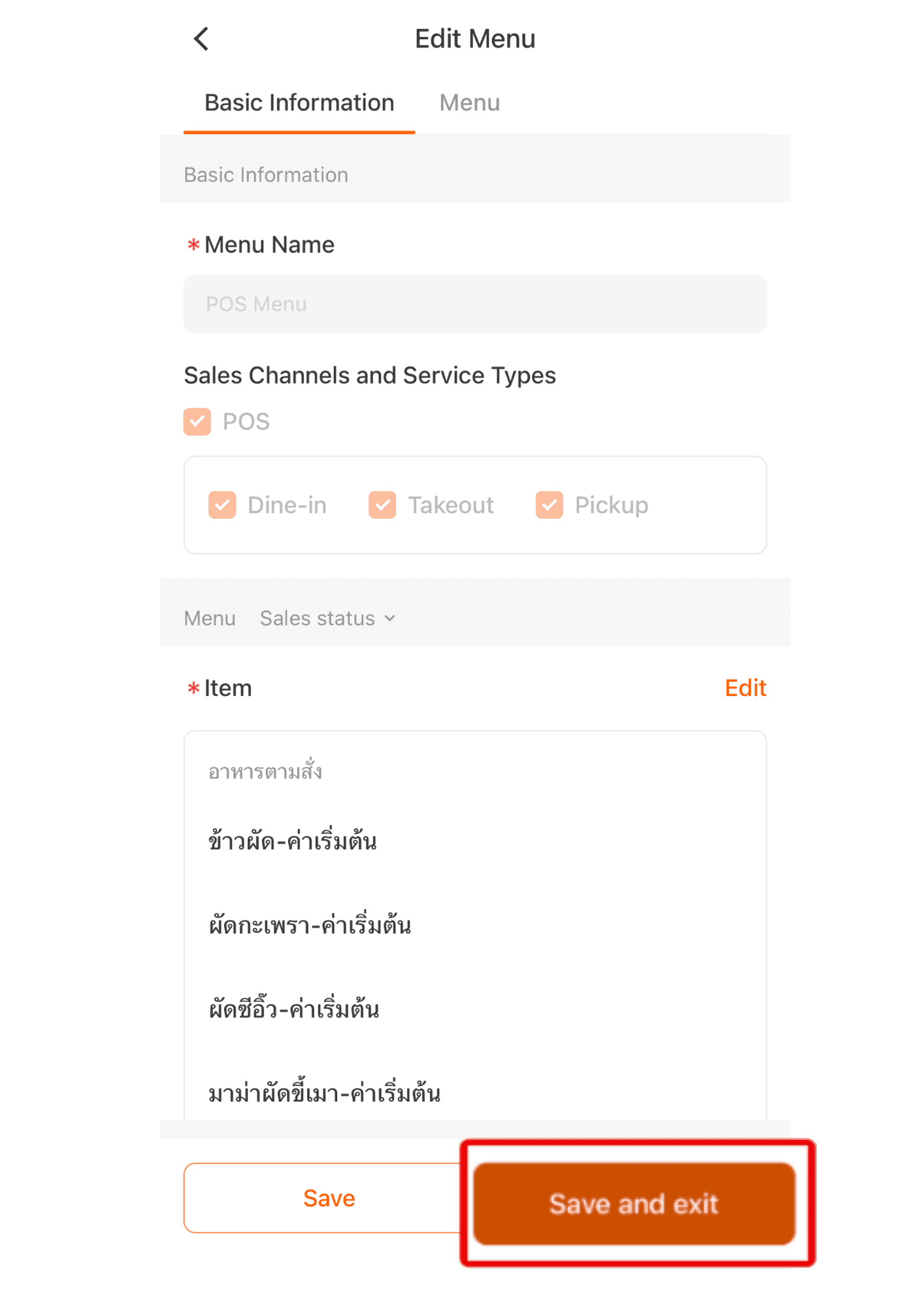
10.Once completed, click “Save and Exit.” The product items will automatically sync to the Scan System.