Additional Options Management
2026-01-12 18:05
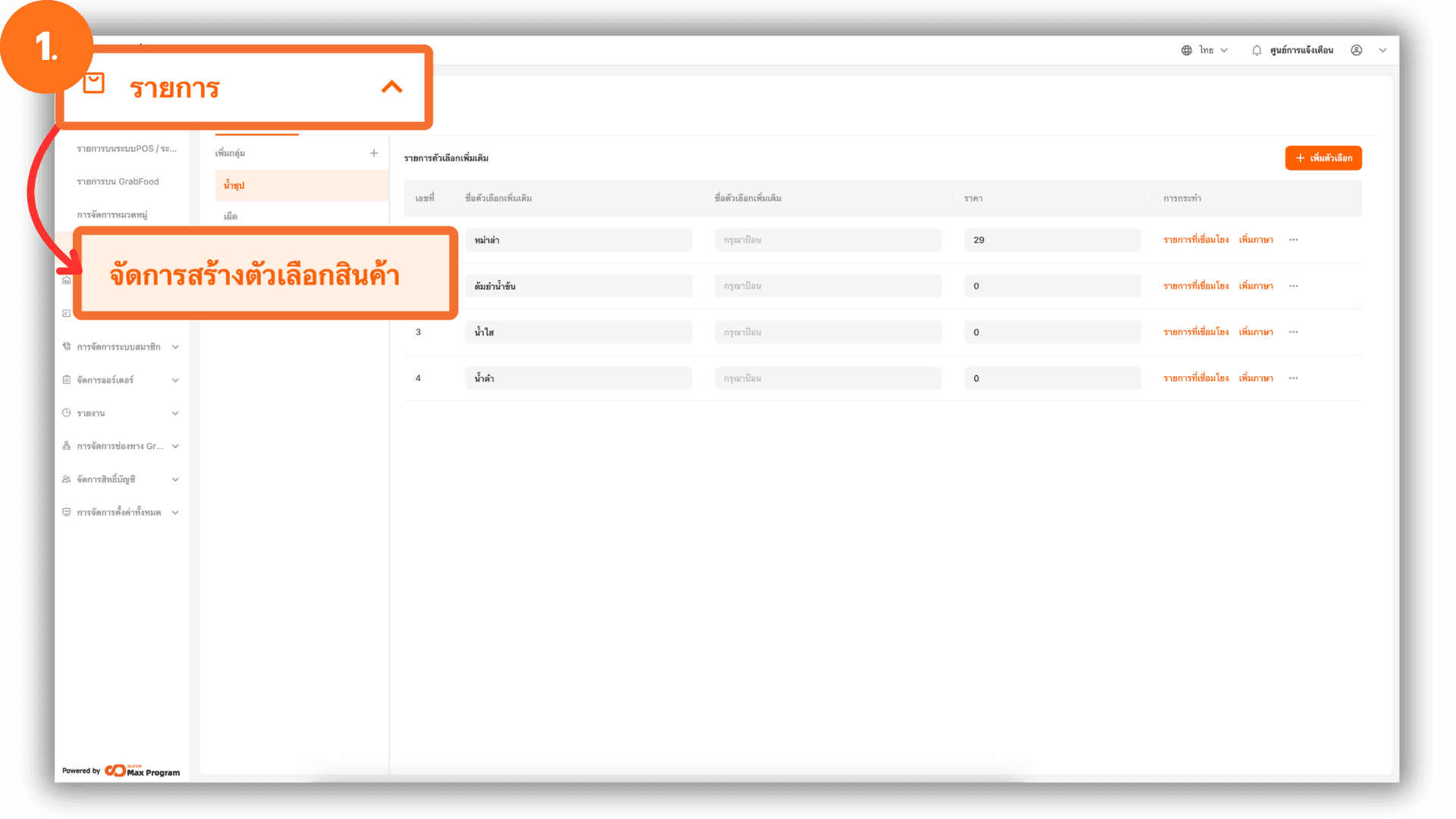
1. Log in to Back Office
Go to login.gpos.co.th, enter your email and password, then click Log in.
After a successful login, go to the “Item Attribute” menu and select “Modifier Management.”
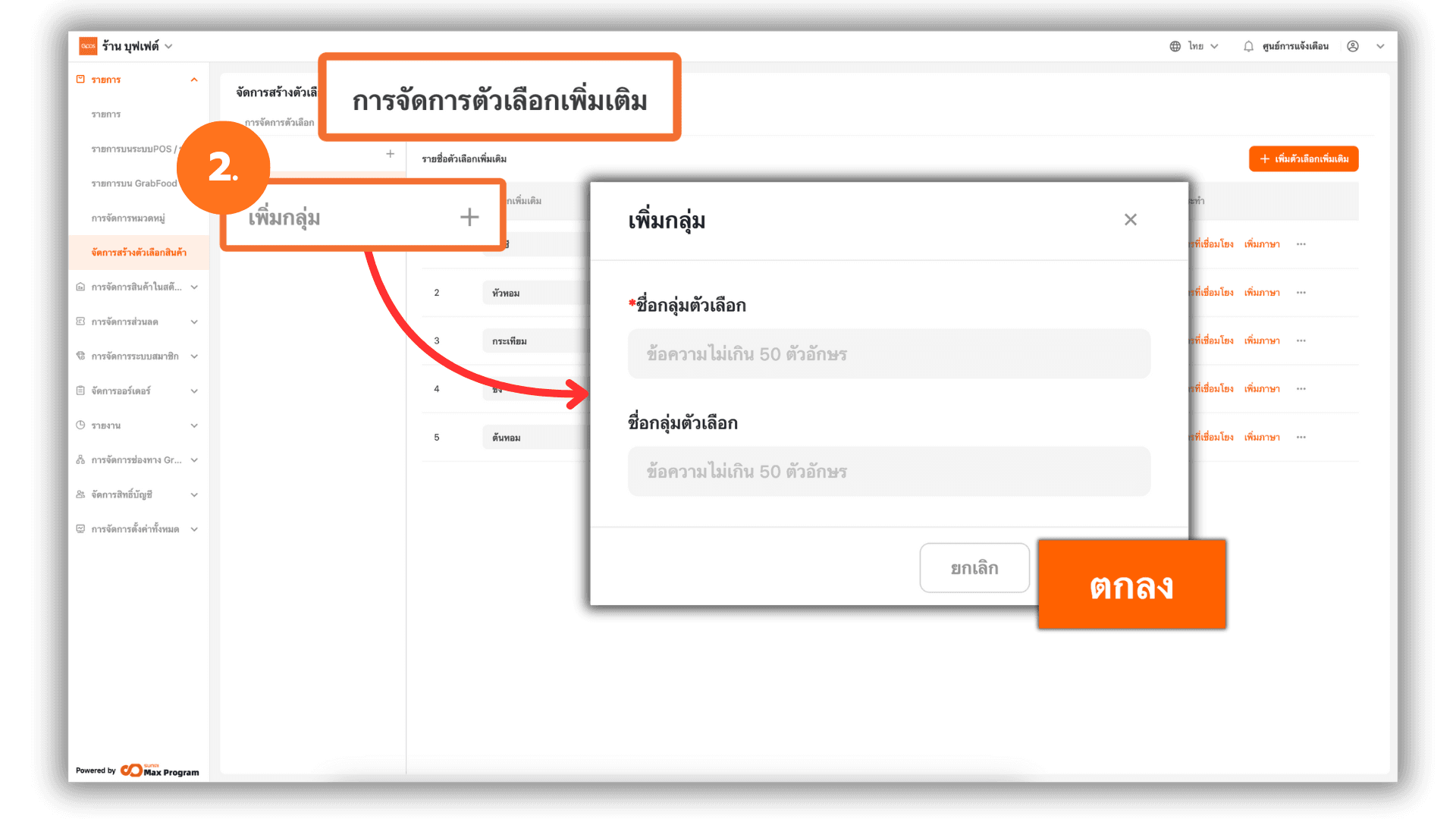
2. Additional Options Management
Click the “+” button next to Add Group. The system will display a window for entering information.
- Group Name (POS)
- Group Name alias (GrabFood)
Verify the information, then click Ok to save the additional option group.
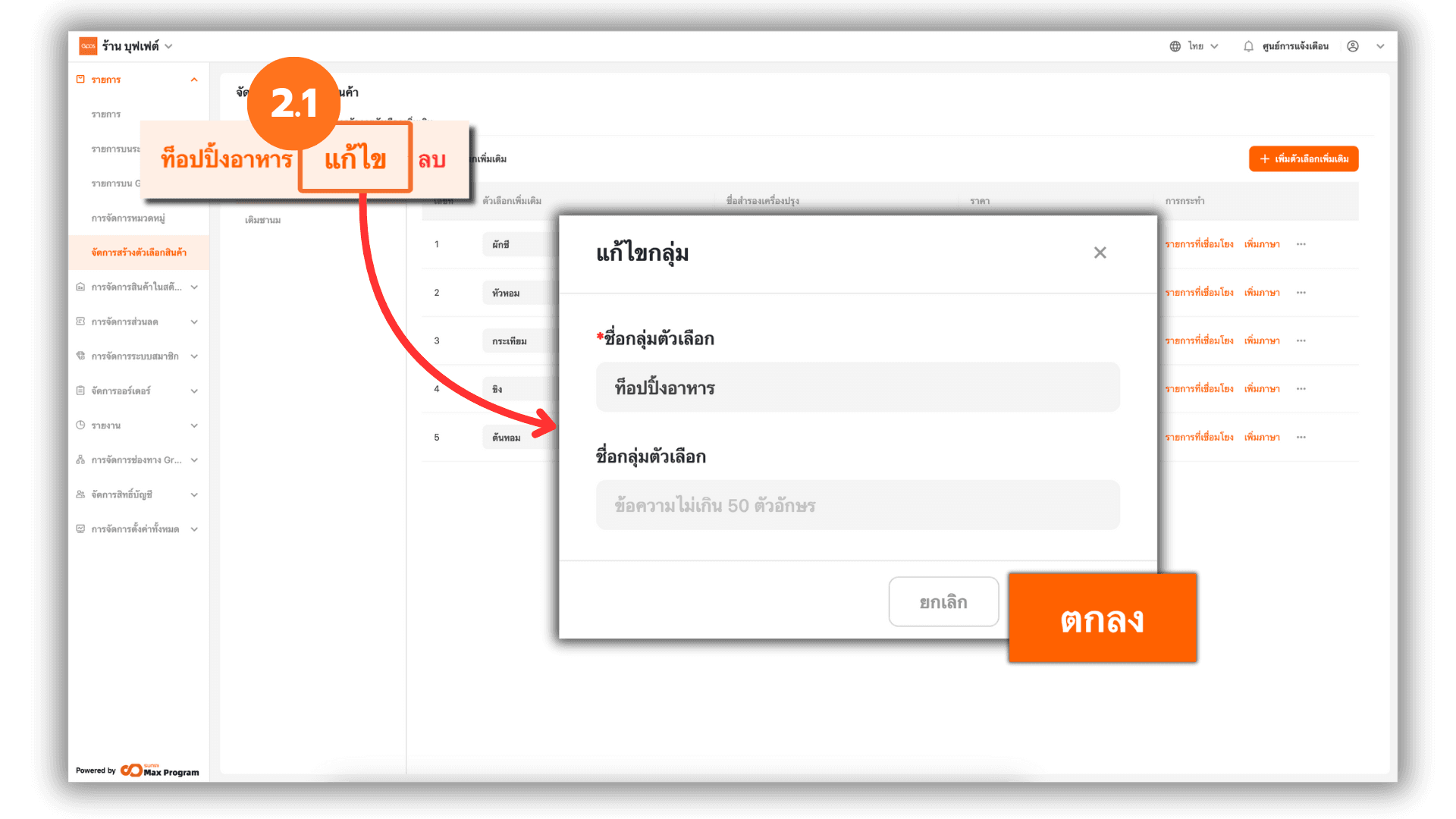
2.1 Edit Additional Option Group
For an existing option group, click Edit next to the group name and update the following:
- Group Name (POS)
- Option Group Name alias (GrabFood)
Click Ok to save the changes.
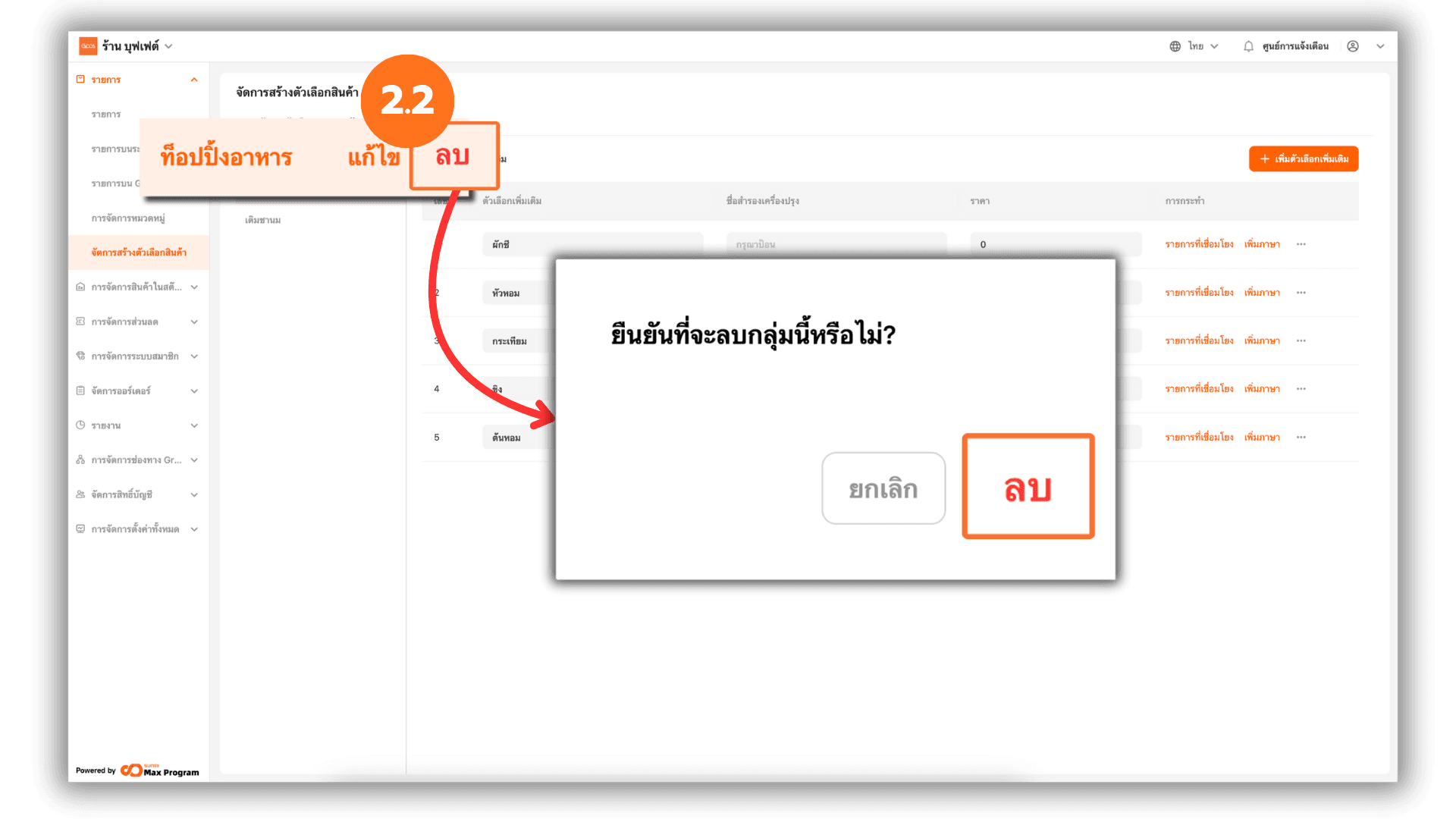
2.2 Delete Additional Option Group
Click Delete next to the option group name. The system will display a confirmation window. Click Delete again to confirm.
Note : An additional option group can be deleted only if there are no options created within that group.
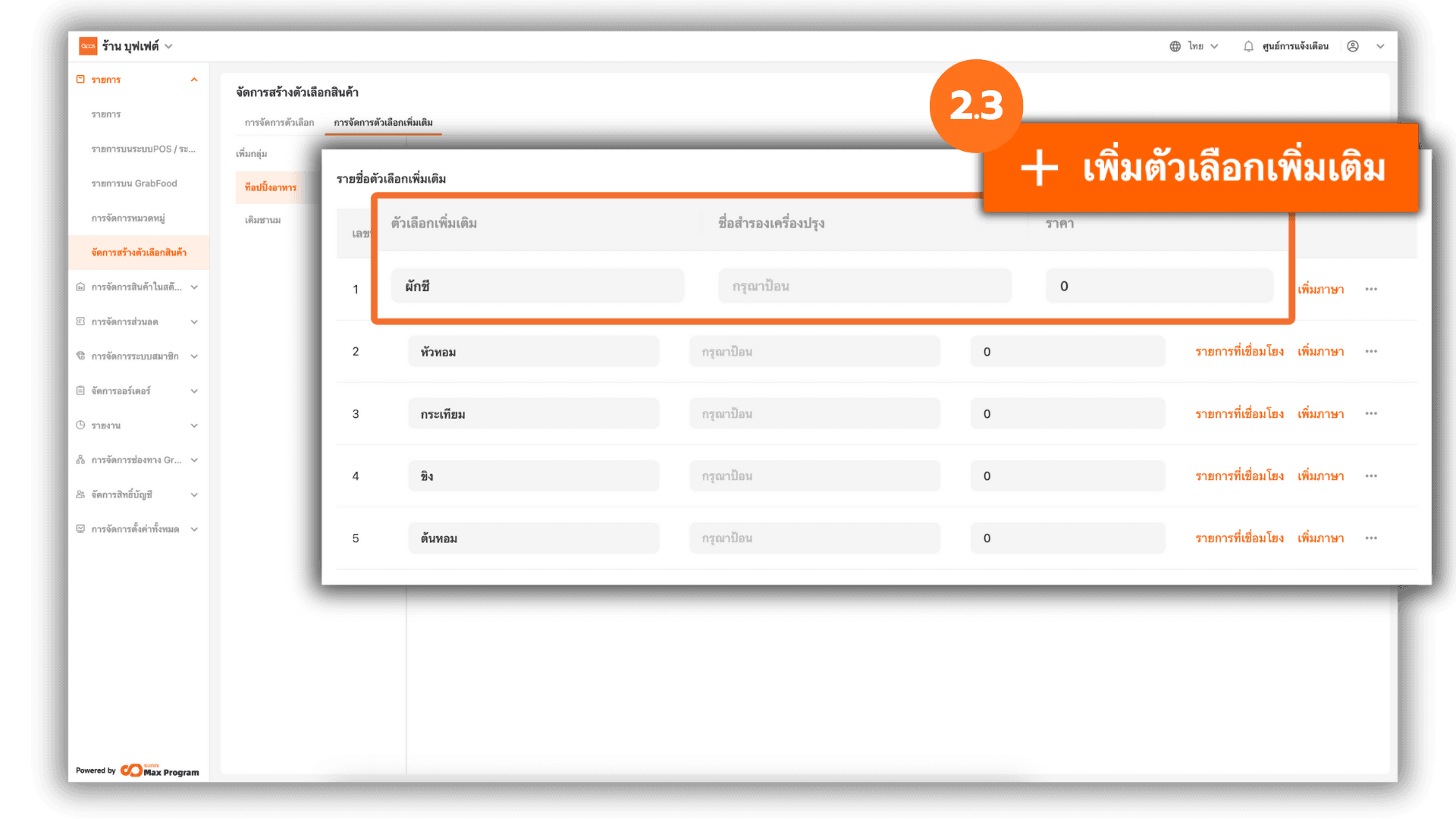
2.3 Create Additional Options
Select the desired option group and click “+ Add Modifier.” Enter the following details
- Modifier Name (POS)
- Modifier alias (GrabFood)
- Price (additional amount charged when this option is selected)
The system will automatically save the information.
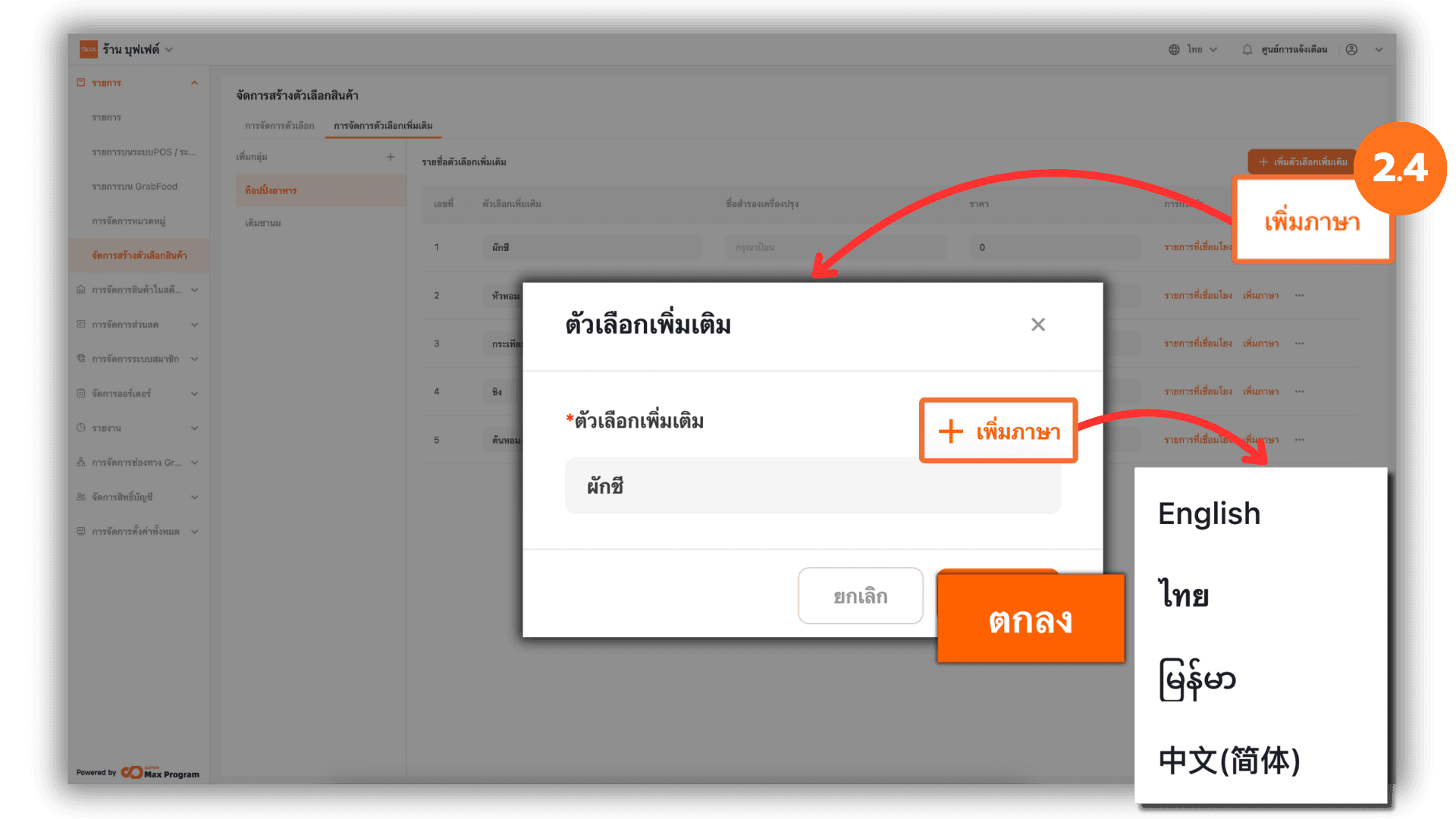
2.4 Add Languages to Additional Options
Click Add Language. The system will display the created option name.
Click “+ Add Language” to add translations in the following languages Thai , English , Burmese and Chinese Click Ok to save.
Note : This feature is used for QR code food ordering systems that support multiple languages.
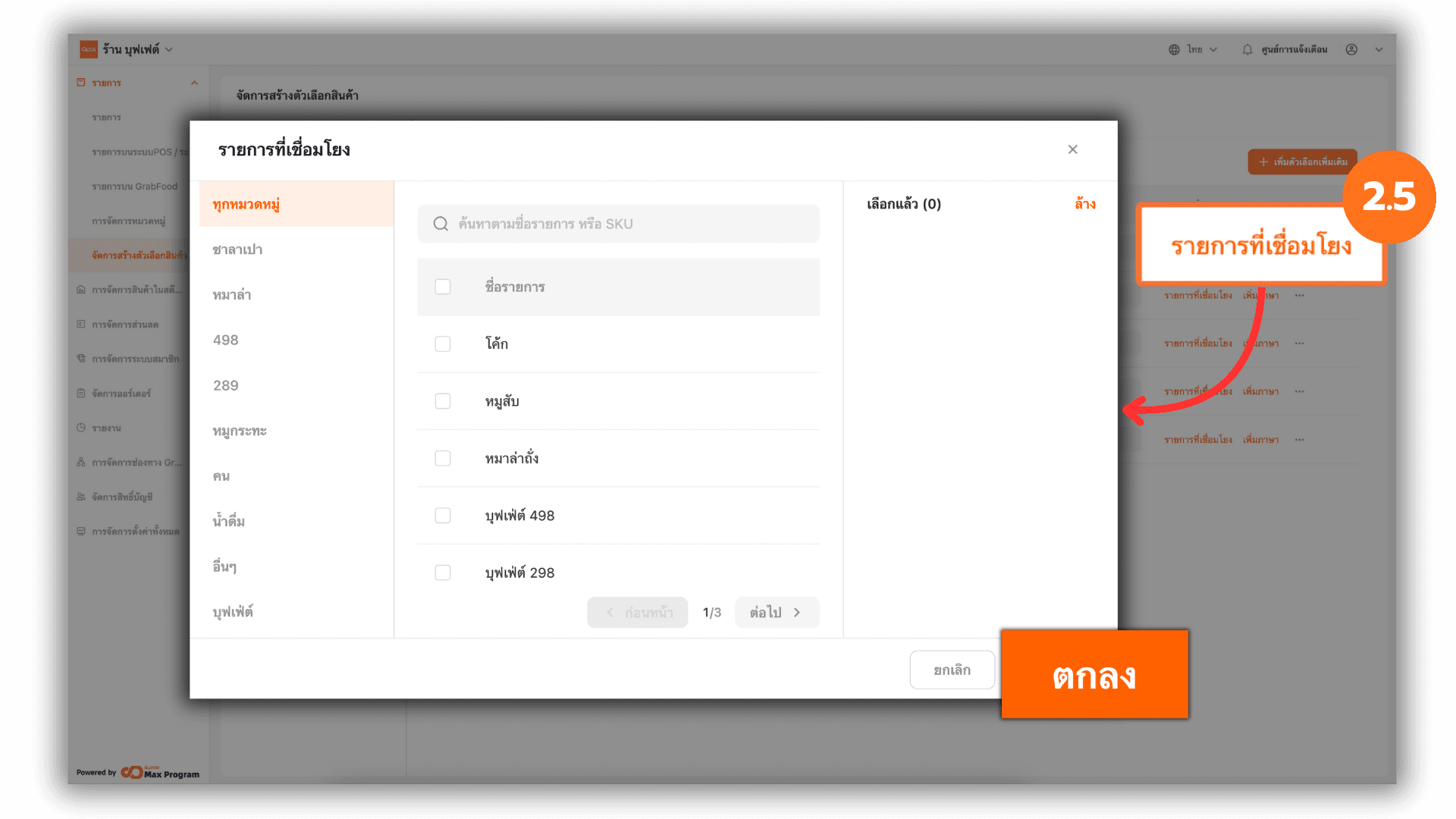
2.5 Link Additional Options to Products
If additional options are created after products have already been set up, click Linked Items. The system will display all product items. Select the items to link, then click Ok to save.
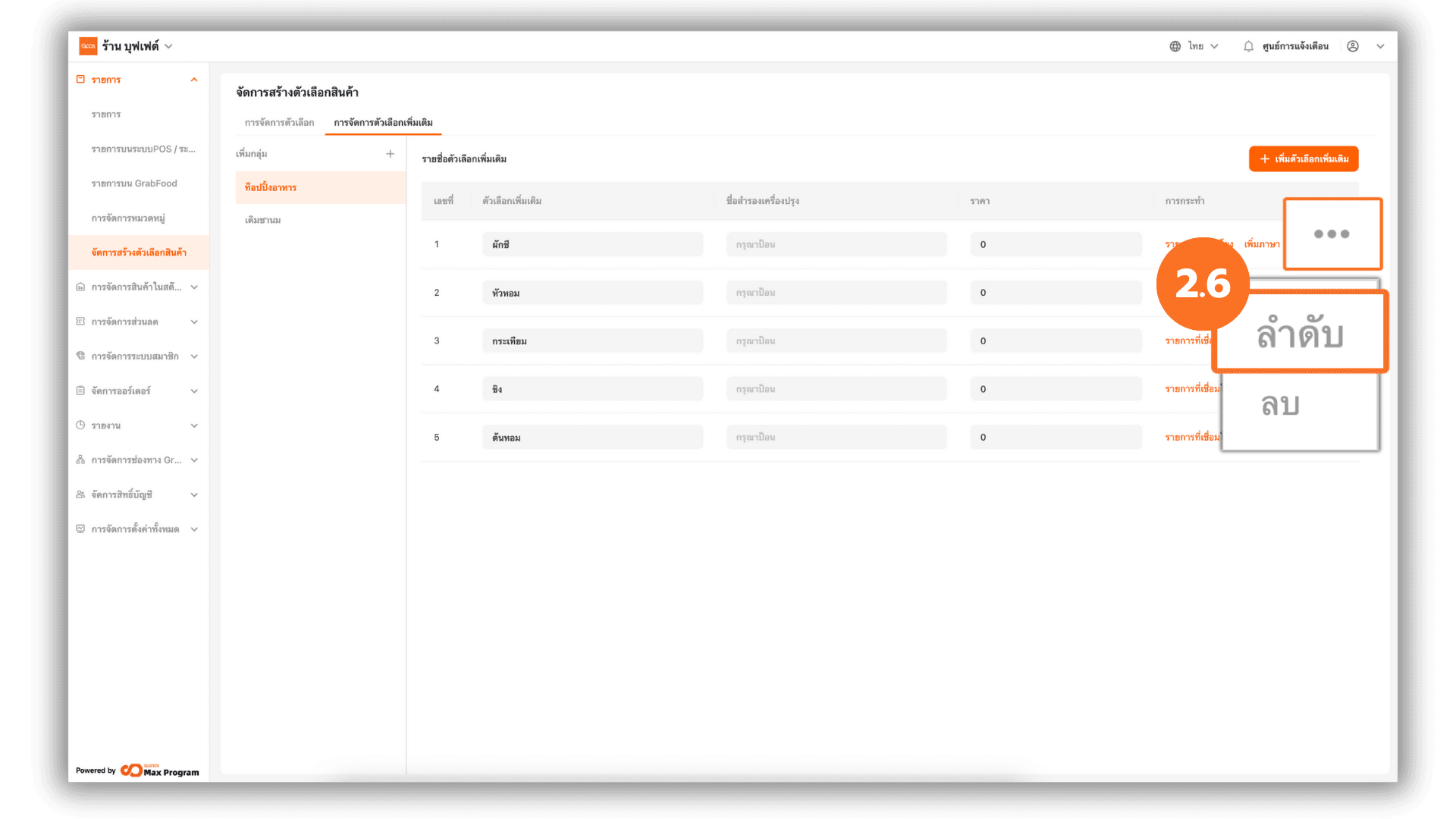
2.6 Arrange Additional Option Order
To set the display order of additional options, click the “...” button next to the desired option and select Sort.
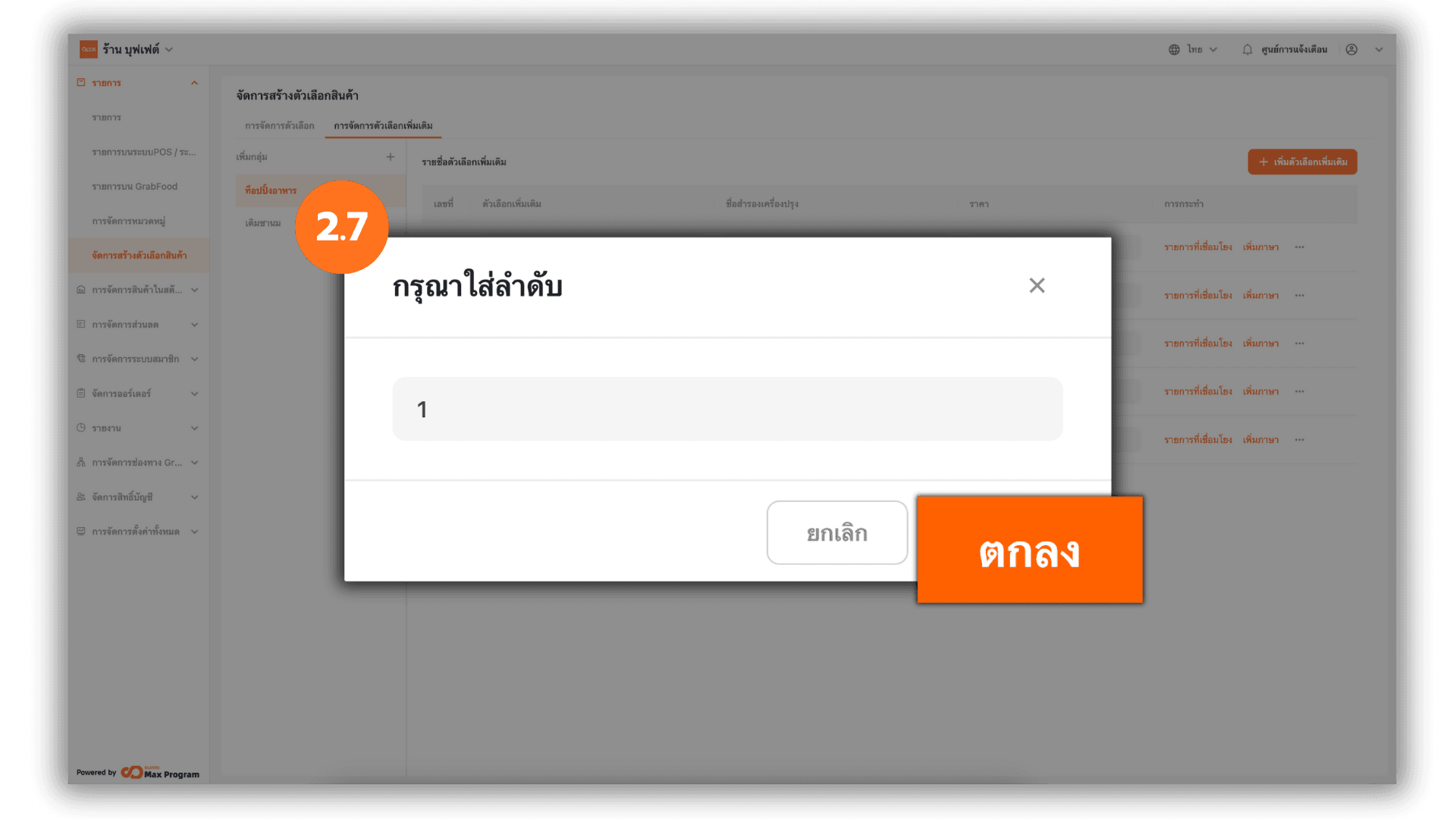
2.7 Set Order Number
Enter the desired order number for the additional option, then click Ok to apply.
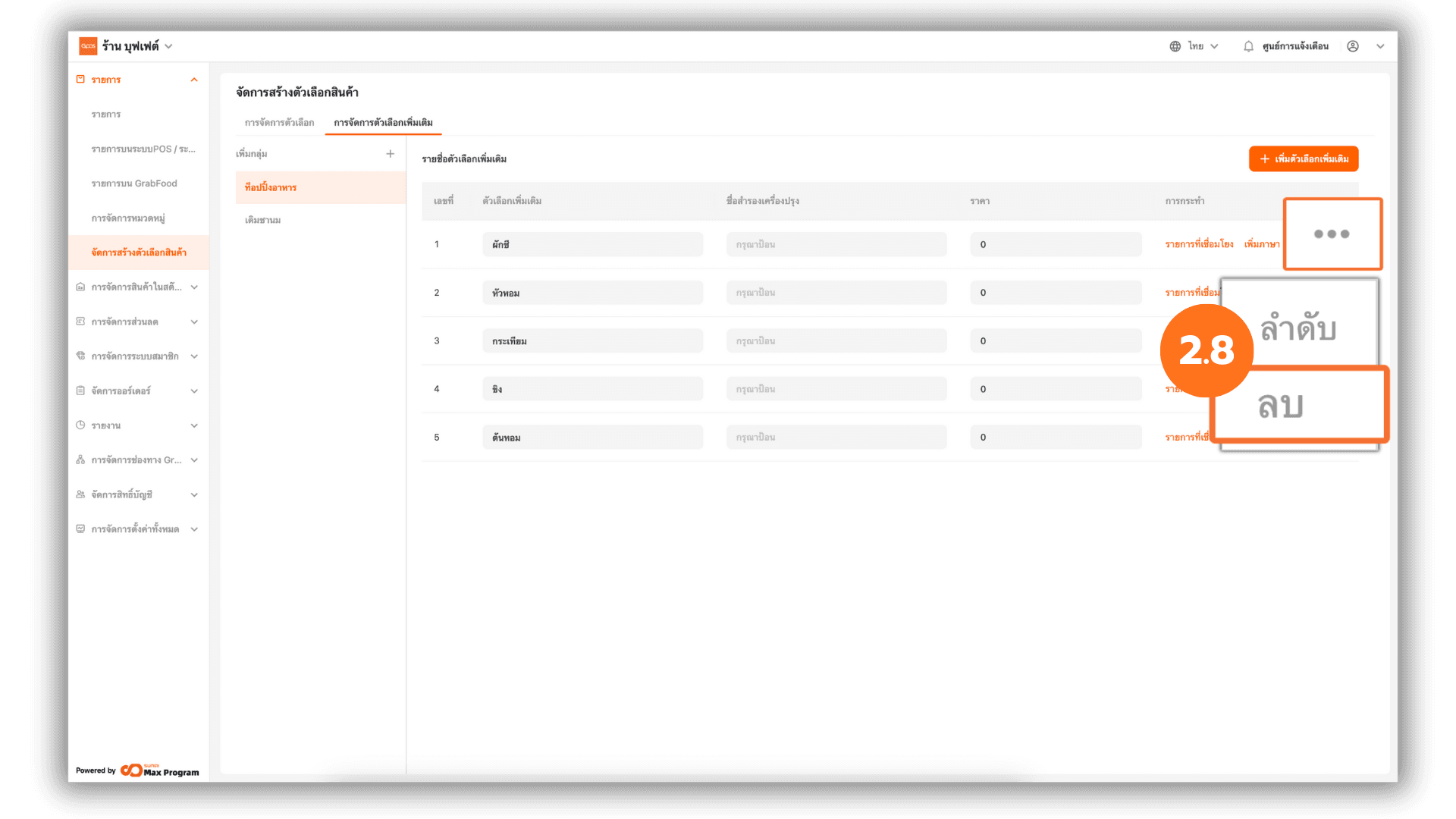
2.8 Delete Additional Options
To remove an additional option from the group, click the “...” button next to the option and select Delete.
Note : An additional option can be deleted only if it is not linked to any product items.
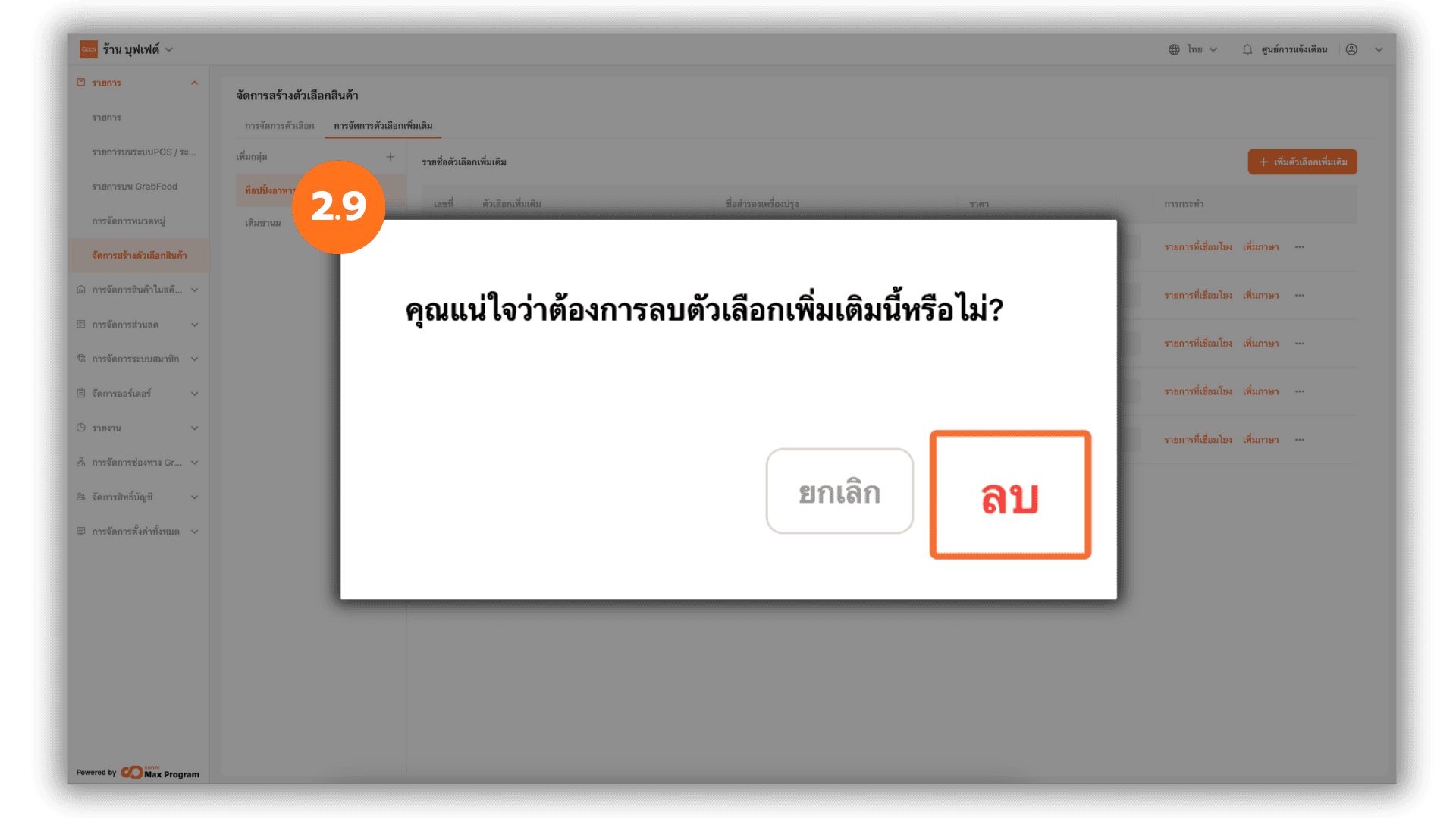
2.9 Confirm Deletion of Additional Options
The system will display a deletion confirmation message. Click Delete again to confirm the action.