How to create categories

2025-12-12 17:54

Creating categories helps organize items for easier search and management, enhances usability on POS devices and connected platforms, supports multiple languages, and reduces errors when importing product data.

1. Log into the Back Office System

Go to login.gpos.co.th, enter your email and password, then click Log In.
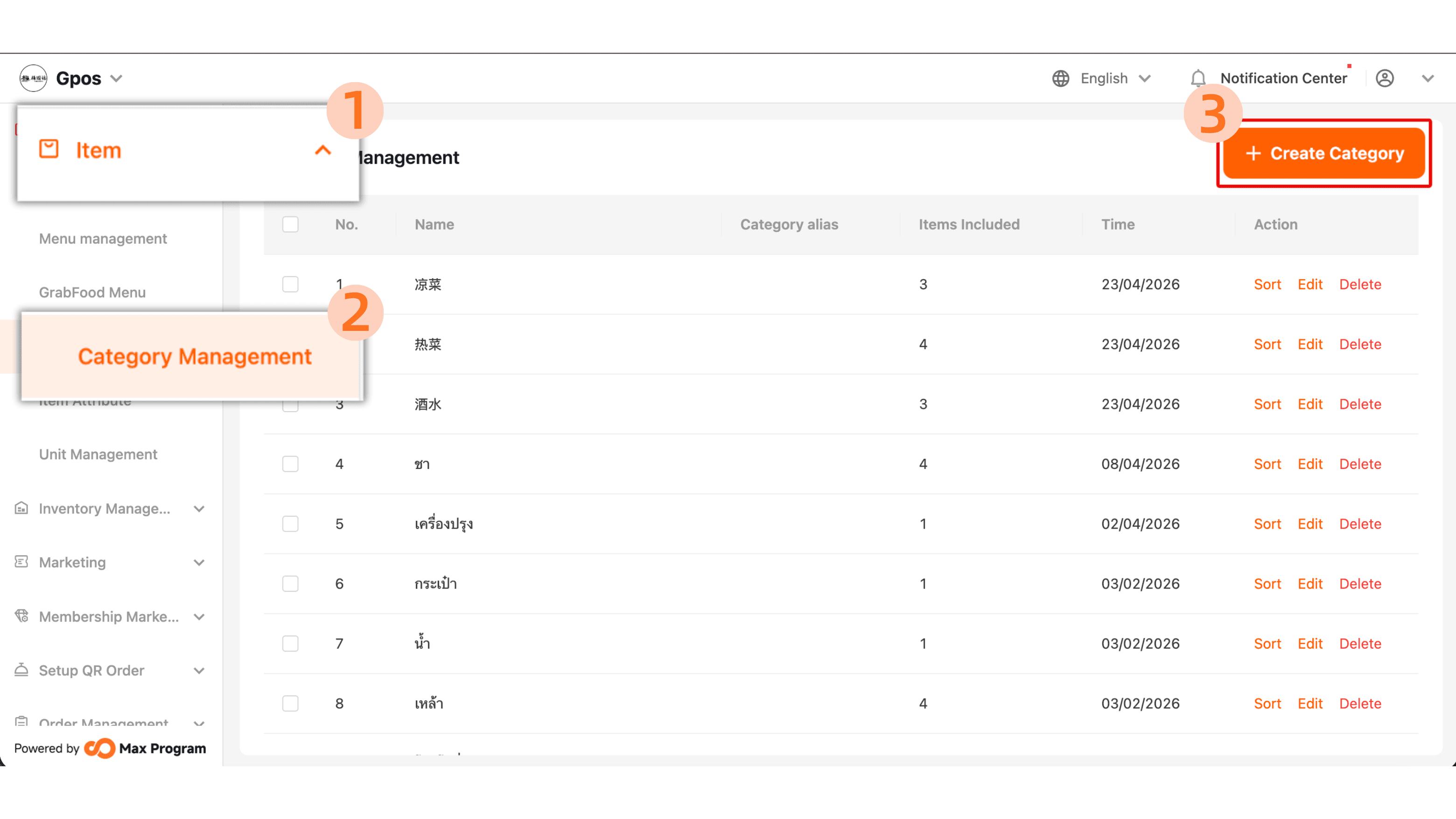
After successfully logging in, navigate to the “Item” menu and select “Category Management” to manage product categories.

Event image

2. Creating a Category

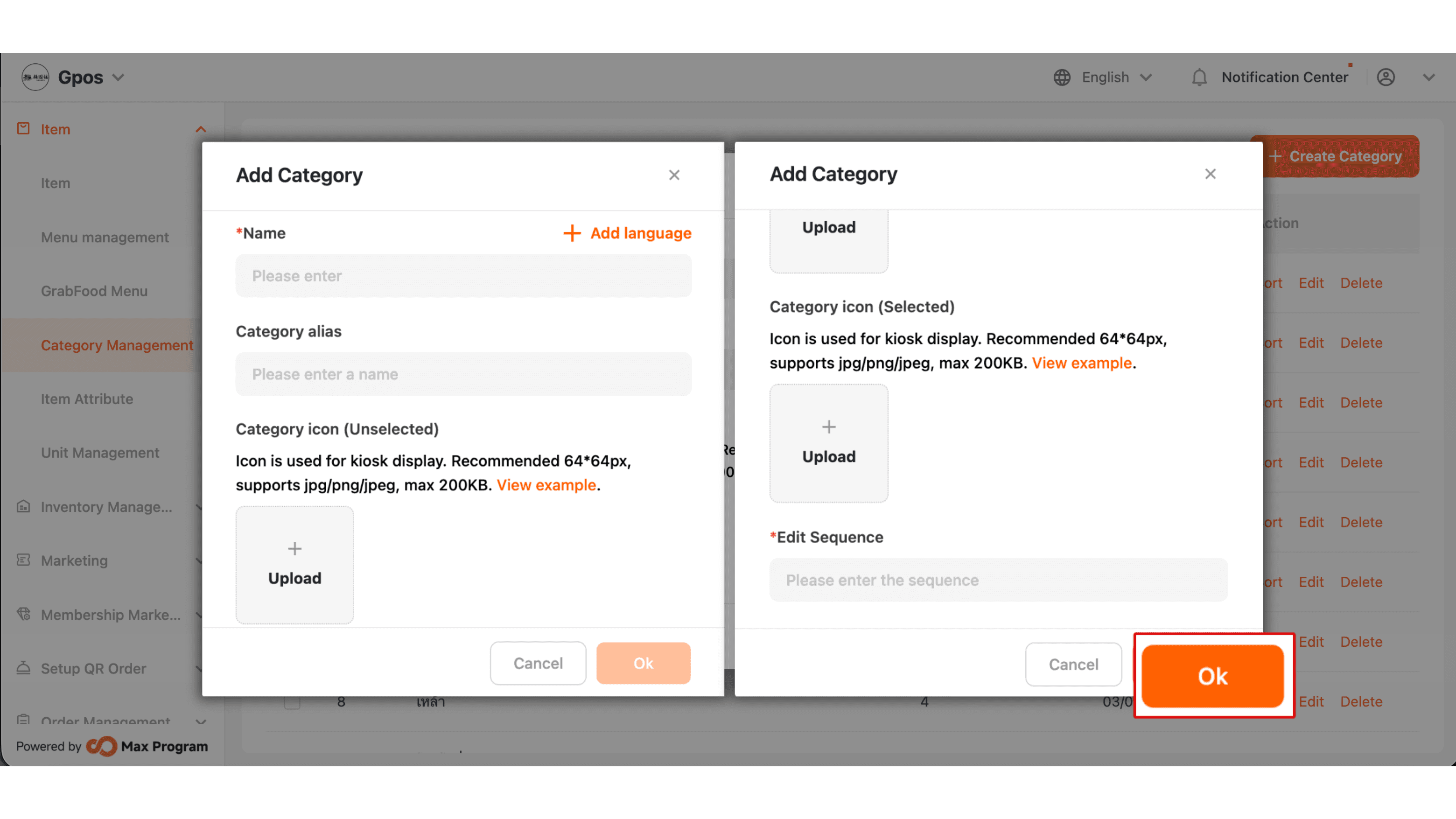
Click “+ Create Category”. The system will display fields for category information:

  • Name (POS System) – The name displayed on the POS for customers.
  • Category alias (Grab System) – The name used on Grab, if your shop is connected.
  • Edit Sequence – Controls the order in which categories appear on the POS.
Note : It is recommended to create categories that match the product list in the Excel file you plan to import, ensuring consistent categorization.
Event image

3. Adding Multilingual Category Names

To add multilingual support, click “+ Add Language”. Available languages English , Thai , Burmese and Chinese. After entering names in the selected languages, click OK.

Note : Multilingual categories are used for QR Ordering, allowing customers to view menus in multiple languages.
Event image

4. Category Management

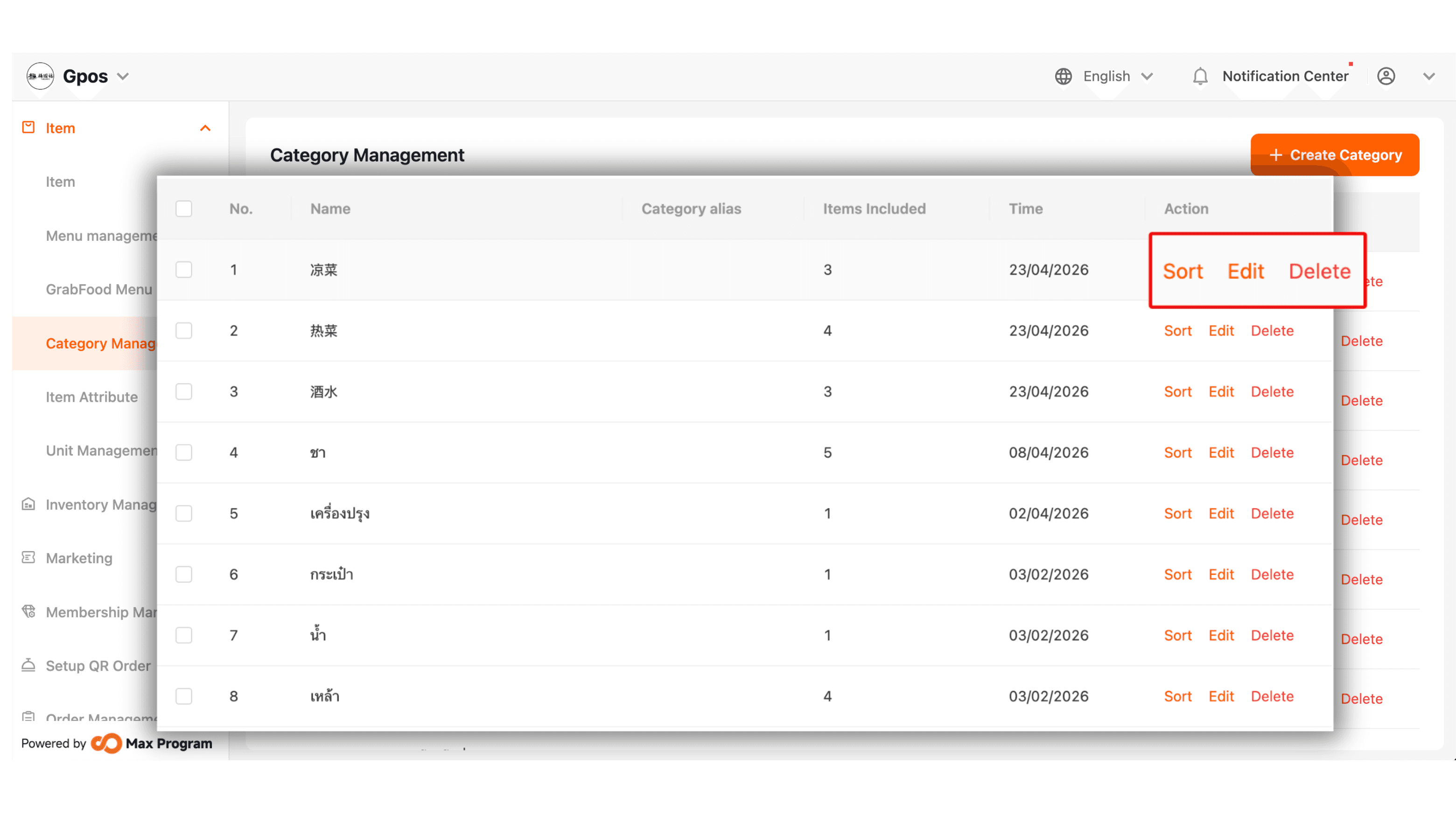
After creating categories, you can manage them in three ways: Sort, Edit, and Delete.
Event image

4.1 Sorting Categories

This function is used to arrange the display order of categories on the storefront.
Click “Sort” on the category you wish to configure. The system will show a field where you can enter the desired order number. After entering the number, click “Ok” to confirm the new order.

Event image

4.2 Editing Category Information

You can edit the details of an existing category, such as the category name, order, or additional languages. Click “Edit” on the category you want to update.
The system will display an editable category information screen, consisting of:

  • Name (POS Display) – The name shown on the POS device for customers.
  • Category Alias (Grab Integration) – The name used for display on the Grab system (if the store is connected).
  • Edit Sequence – Determines the display position of the category on the storefront.
  • + Add Language – Allows adding category names in other languages, such as Thai, English, Burmese, or Chinese.

Review all information, then click “Ok” to save the changes.

Event image

4.3 Deleting a Category

Deleting a category is suitable when it is no longer needed. Click “Delete” on the category you want to remove. A confirmation message will appear. Click “Delete” again to confirm the action.

Note : A category can only be deleted if there are no products assigned to it.
If products remain in the category, you must move or manage the items before deletion.
Event image