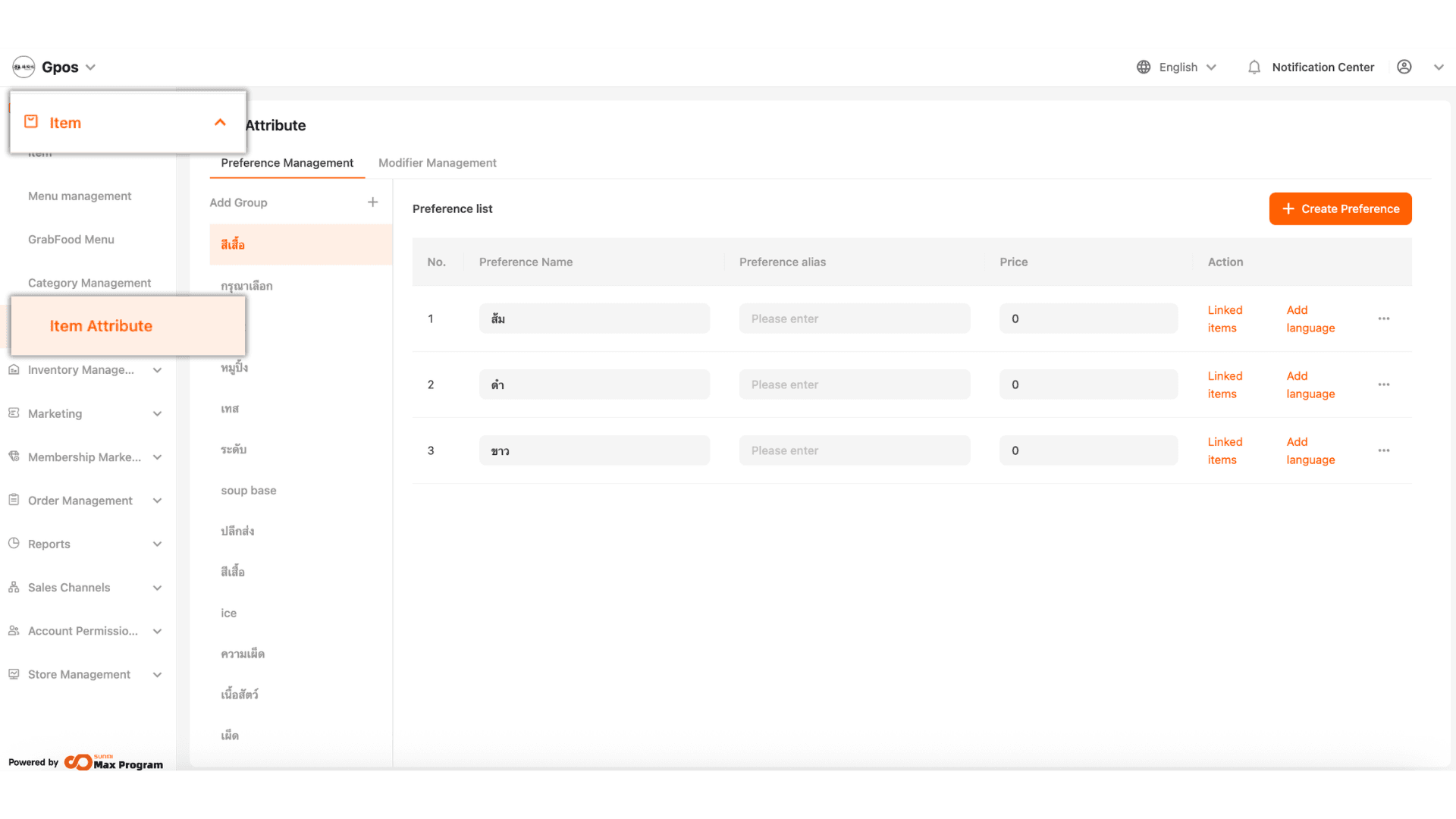
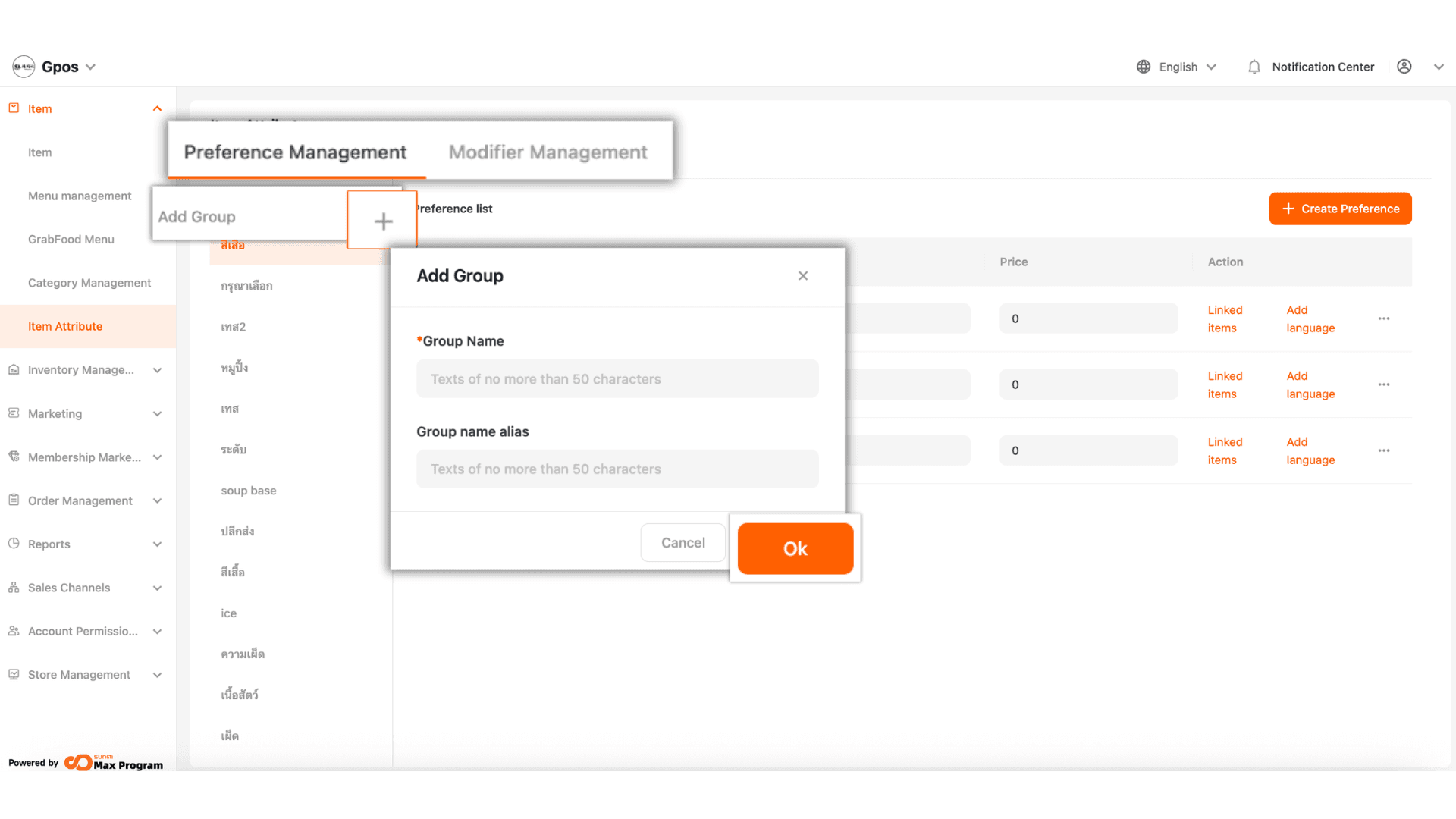
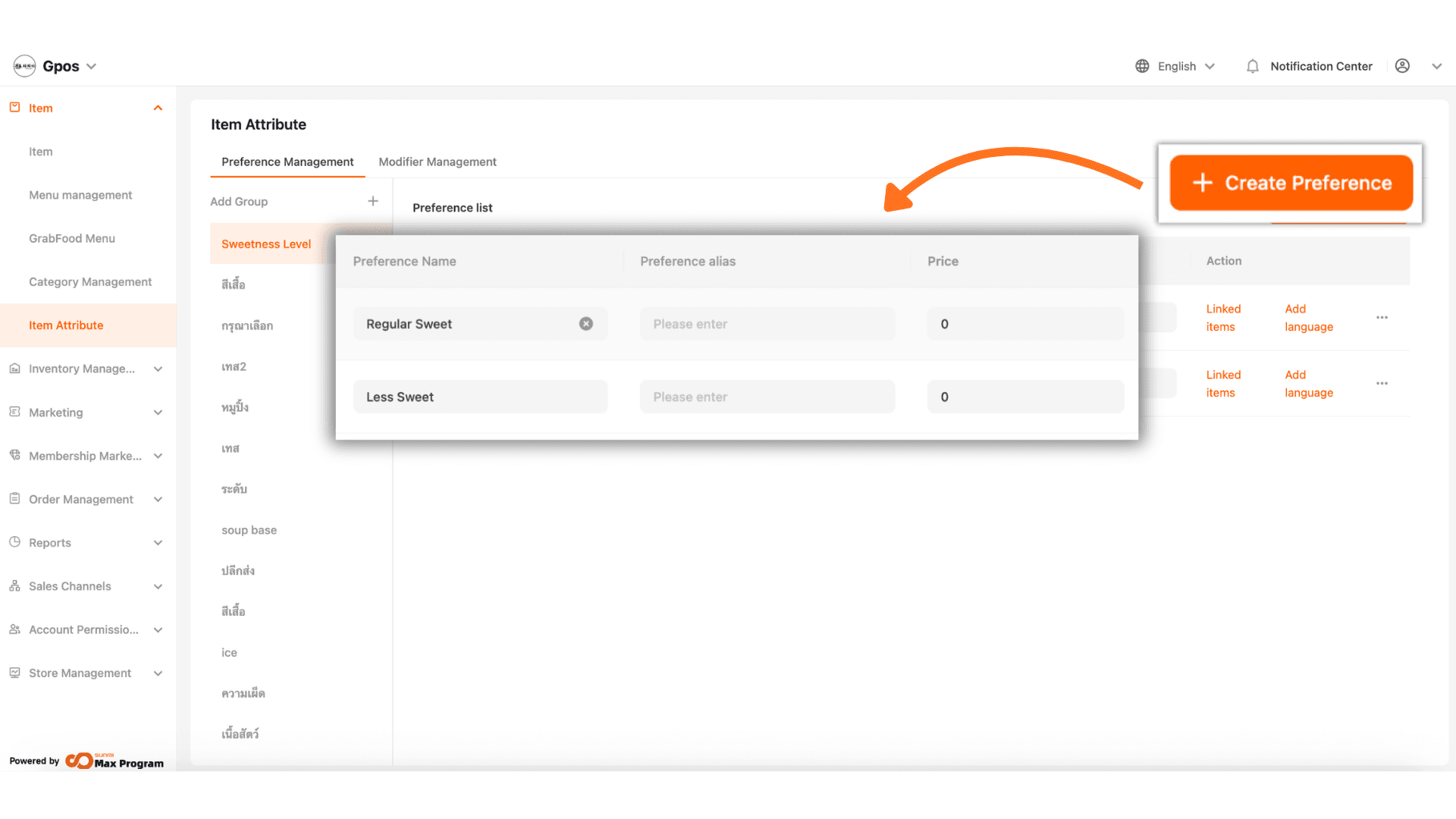
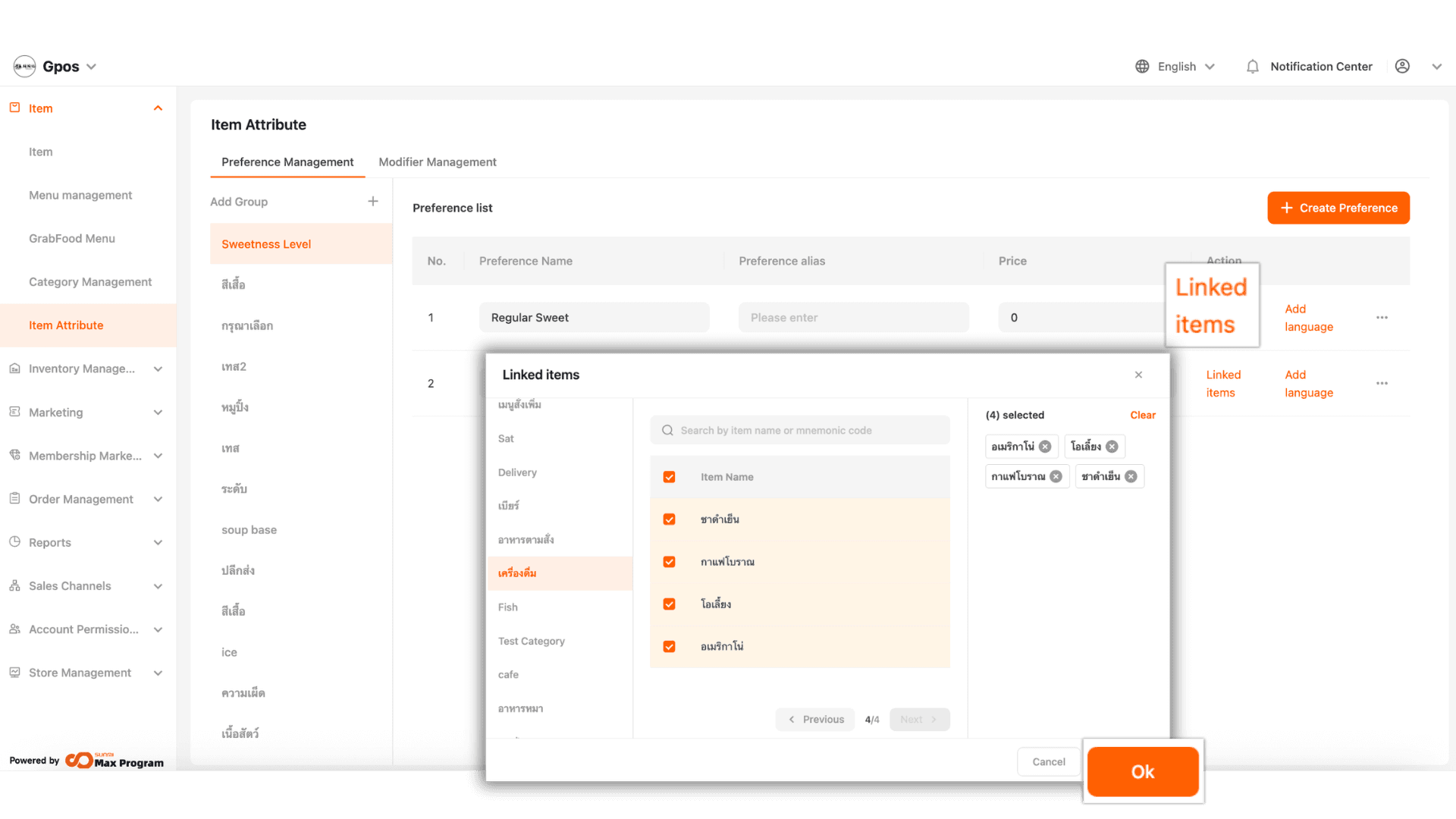
Setting Up Options / Add-ons (Back Office)

2026-01-13 14:19

281 views

This guide helps users edit and configure product items correctly and systematically, reducing errors in option settings and ensuring smooth and efficient sales through POS and connected platforms.

1. Log into the Back Office System

Go to the websit login.gpos.co.th, enter your email and password, then click Log In. Once logged in successfully, go to the “Item” menu and select “Item” to access the product management page.

Event image

2. Edit the Desired Product Item

Go to the product list section, then click the “Edit” button located next to the product item you want to modify.

Event image

3. Options & Additional Options

Scroll down to the Options / Additional Options section for the product item. There are two types available for selection.

  • Preference - Used for POS settings, such as sweetness levels (low / medium / high), toppings, etc.
  • Modifier - Used for POS and GRAB (recommended when the store syncs with GRAB).
Event image

3.1 Adding Options

Click “+ Add” to select the desired options.

Event image

3.2 Selecting Options

After clicking + Add, the system will display the created option groups. Select options from the categories on the left, tick the desired items, and click “Save”.

Event image

3.3 Option Settings & Management

  • Required - Forces customers to select options based on the specified quantity.
  • Maximum Selectable - Limits how many options can be selected within a group.

Management tools Trash icon (delete option) , Cross icon (delete entire option group) or + Add (add a new option)

Event image

3.4 Modifier

Click “+ Add” to choose additional options for the product.

Event image

3.5 Adding Additional Options

After clicking + Add, the system will display available additional option groups.
Select items from the categories on the left, tick desired options, then click “Save”.

Event image

3.6 Additional Option Settings & Management

  • Required — Forces customers to select a minimum/maximum number of extra options
  • Maximum Selection — Sets the upper selection limit within that group

Management tools Trash icon (delete additional option) , Cross icon (delete entire additional option group) or + Add (add a new additional option)

Event image

4. Save Settings

After completing the configuration of Options / Additional Options, click “Save” to confirm the changes.

Event image

Setting Up Options / Add-ons (Back Office) - Gpos