Import Inventory

2026-01-30 14:14

345 views

Helps keep inventory data up to date, accurate, and easy to verify. Improves efficiency and accuracy in inventory management, reduces issues of stock shortages or overstocking, and supports effective sales and purchasing planning.

1. Log in to the Back Office

Go to login.gpos.co.th, enter your email and password, then click Log in.
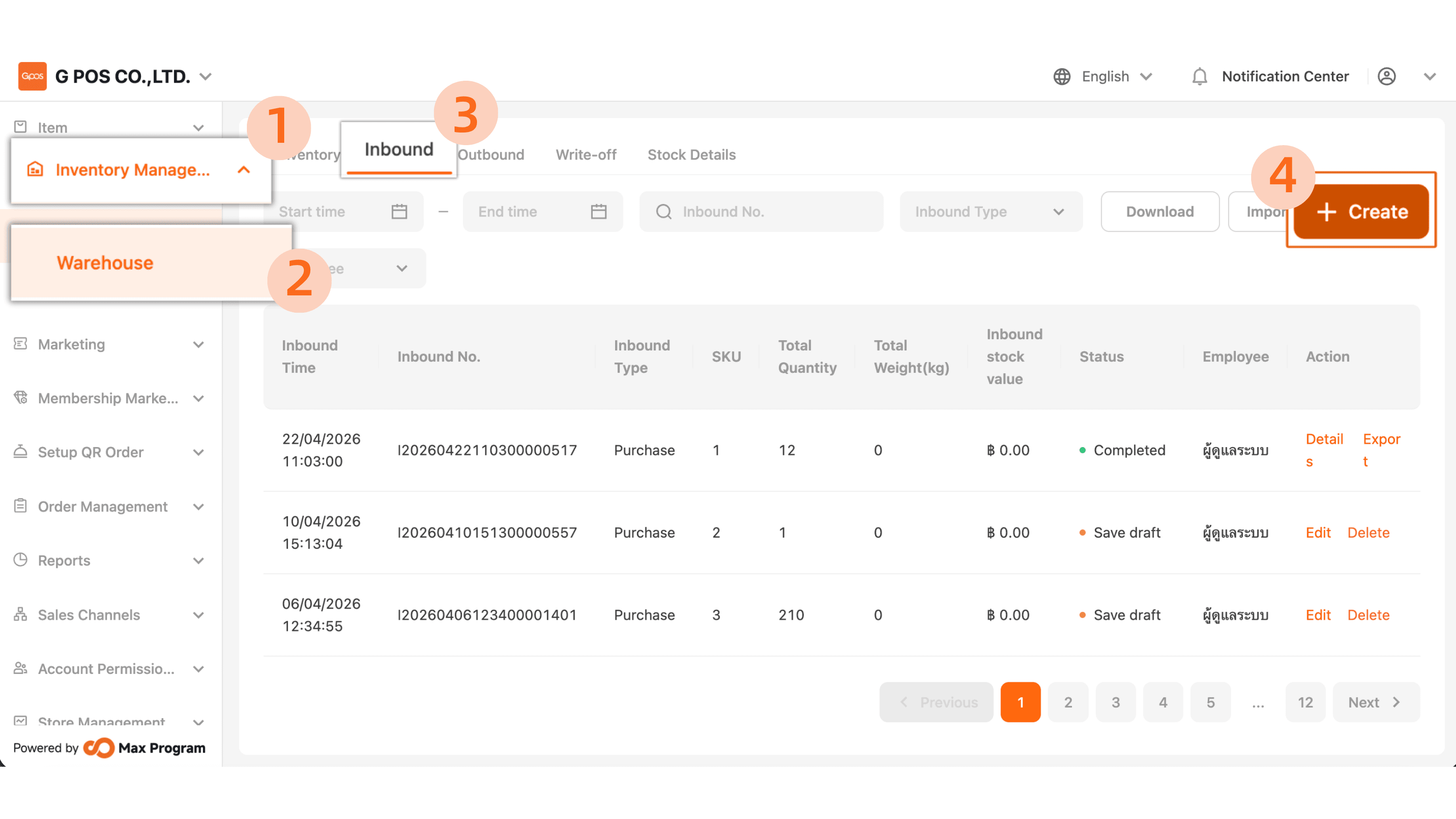
Once logged in, select Inventory Management, then choose Inbound. Click Create Inbound Order to begin the stock import process.

Note : Products to be imported into stock must already be created and recorded in the system. If the product has not been created in the system, stock import cannot be performed.
Event image

2. Enter Import Information

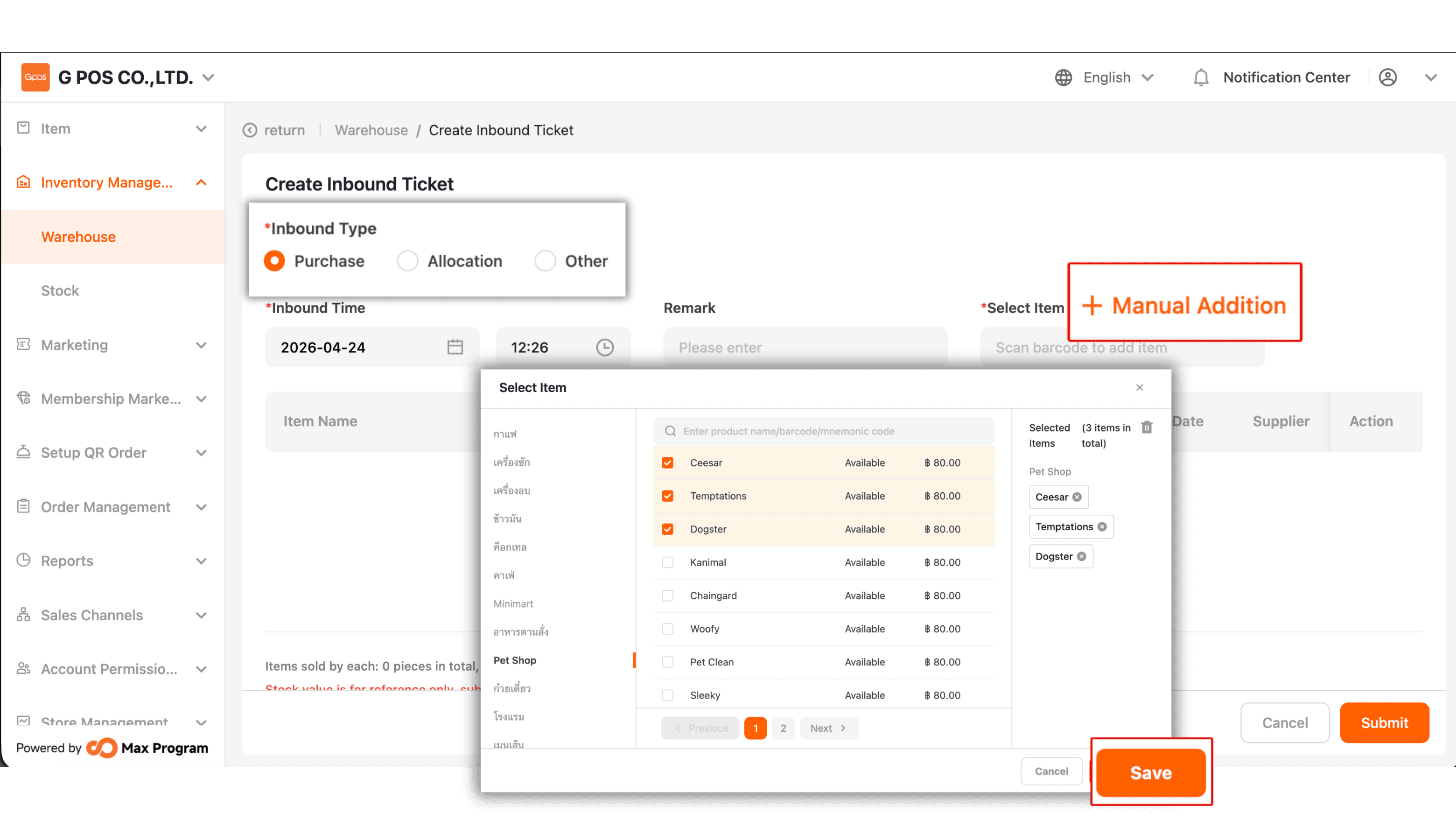
Select the import note and specify the day / month / year of the stock import accurately according to the actual import date.

Event image

2.1 Add Additional Notes

Enter additional notes (if any) to clearly describe the purpose or details of the import.

Event image

3. Add Product Items

If the products in the system have barcodes, you can add items using one of the following methods:

  • Scan the barcode to add products to the list
  • Or click “+ Manual Addition”
Event image

3.1 Search and Select Products

You can search for products by:

  • Selecting a product category
  • Searching by product name
  • Searching by barcode

Select the desired product and click “Ok” to finalize the selection.

Event image

3.2 Specify Product Quantity

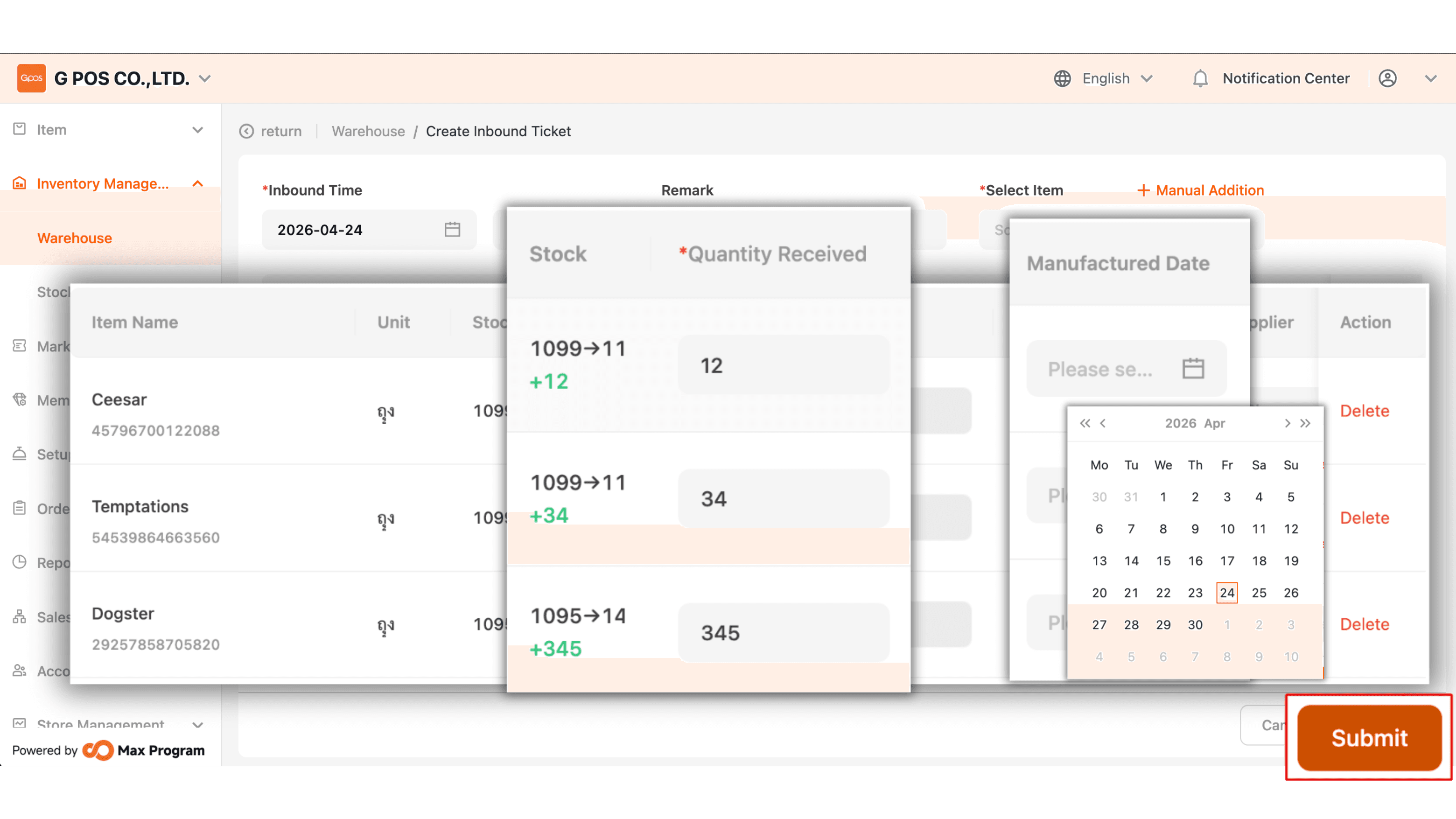
Enter the Quantity Received for each product if the quantities differ by item, or specify the quantity using “Bulk Set” if all products are imported in the same quantity. To remove a selected product, click the trash bin icon.

Note : When entering import quantities, the system will not immediately display the added stock from the existing inventory, as this step records each import lot separately. Once the import process is completed, the stock quantity will be automatically updated.
Event image

3.3 Specify Shelf Life and Confirm Import

You can specify the product shelf life by enabling this feature in Product stock notification settings. Review all product quantities and details carefully, then click “Ok” to complete the stock import.

Event image

Import Inventory - Gpos