Add Product (Manager)
2 May 2026 · 11:59 AM
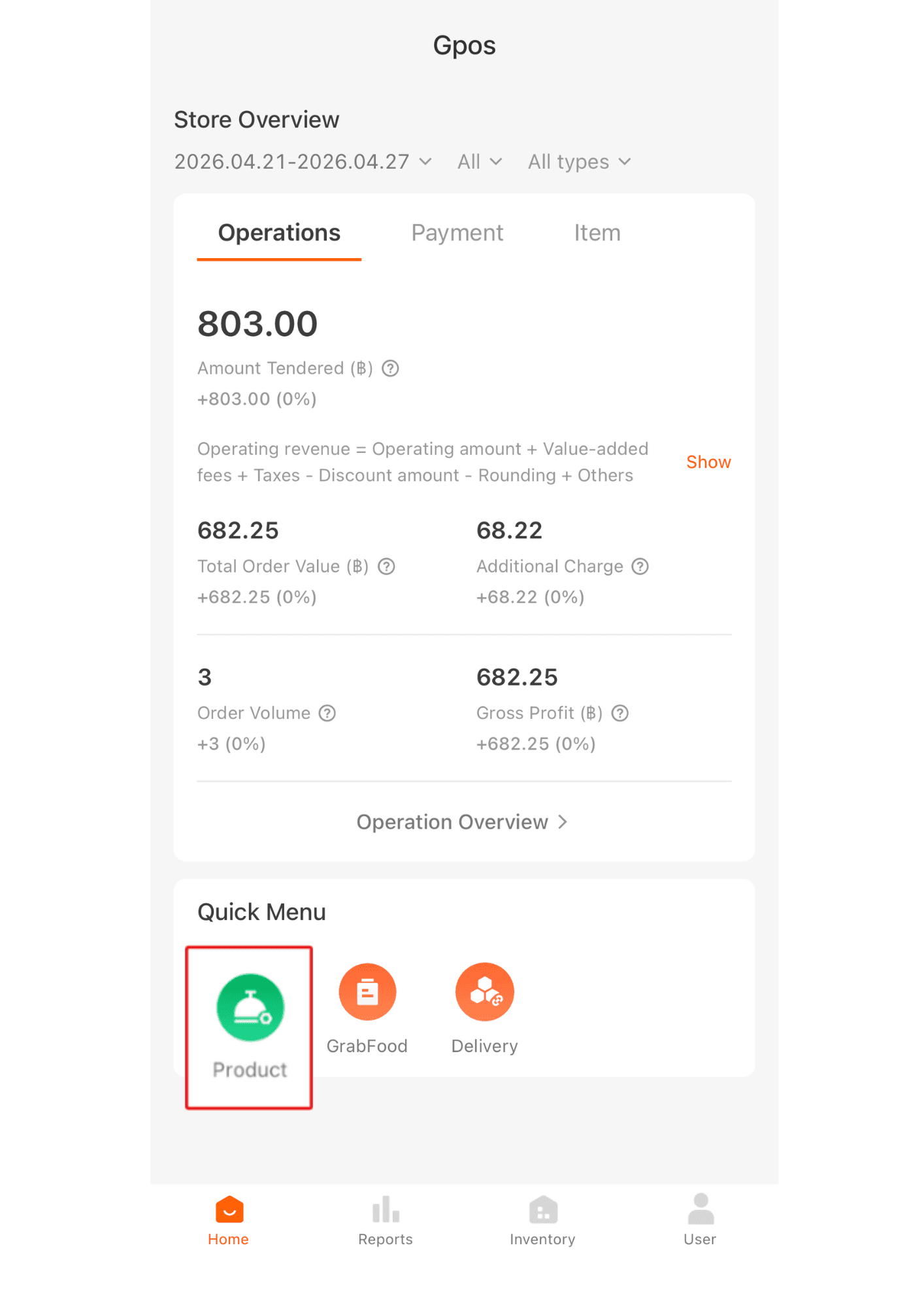
1. Click Products.
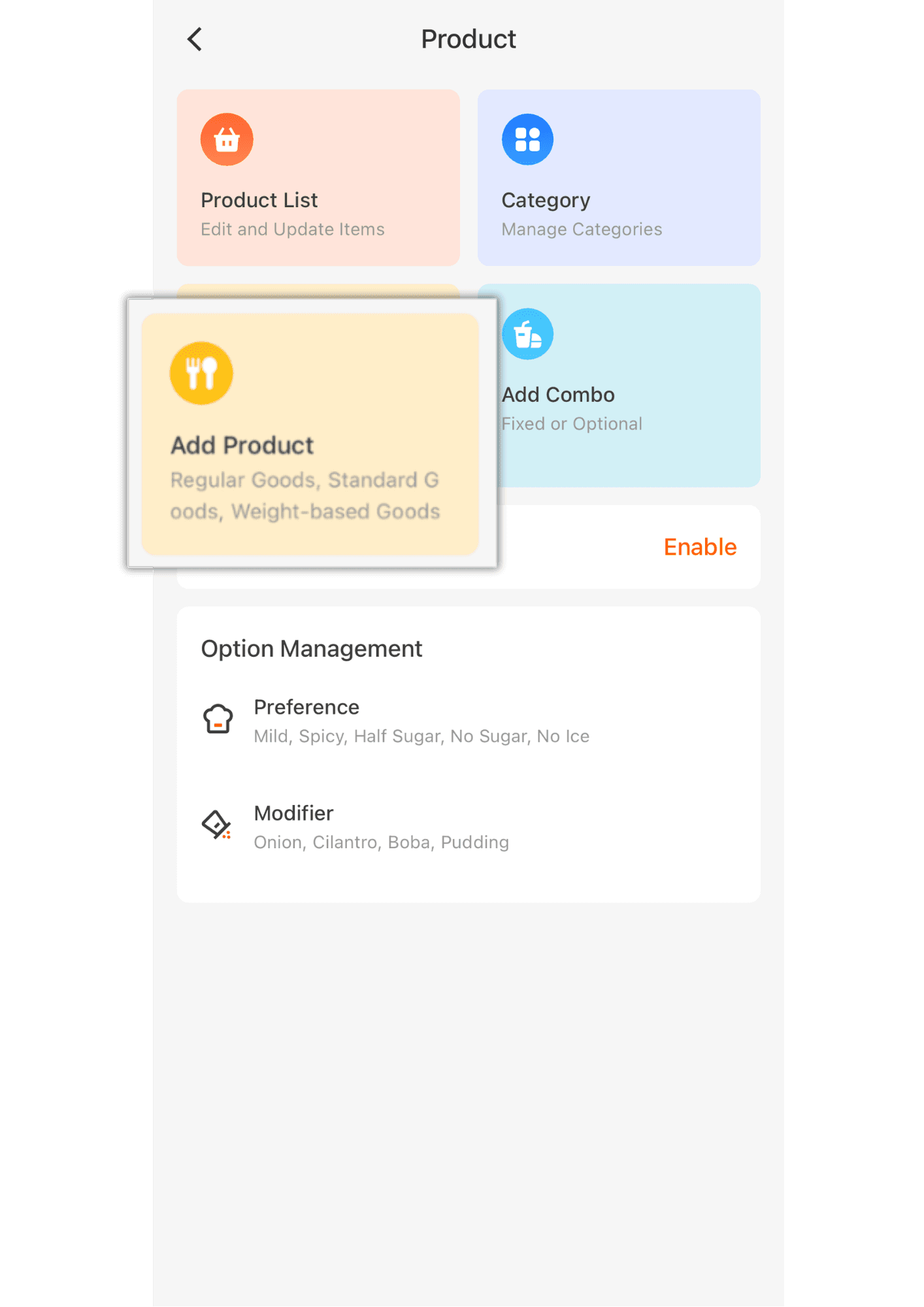
2.Click Add Product.
3. Enter the product name.
Top: Name displayed on the POS system.
Bottom: Name displayed on the Scan system.
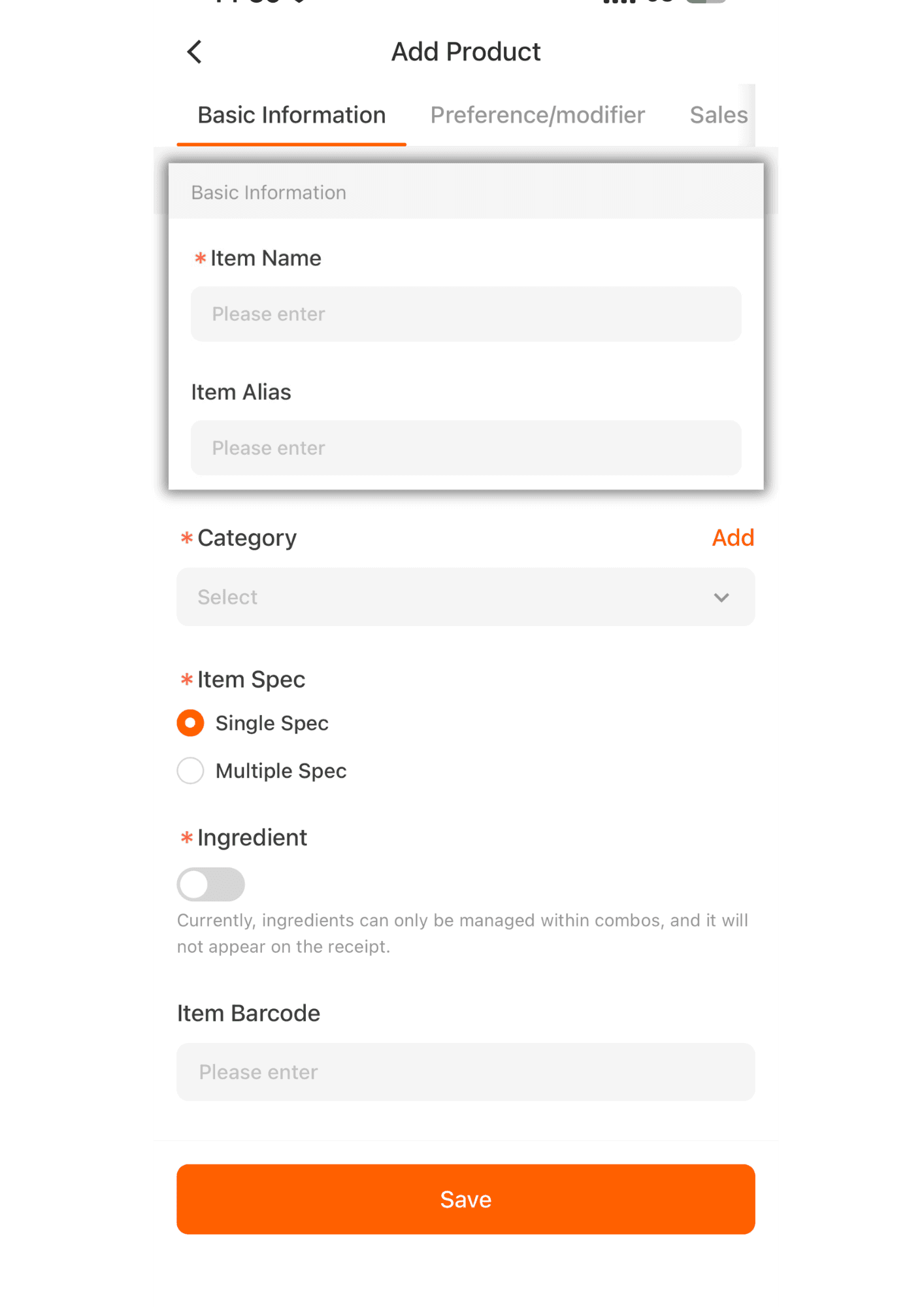
4. Click the V button to select the category that has been created.
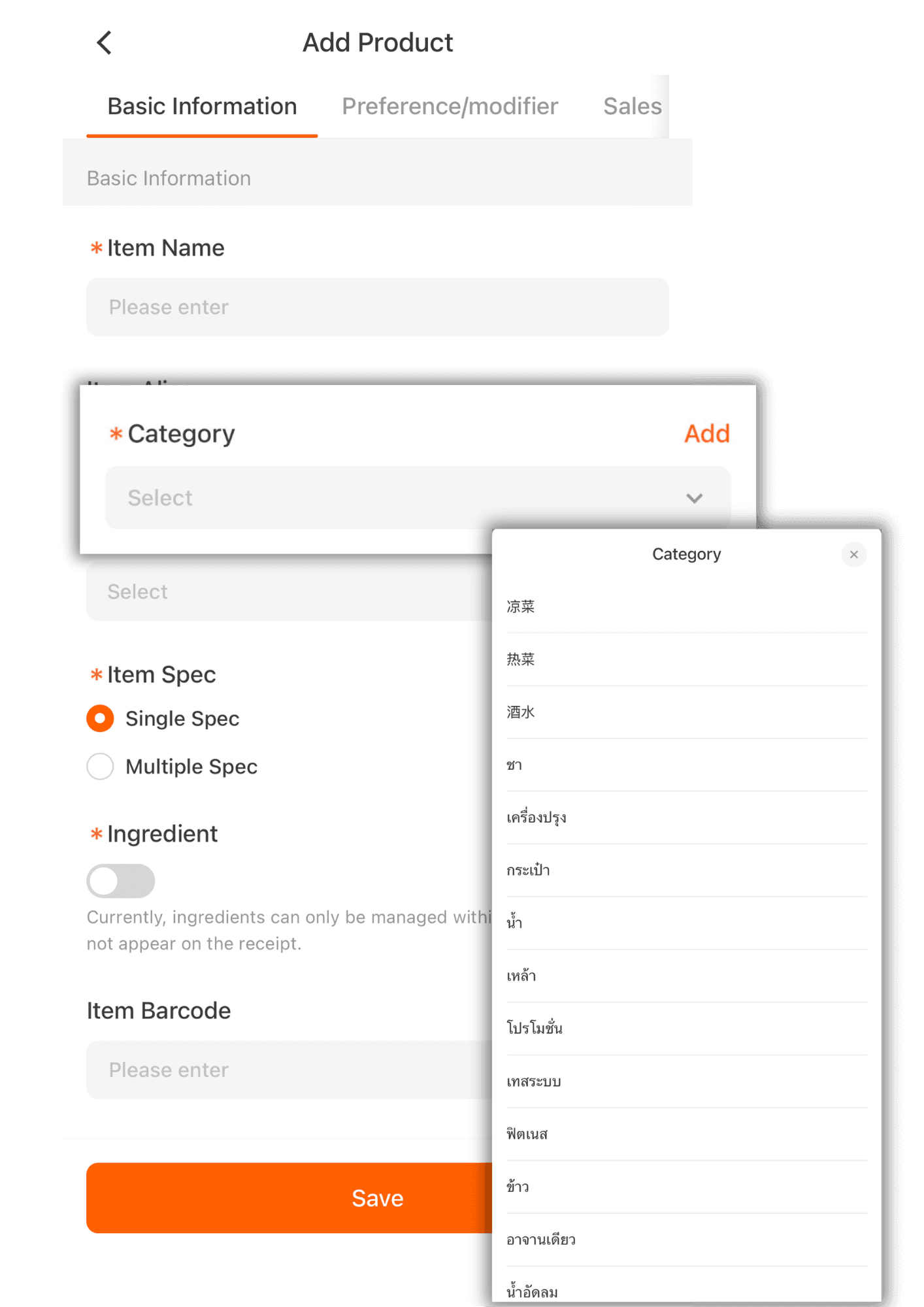
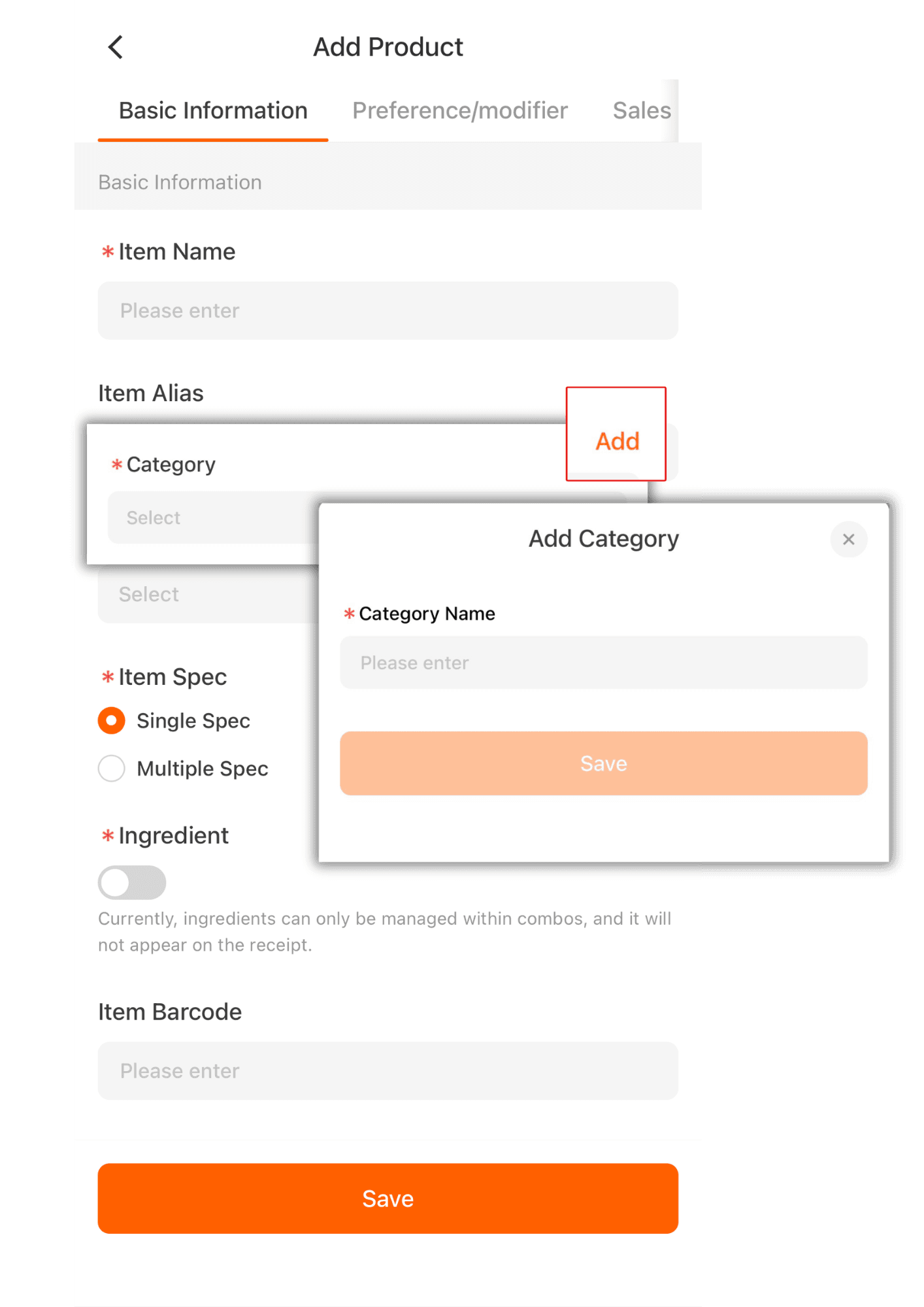
5. For the category, you can click Add to create a new category.
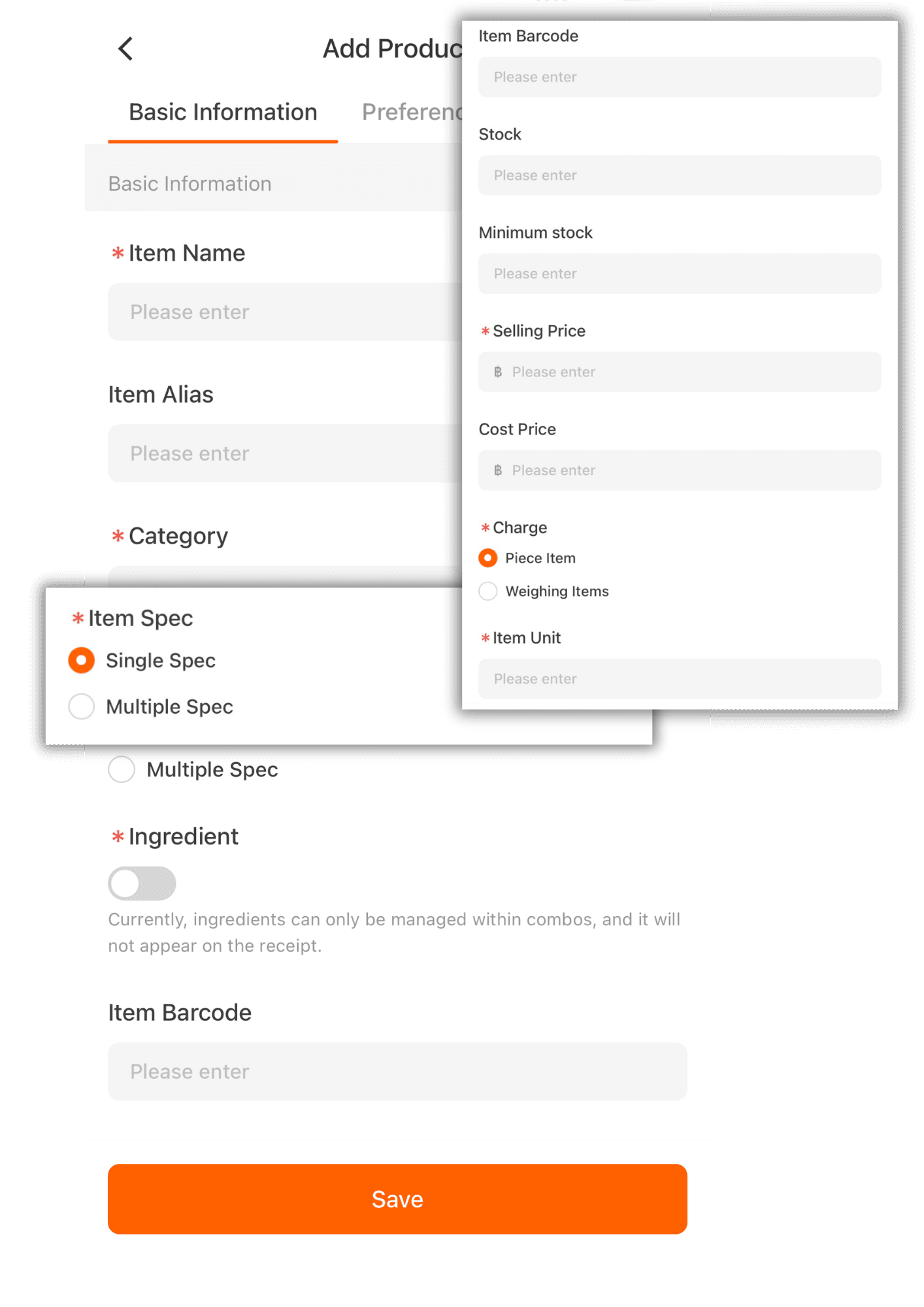
6. Single Spec refers to a single product. You can enter item details such as selling price, cost price, unit of the product, etc.
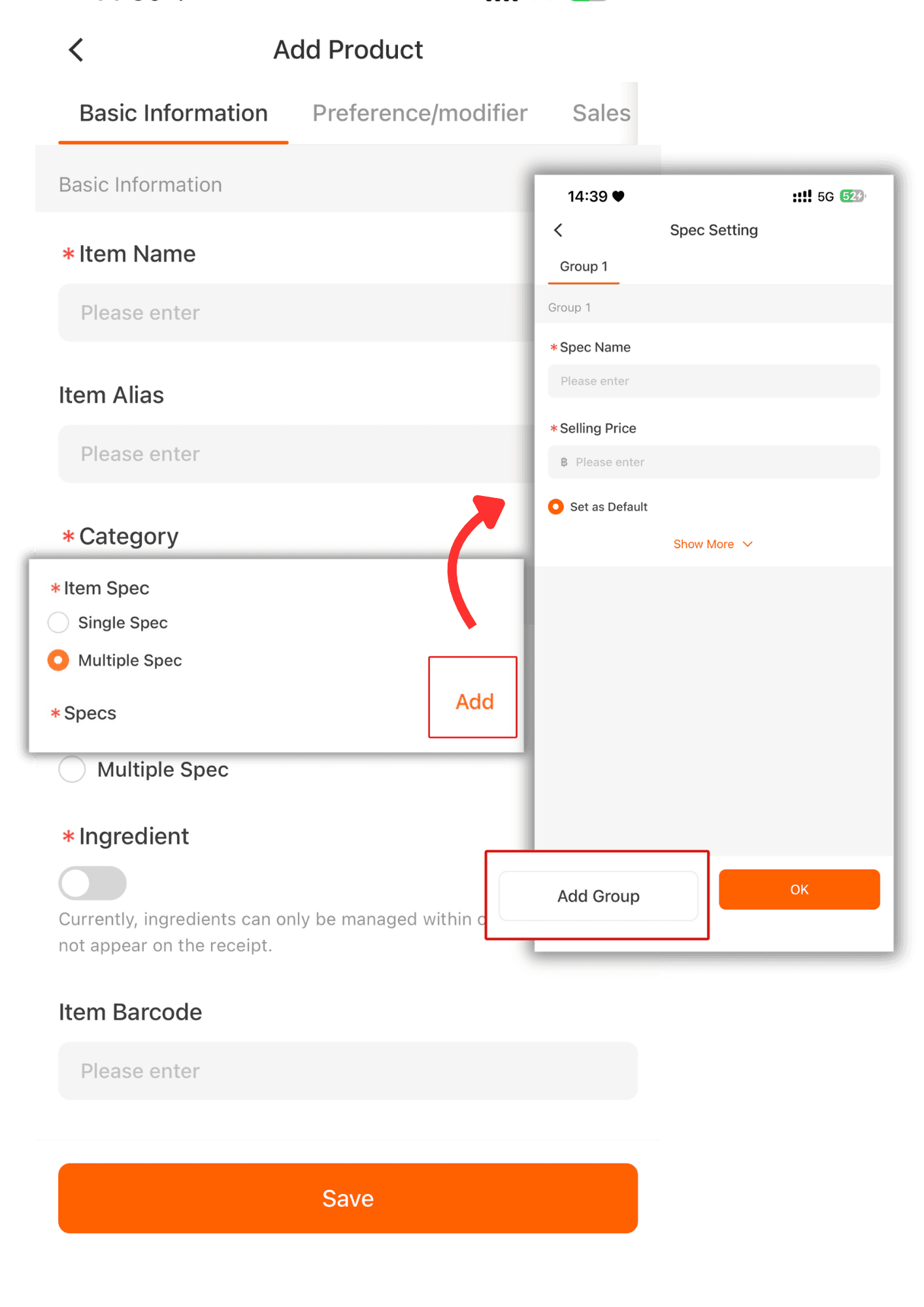
7. Multiple Spec refers to a product with multiple price options. For example, a shirt item with variants such as S, M, L, and XL, where each variant has its own price and barcode.
7. Piece Item refers to the product unit. You can enter the unit name according to what your store uses, such as bottle, glass, piece, item, etc.
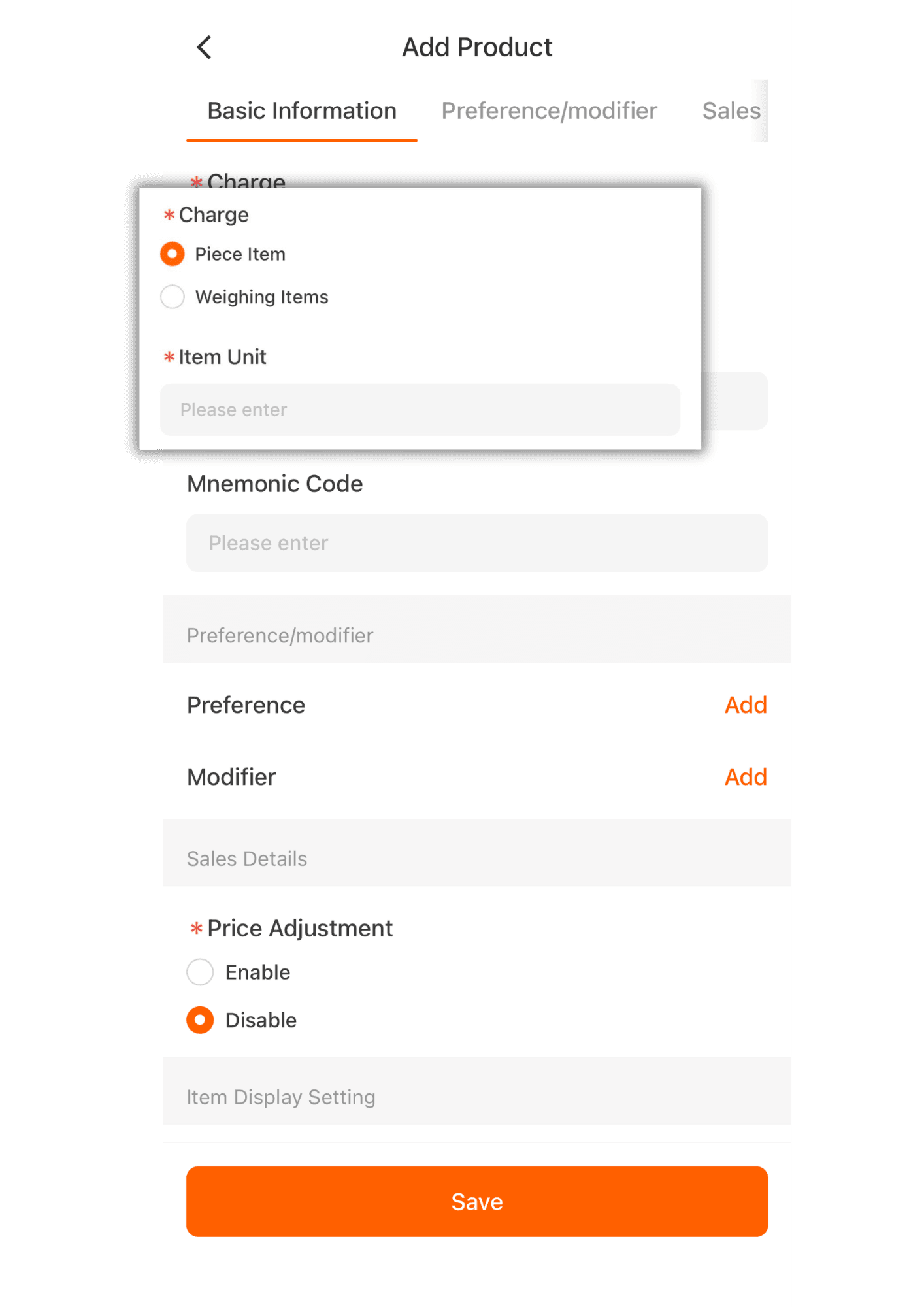
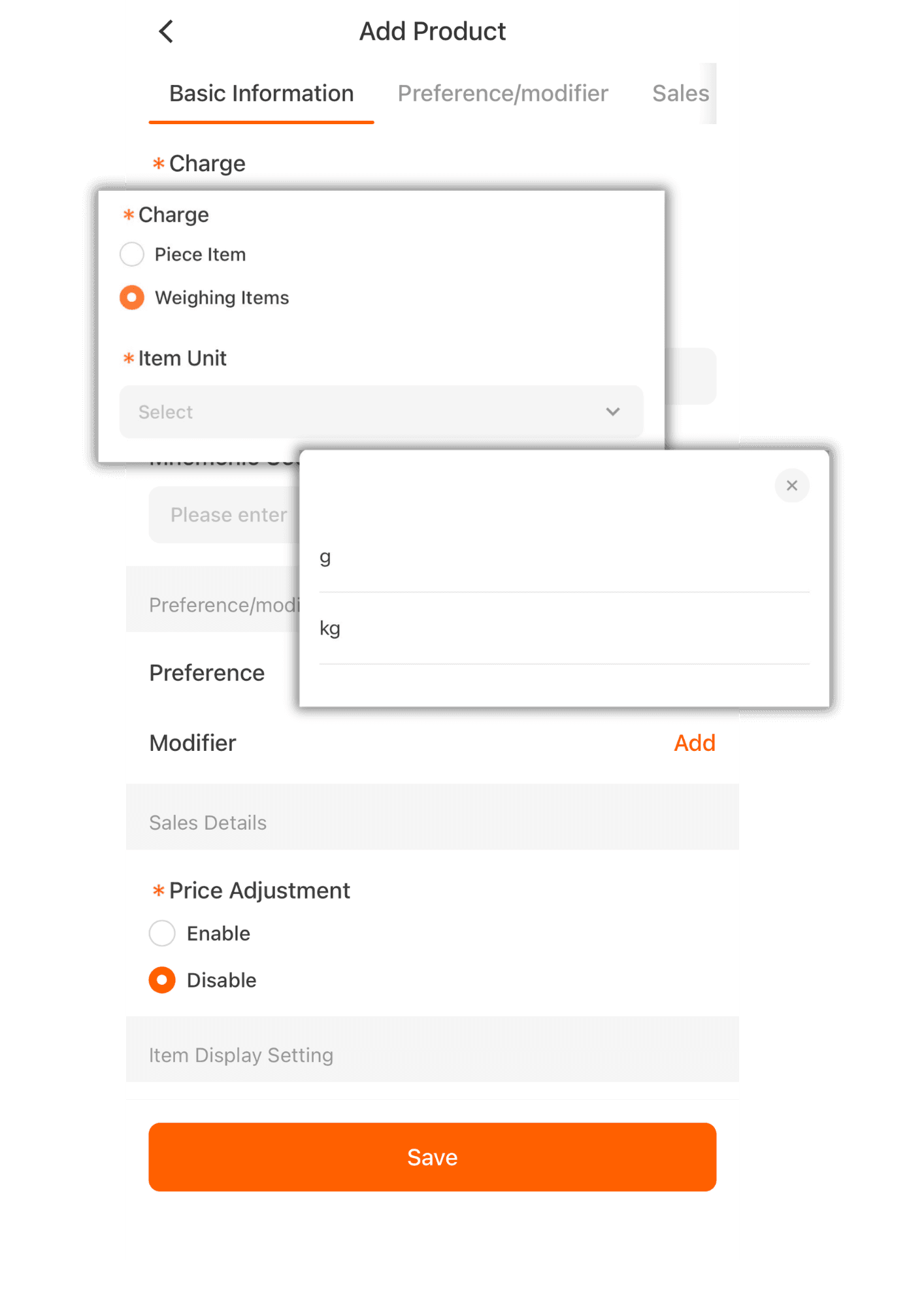
8.Weighing Items refers to weight units. You can choose between two formats: g or kg, etc.
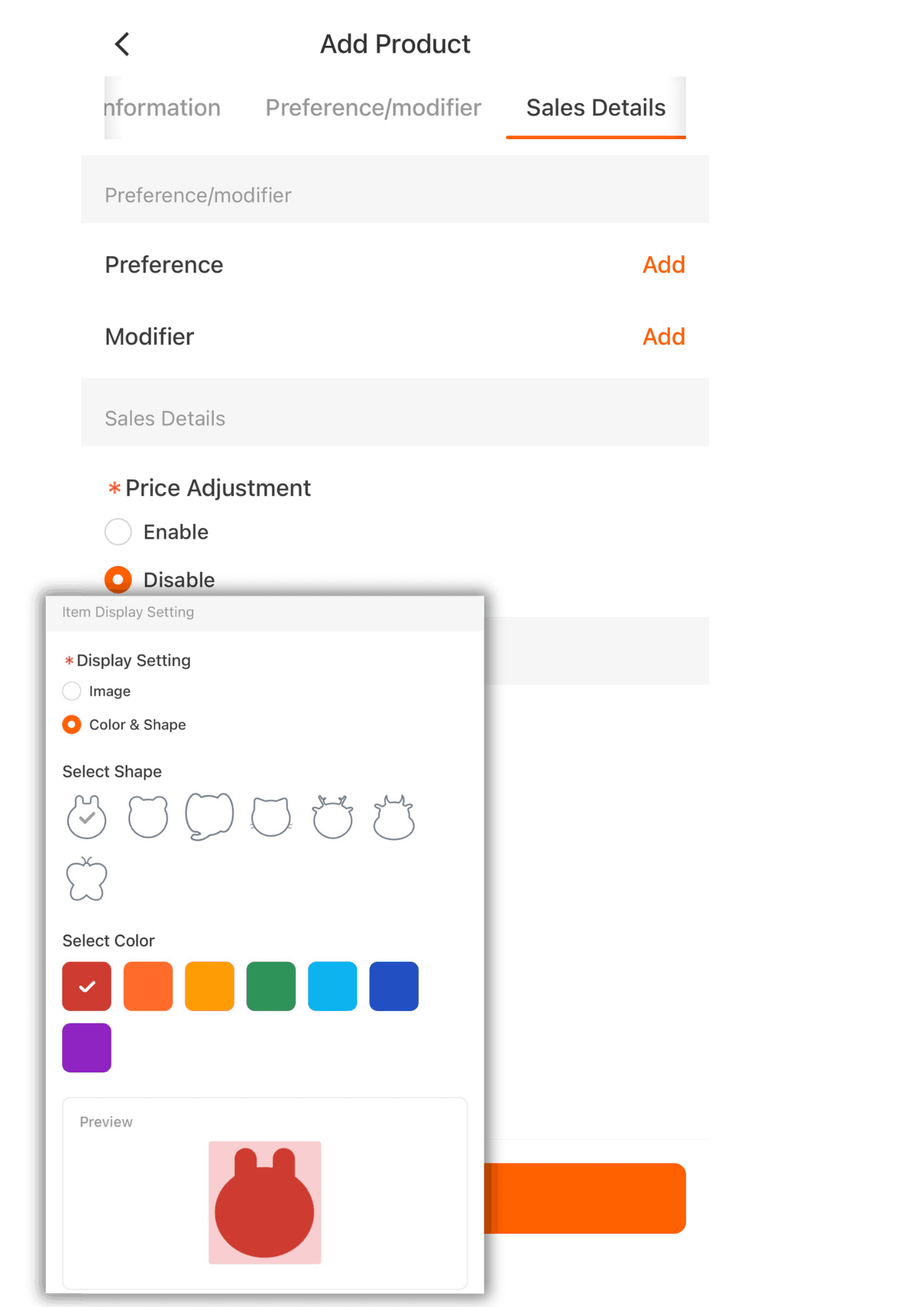
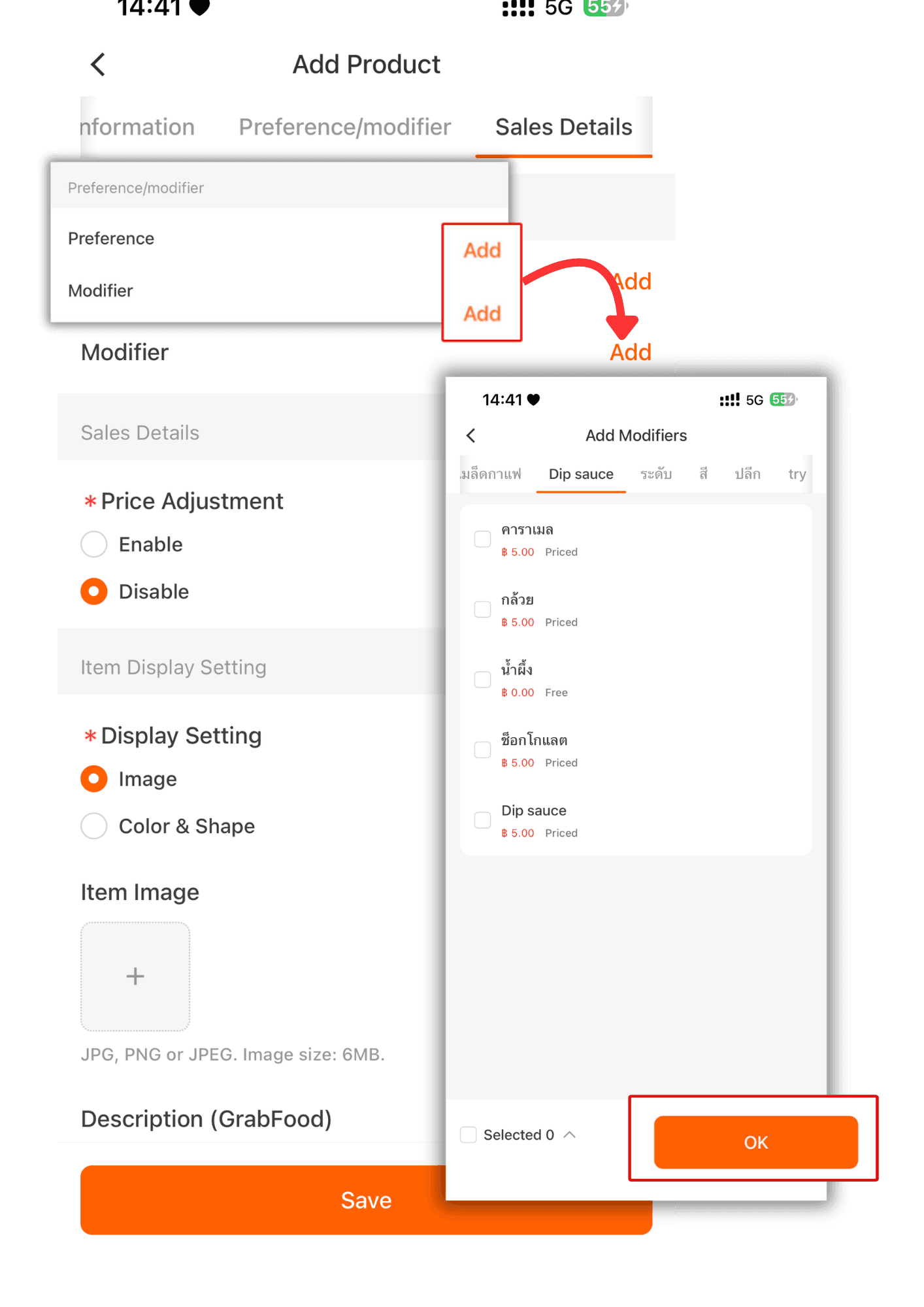
9. Preference/Modifier can be created in advance through the Option Creation Guide.
Select the created option, then click Confirm.
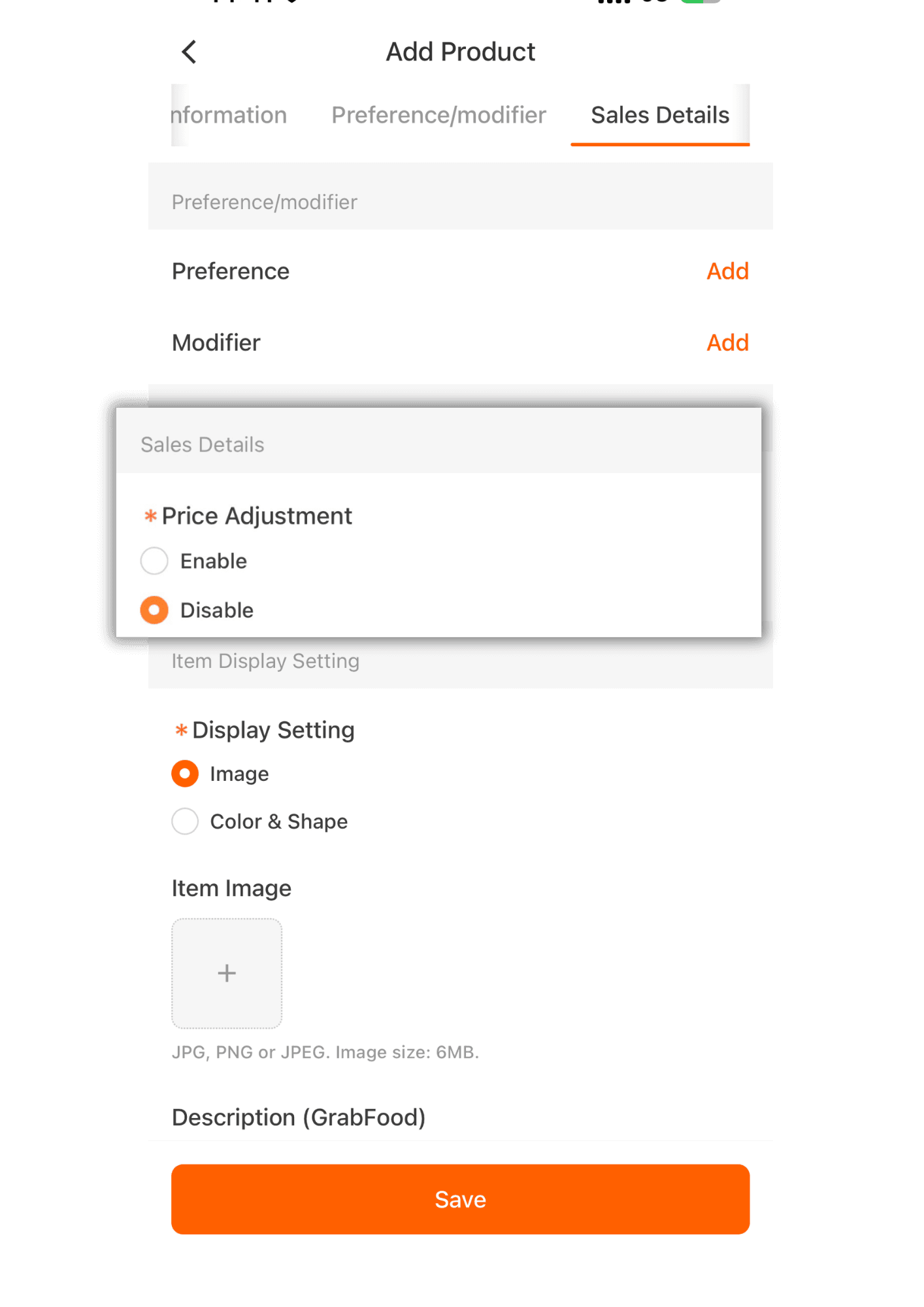
10.You can manually set the price on the system device screen.
11. You can add images by uploading them from your mobile phone.
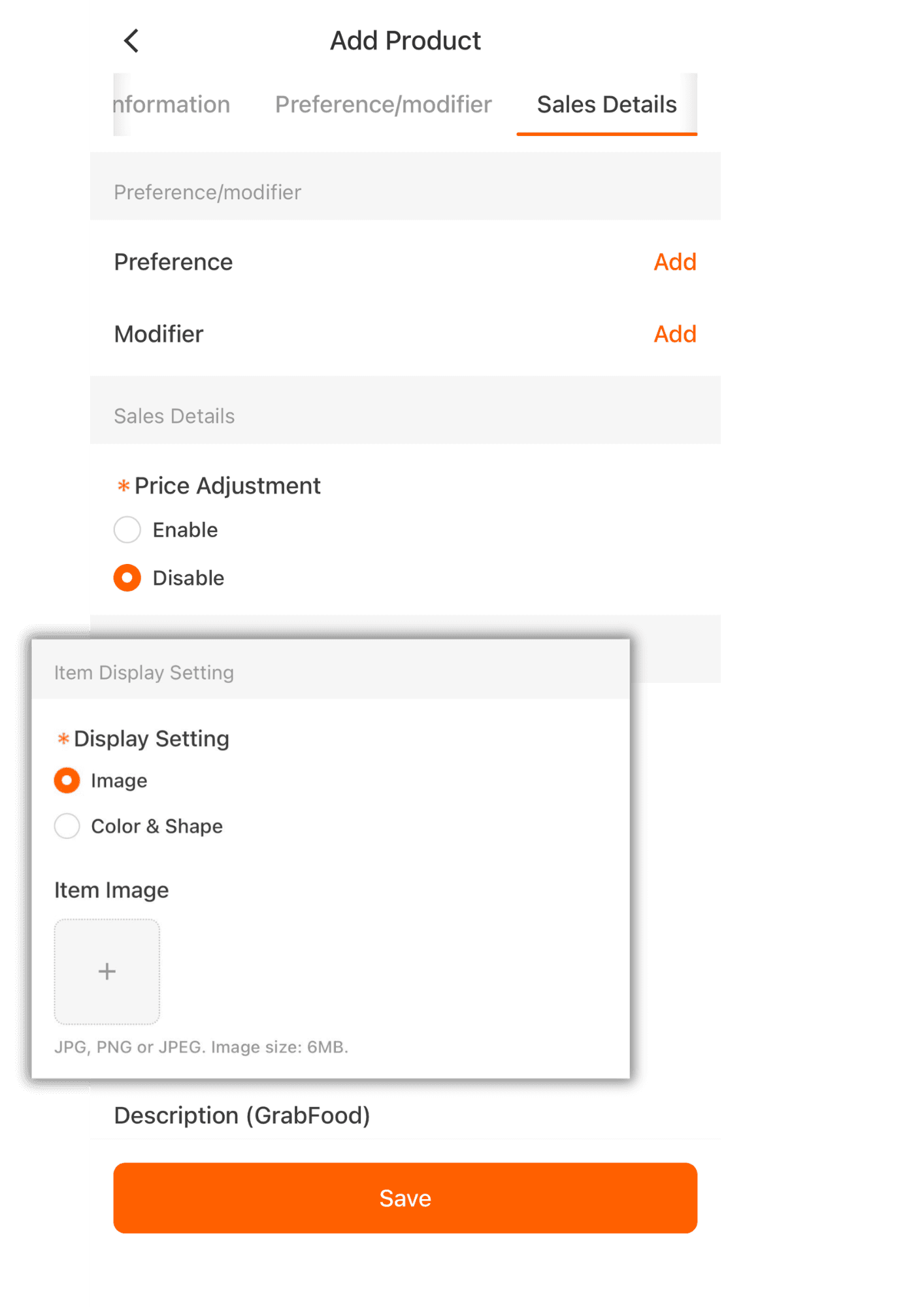
12.You can also choose a shape icon instead of adding an image.