





Tax Management
17 Jan 2026 · 03:36 PM
Configuring the system according to this guide helps ensure accurate tax calculation and display by product category, supports legally compliant tax invoice issuance, reduces tax calculation errors, and improves the efficiency of tax management for the business.
1. Log in to the Back Office
Go to login.gpos.co.th, enter your email and password, then click Log in.
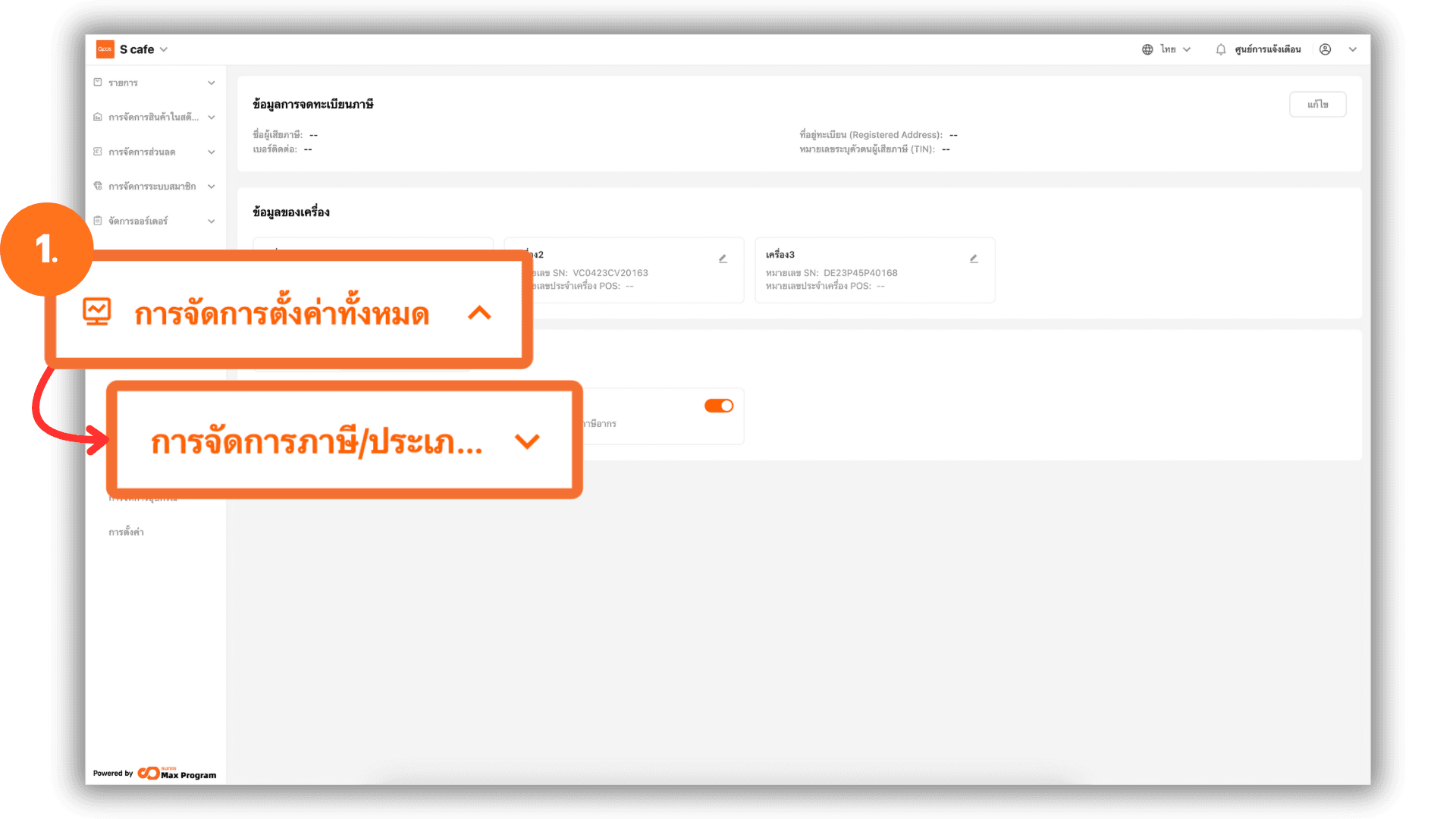
After successfully logging in, select Store Management, then choose Charge Management.
2. Taxpayer Information Management
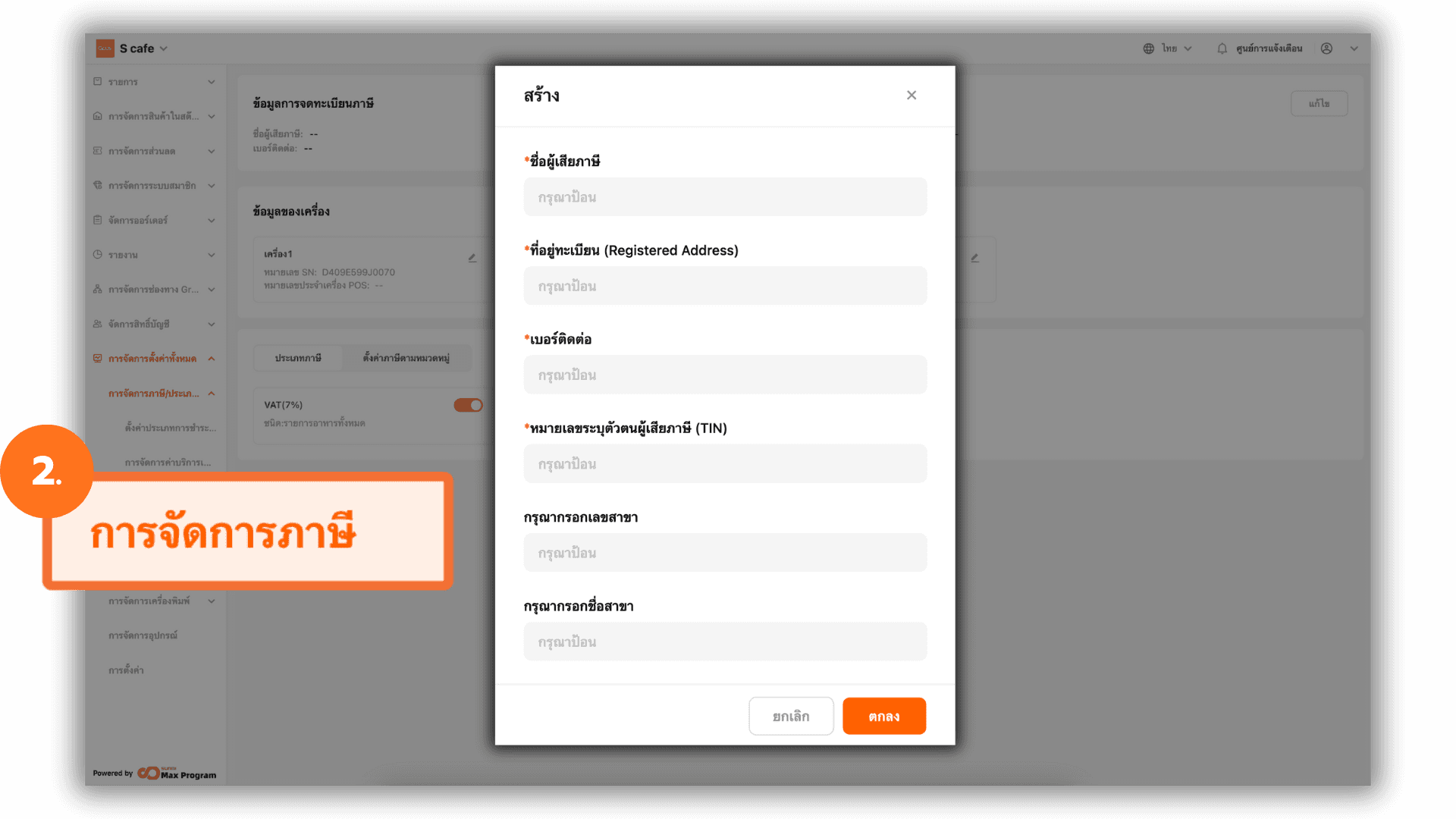
Click the Tax Management sub-menu. The system will display a screen for entering taxpayer information. If you do not wish to enter the information, you may click the x button to close the window or select Cancel.
2.1 Entering Taxpayer Information
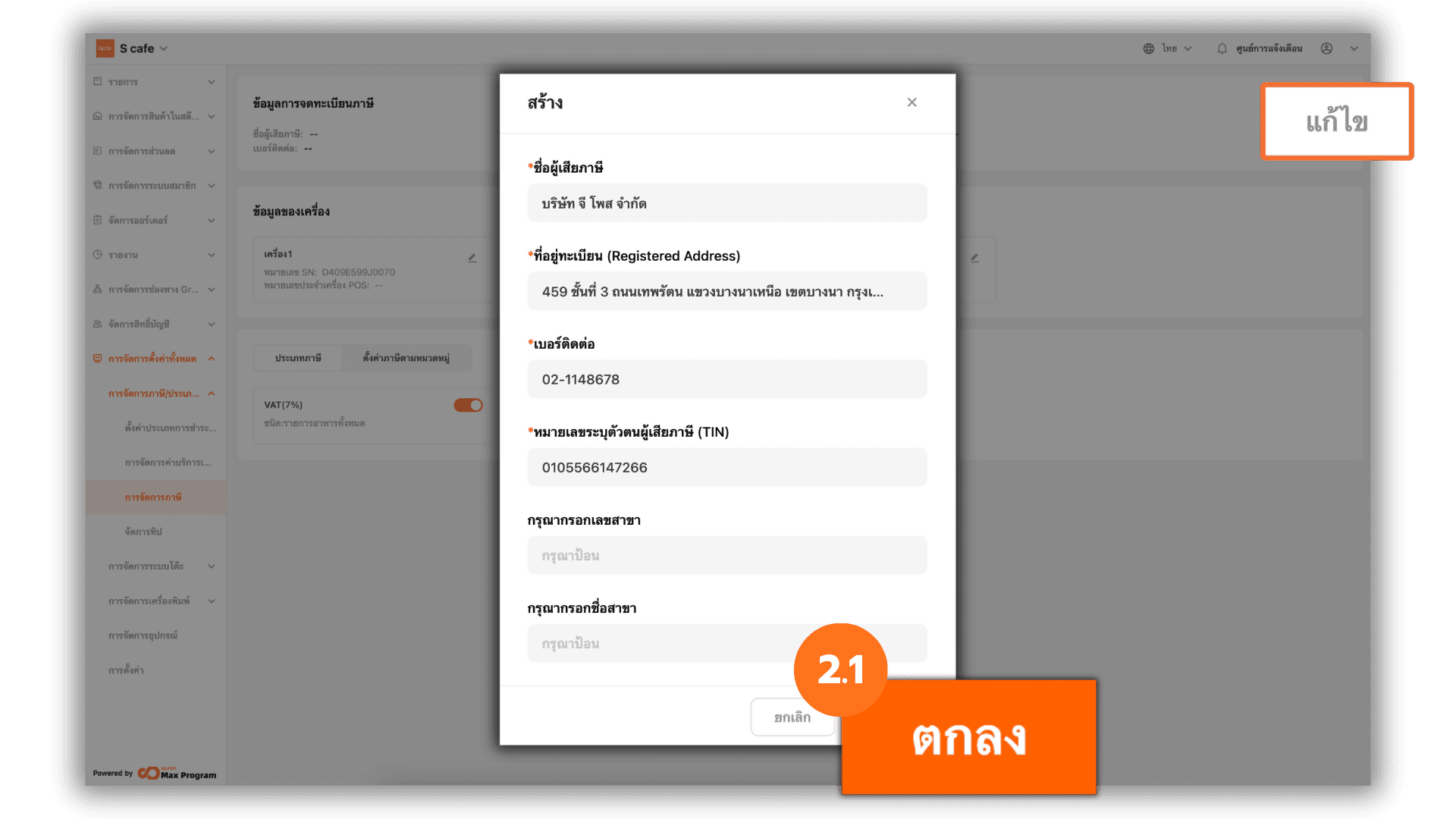
Complete all required taxpayer information as specified by the system. Once completed, click Ok. If the information is incorrect or needs to be updated, click Edit.
Note : Saved taxpayer information cannot be deleted and can only be edited. This information will be displayed on receipts / tax invoices.
3. POS Device Information Setup
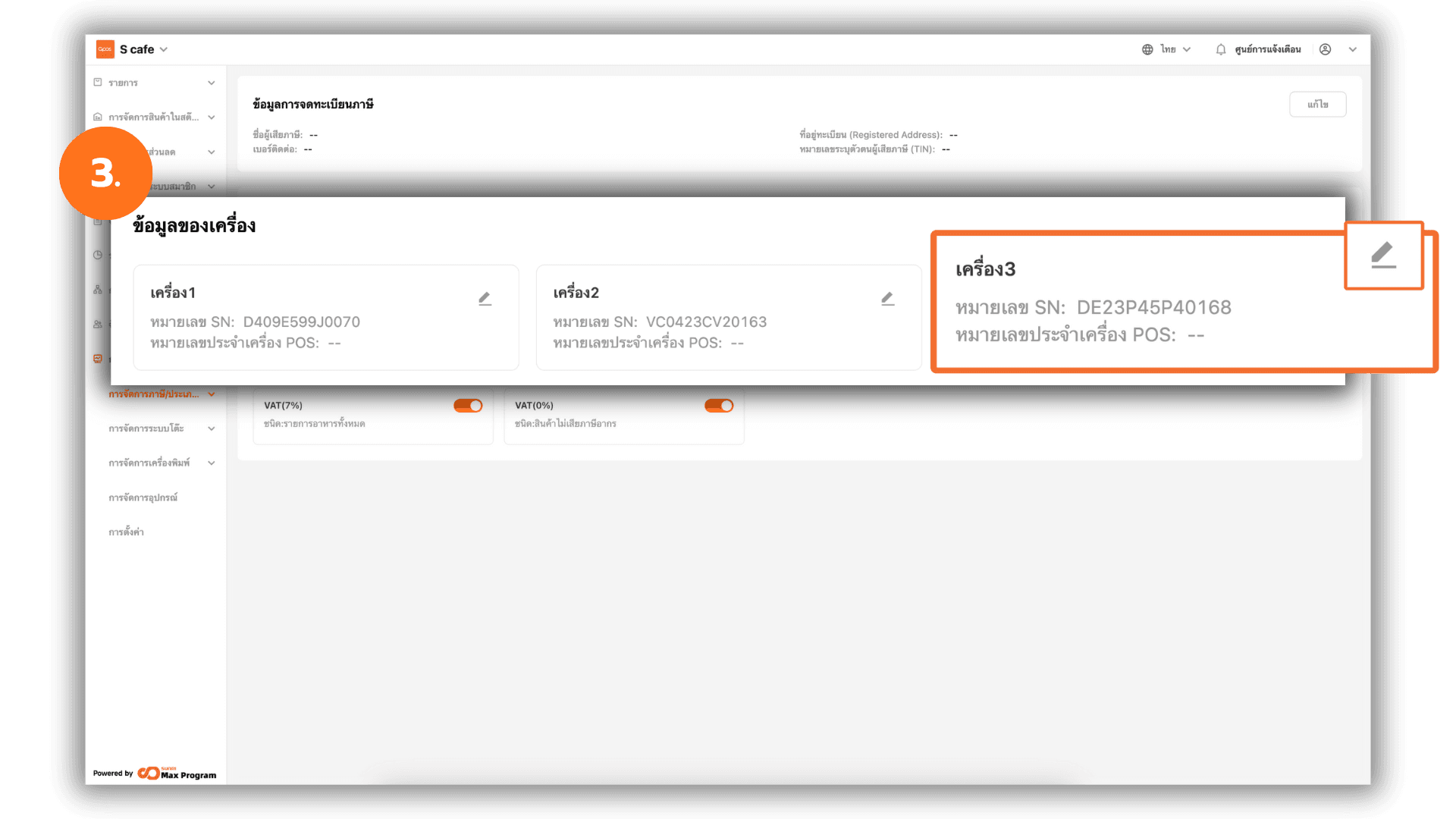
In the Device Information section, the system will display the number of devices in use and the SN (Serial Number) of each POS device logged in for front-of-house sales. Click the pencil icon to enter additional device information.
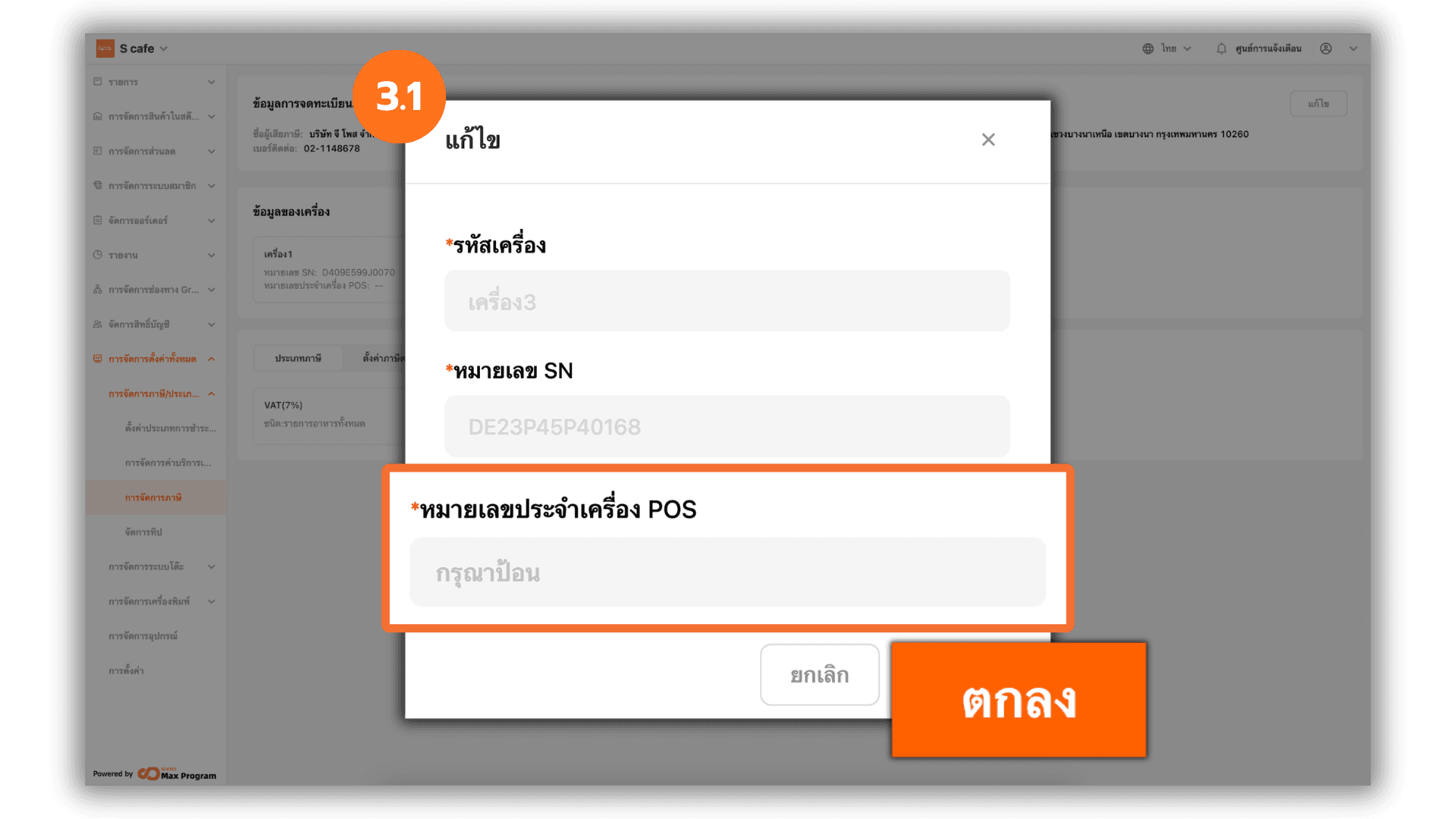
3.1 Entering the POS ID
Enter the POS ID, which is a unique identification number issued by the Revenue Department for each POS device. This number is required for issuing full tax invoices. After entering the information, click Ok to save.
Note : If you wish to issue tax invoices from 3 POS devices, all 3 devices must be registered with the Revenue Department.
4. Tax Type Configuration
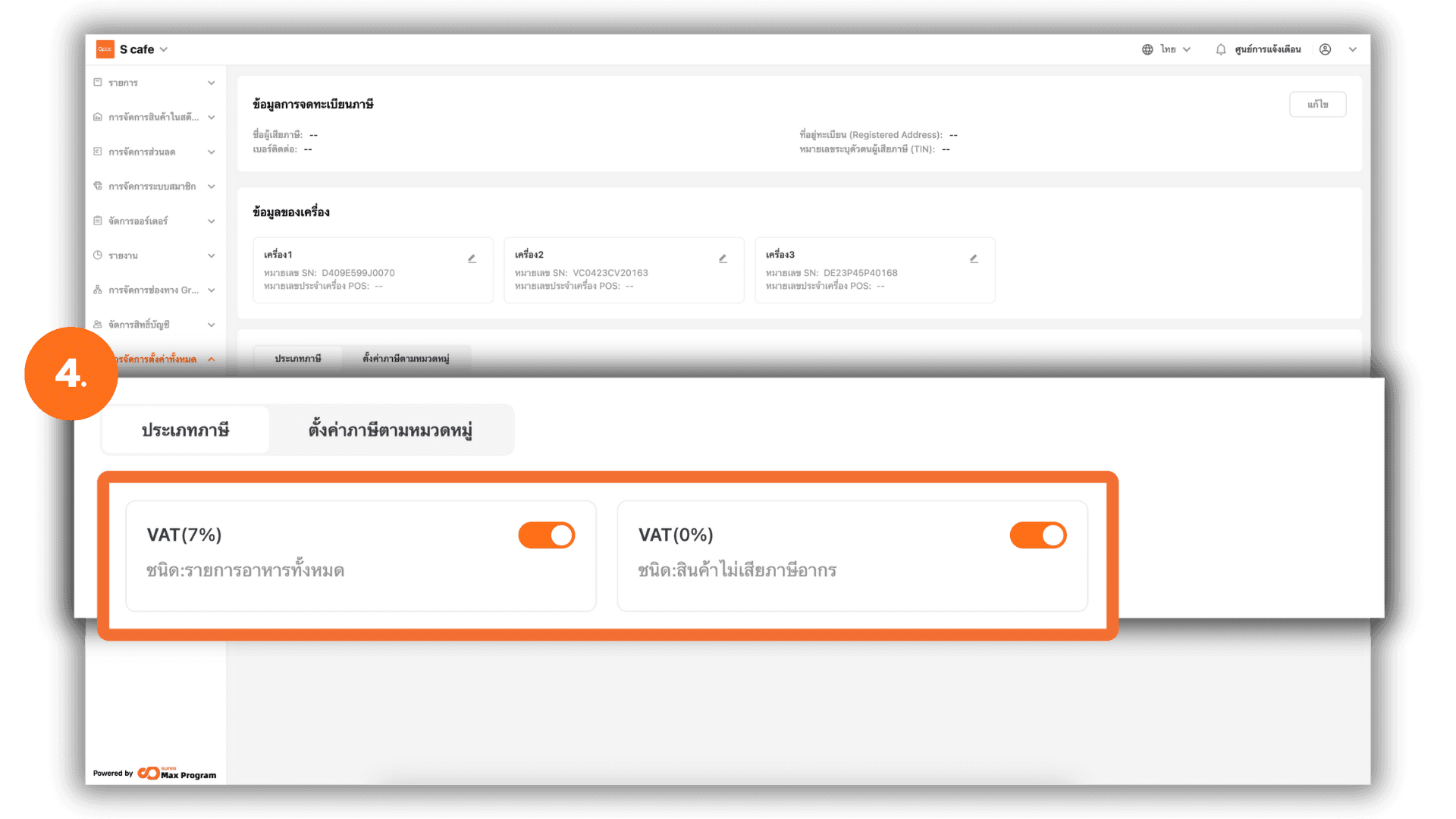
In the Tax section, enable the required tax options. The system provides two tax types:
- VAT (7%): Taxable products
- VAT (0%): Non-taxable products
5. Tax Configuration by Product Category
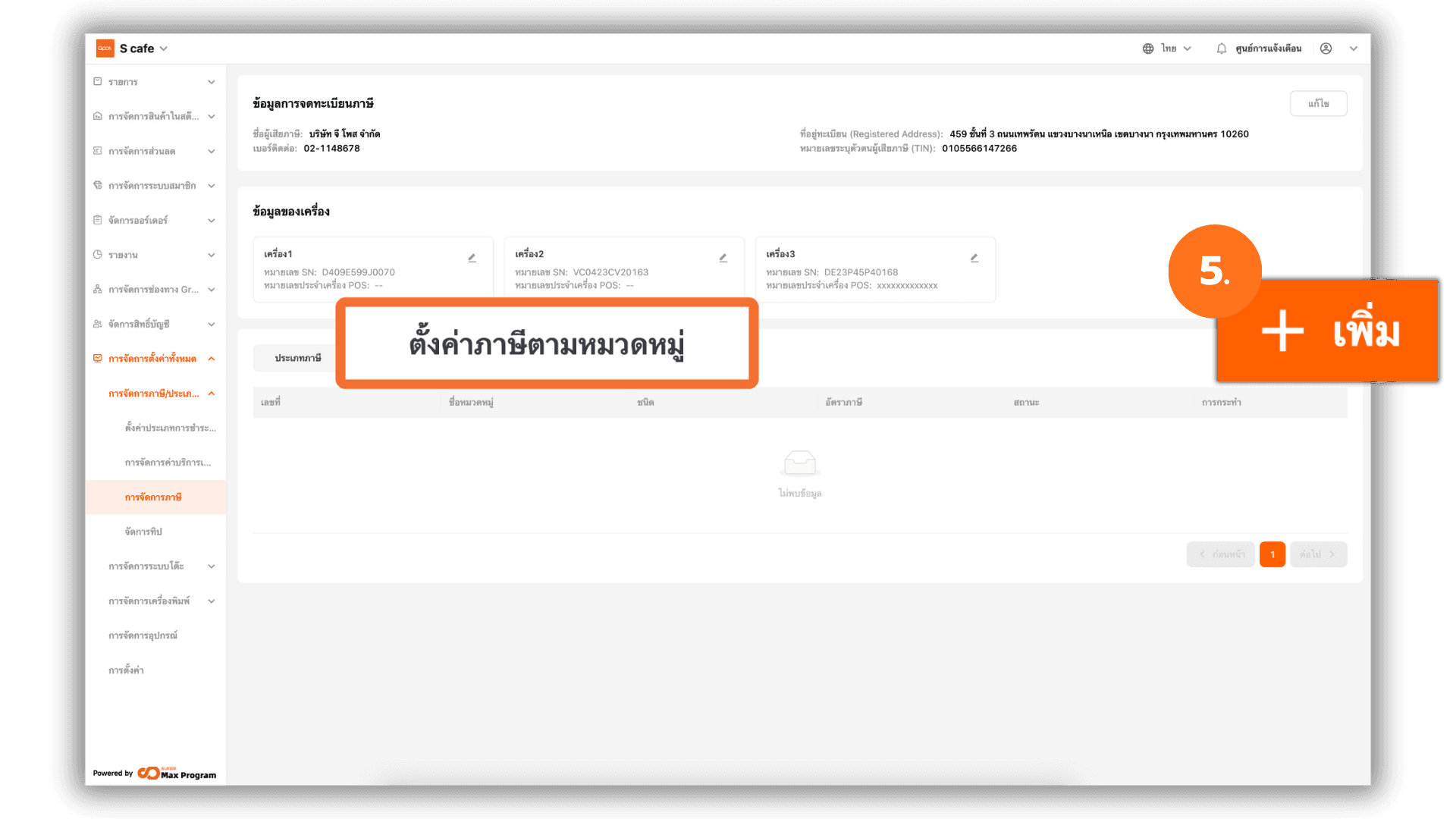
Go to Tax by Category. Click + Add to configure product categories that are subject to tax and are not subject to tax, according to your business requirements.
Note : Tax configurations created in this section cannot be deleted.
5.1 Selecting the Tax Type
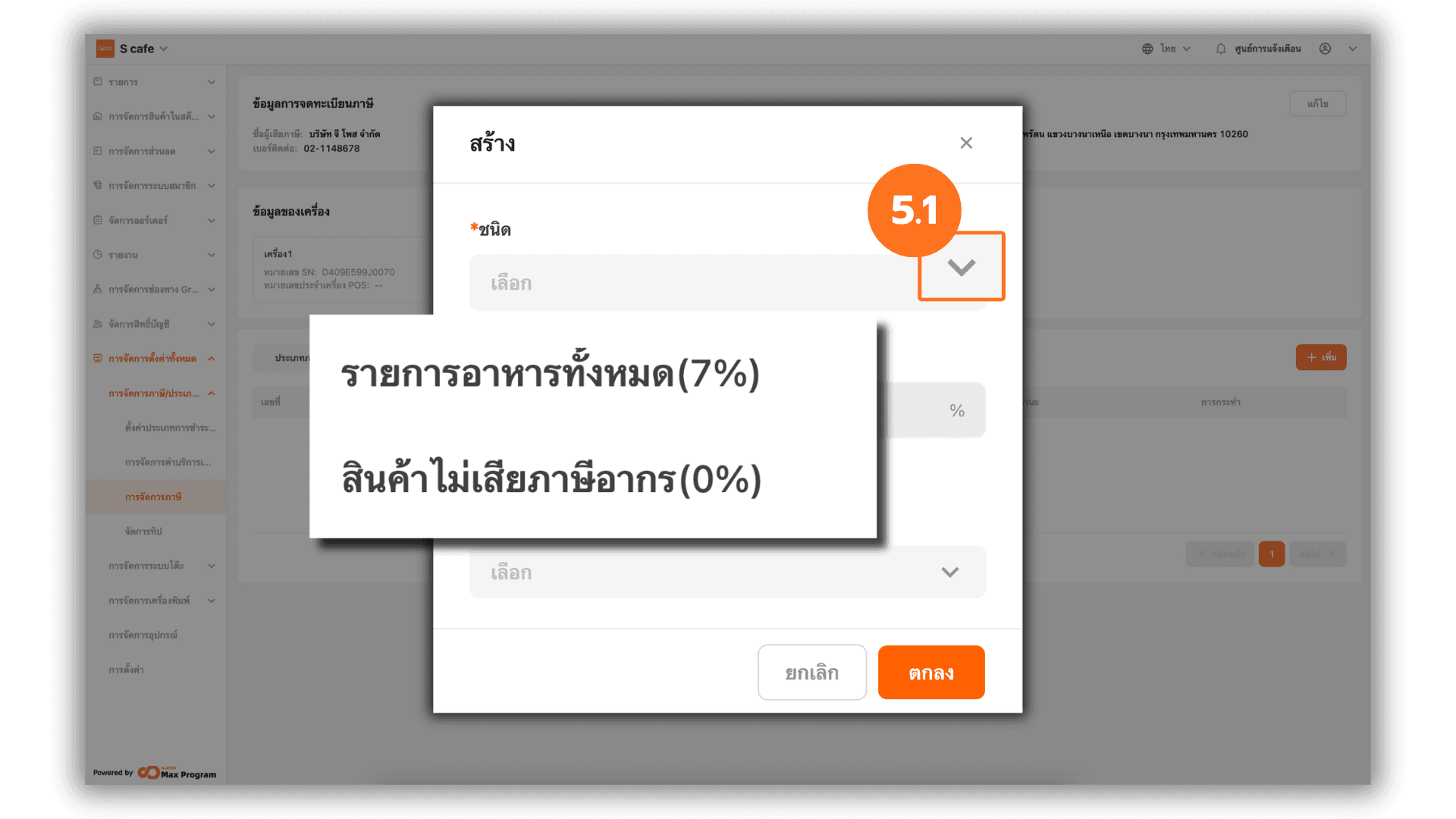
After clicking + Add, the system will display Type options. Click the drop-down arrow to select the desired tax type:
- All Food Items (7%) – Taxable products
- Non-Taxable Goods (0%) – Non-taxable products
The tax rate will be automatically applied based on the selected tax type.
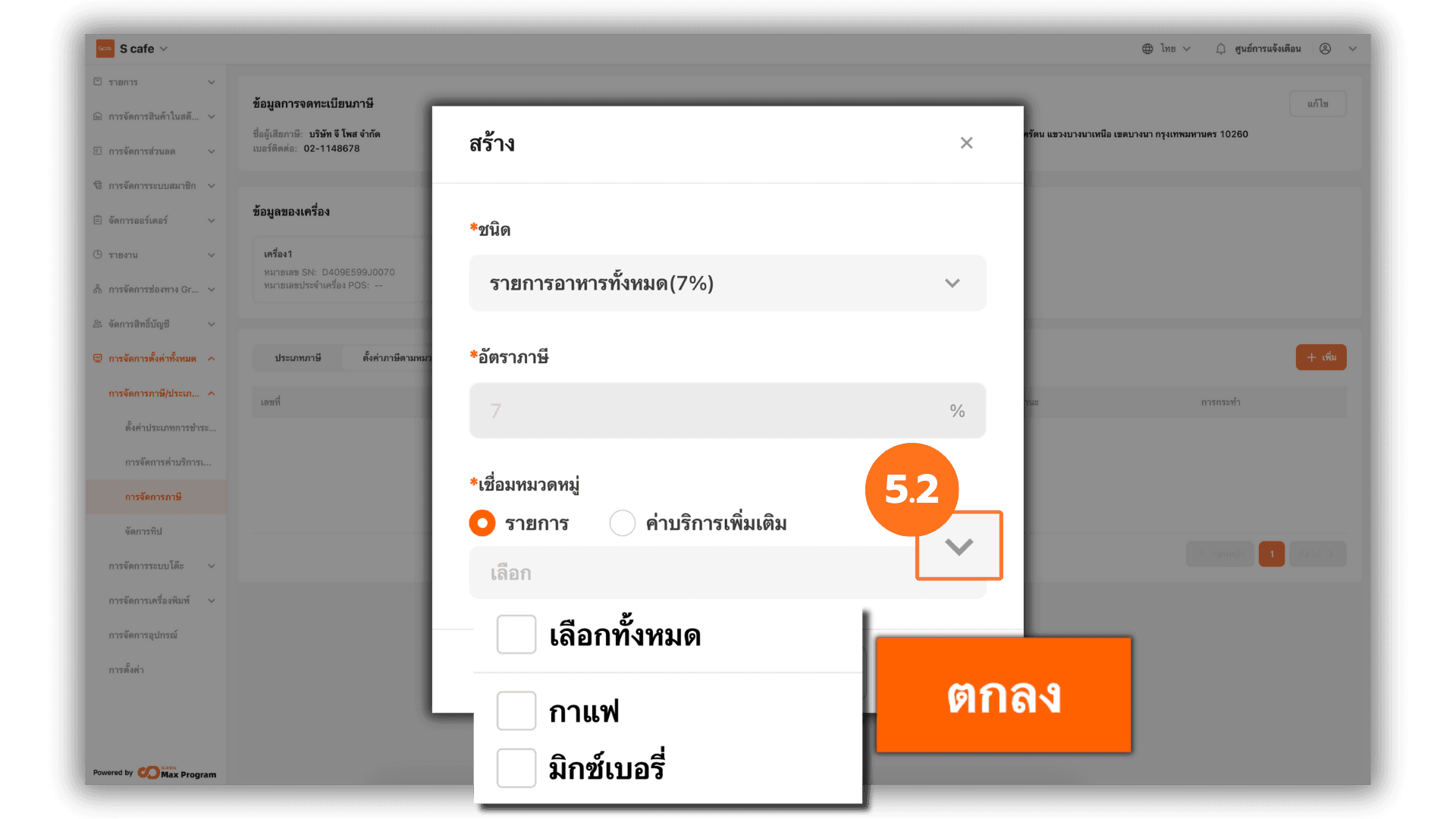
5.2 Linking Product Categories to Tax
Select the product categories to be linked with the selected tax type. Click the drop-down arrow to view all categories, check the desired categories, then click Ok to save the configuration.
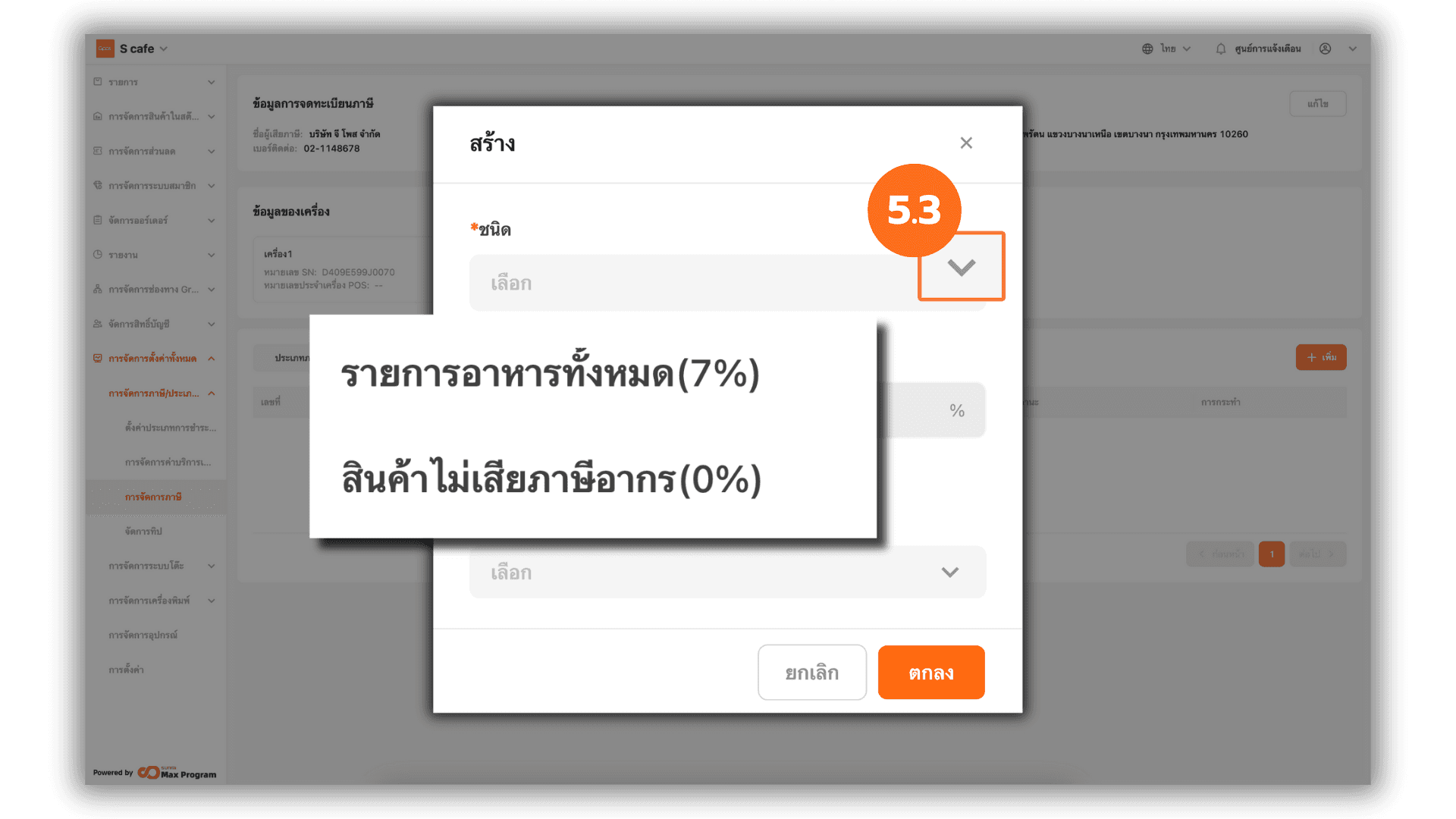
5.3 การตั้งค่าค่าบริการเพิ่มเติมกับภาษี
To configure this section, additional service charges must be created first.
You can view how to create them under Manage service charges. After creating the service charge, select the type using the drop-down menu
- All Food Items (7%) – Taxable service charges
- Non-Taxable Goods (0%) – Non-taxable service charges
The system will automatically apply the tax rate based on the selected tax type.
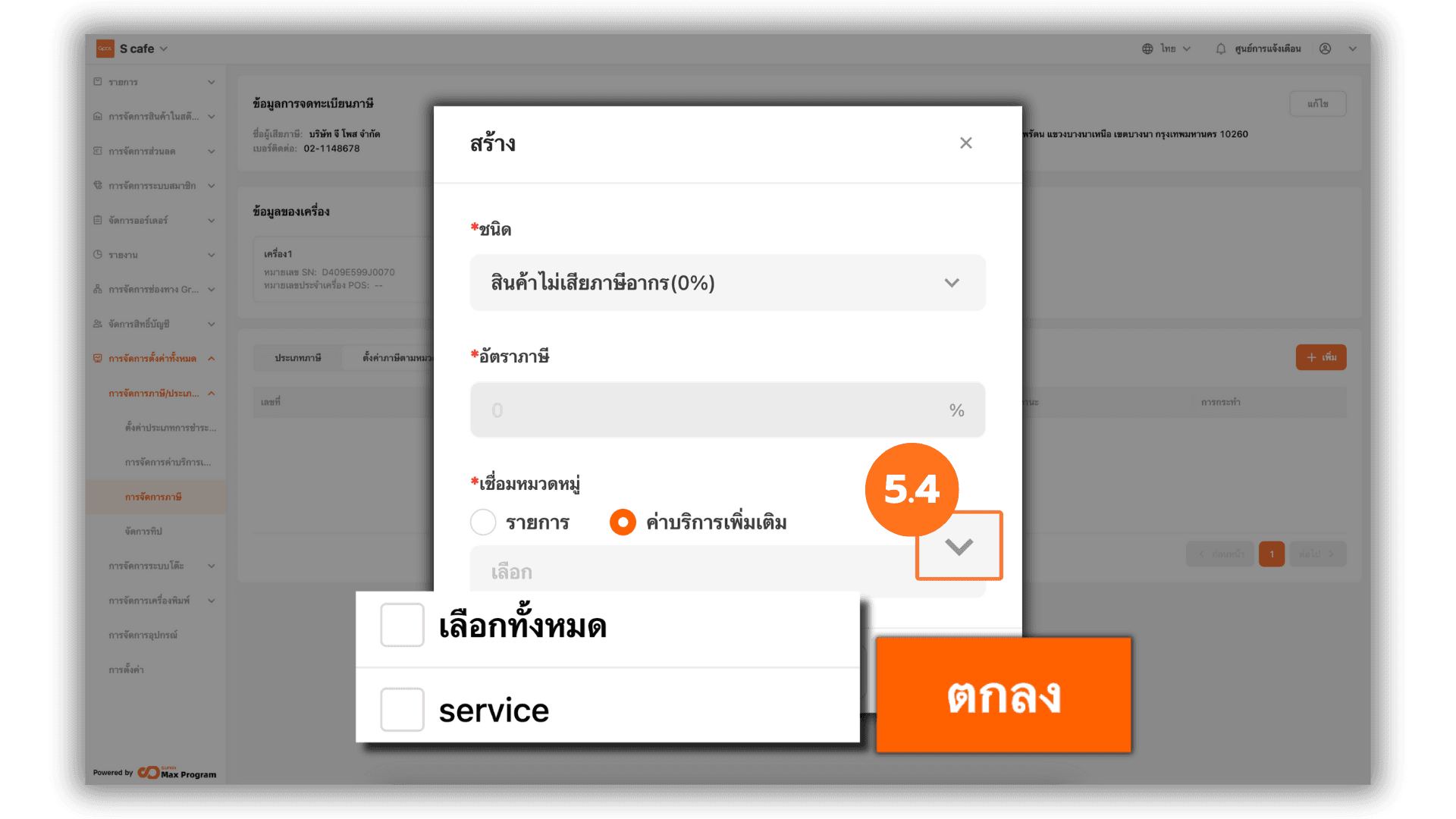
5.4 Linking Additional Service Charges to Tax
Select the additional charges to be linked with the selected tax type. Click the drop-down arrow, check the desired service charges, then click Ok to save the configuration.
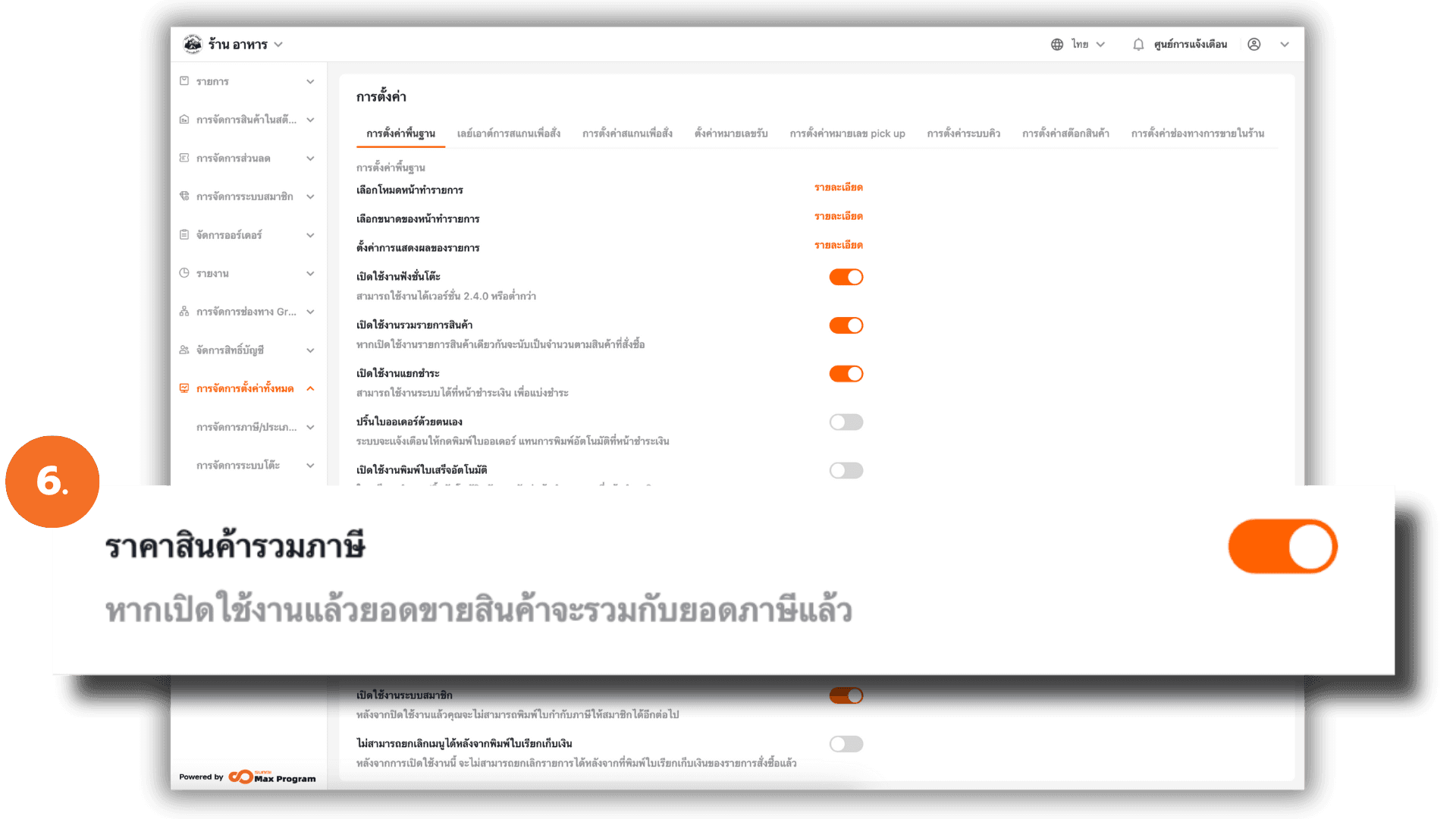
6. Enable / Disable “Tax-Inclusive Pricing”
Go to Store Management, then select Store Settings from the top menu. Configure Enable / Disable Tax Inclusive Item Price.
Note : Enabling or disabling Tax Tax Inclusive Item Price also applies to additional service charges that are linked with tax.
Explaining Tax-Inclusive and Tax-Exclusive Pricing
If Enabled : The system will assume that your selling price already includes VAT.
- Calculation Method :
Product Price x (100 / 107) = Pre-tax Price - Example : Product price is 100 THB → 93.46 THB (pre-tax) + 6.54 THB (VAT) = 100 THB
If Disabled : The system will assume that your selling price excludes VAT.
- Calculation Method :
Product Price x (7 / 100) = VAT Amount - Example : Product price is 100 THB → VAT 7% = 7 THB → Total = 100 + 7 = 107 THB